 Shake Flashlight
A flashlight that answers to a shake
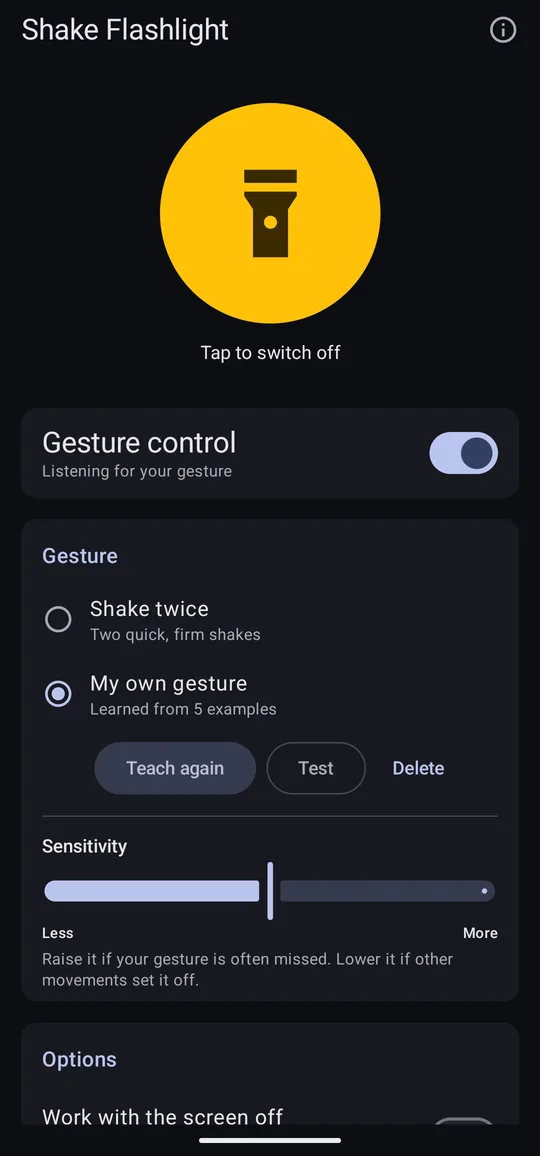
Shake Flashlight switches your phone's flashlight on and off with two quick shakes, or with a movement of your own that you teach it. No unlocking, no hunting for a button in the dark.
Free. No adverts, no in-app purchases, and no internet access.
What it does
Reaching for a light usually means unlocking the phone and finding a switch, which is exactly what is hard to do in the dark. Shake Flashlight listens for a gesture instead, and toggles the flashlight the moment it sees it.
-
Shake twice
Two quick, firm shakes switch the light on; two more switch it off. Sliders set how firm a shake has to be and how quickly the two must follow each other, so it suits you and not the bus you are on.
-
Or teach it your own gesture
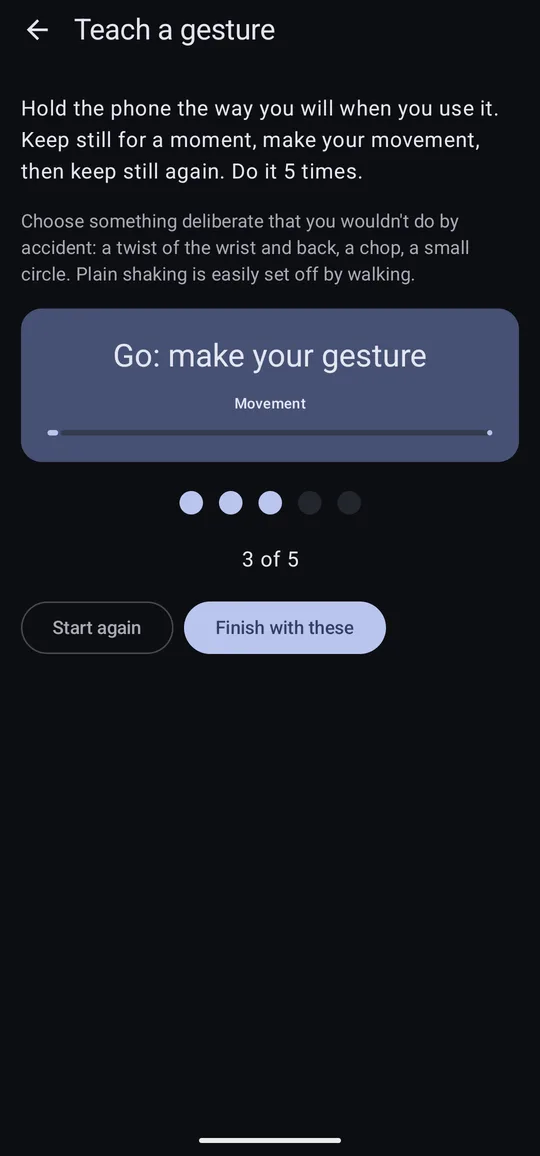
A twist of the wrist and back, a chop, a small circle — whatever you like. Show the phone five times and it learns the movement. How to teach it.
-
Try it before you rely on it
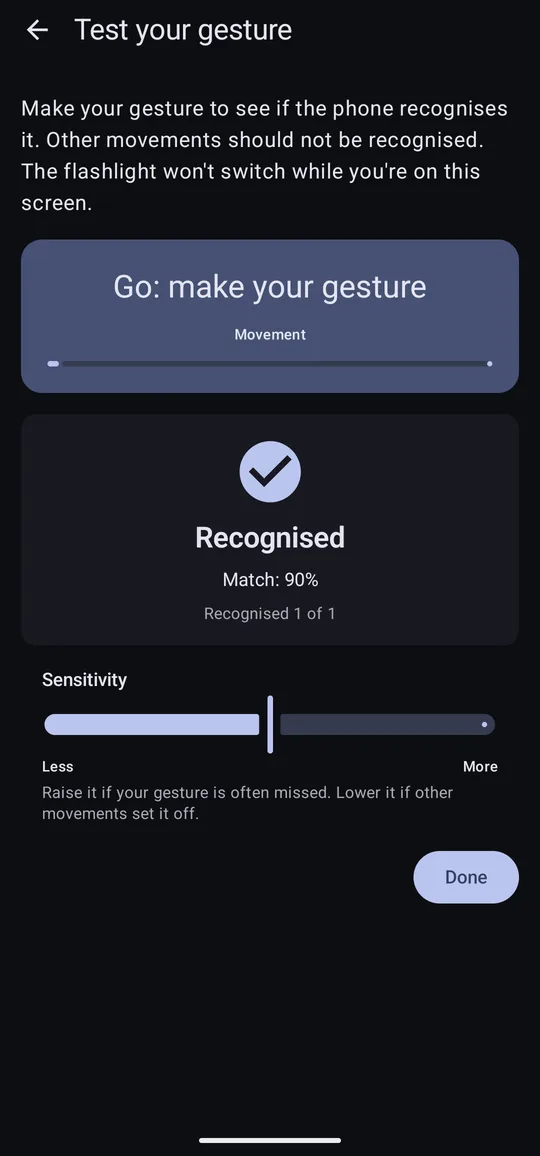
The test screen shows whether each movement you make is recognised and how closely it matched, so you can tune the sensitivity until it catches your gesture and nothing else.
-
On the lock screen
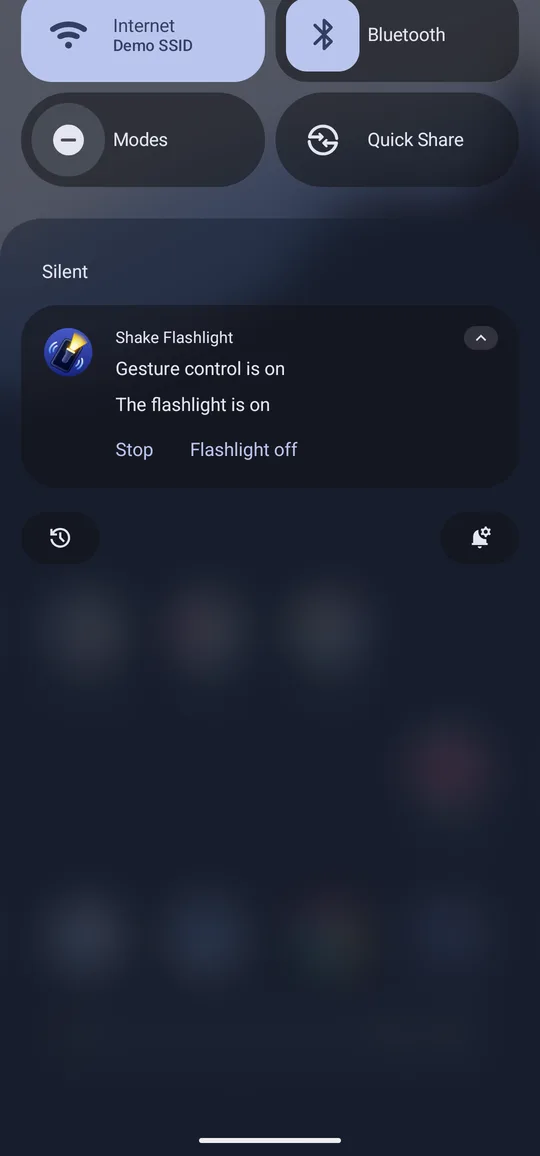
Gesture control keeps running after you leave the app, and works whether the phone is unlocked or locked. A notification shows it is on, with buttons to switch the light or stop.
-
With the screen off, if you want it
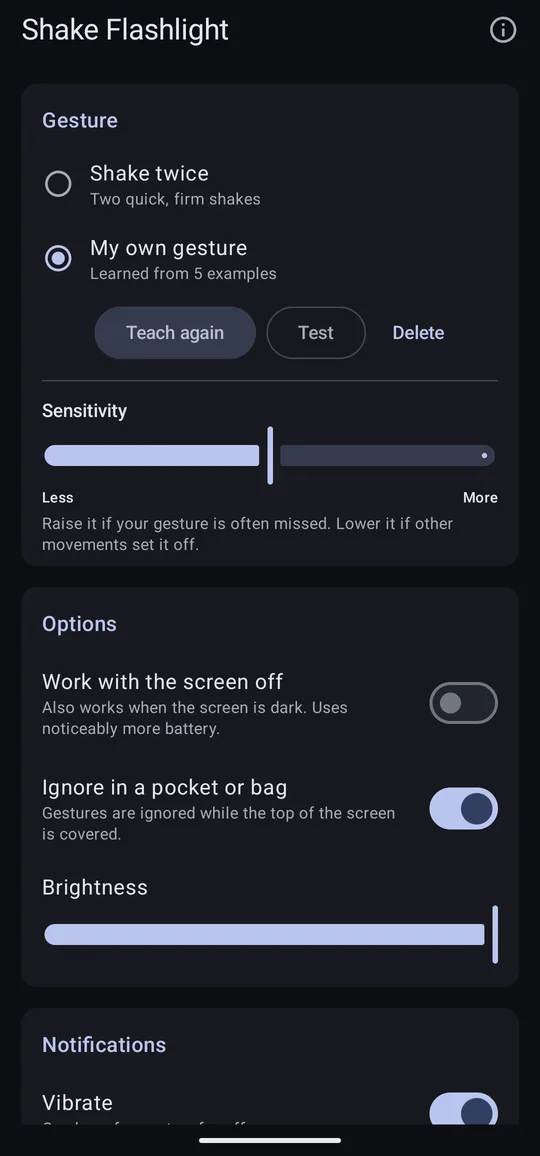
It can also listen while the screen is dark. That costs battery, so it is off until you turn it on, and the app tells you so first. More about battery.
-
Not in your pocket
Gestures are ignored while the top of the screen is covered, so a walk with the phone in a pocket or bag does not light up the lining.
-
Switches itself off
Set the light to go off after a minute, five, or half an hour, so it never drains the battery forgotten in a bag. On phones that allow it, set the brightness too.
-
Private by design
The app has no internet access at all, so nothing can leave your phone — not your gesture, not your settings. No account, no adverts, no tracking. Privacy policy.
Teach it a gesture
On the main screen, under Gesture, tap Teach a gesture.
-
Hold it as you will use it
Hold the phone the way you will when you want the light, and keep it still for a moment until the screen says Go: make your gesture.
-
Make the movement, then keep still
Make your gesture, then hold still again. The phone buzzes when it has the example. Do it five times.
-
Check and save
The app says how consistent your examples were. If one did not look like the others, it asks you to repeat it. Tap Save and test.
-
Try it out
Make the gesture a few times, and a few other movements too. Adjust the sensitivity until your gesture is recognised and the others are not.
Choose something deliberate that you would not do by accident. A twist of the wrist and back works well. Plain shaking is easily set off by walking — that is what the shake option and its sensitivity slider are for.
A look around
Battery and the screen off
While the screen is on — including on the lock screen — listening for a gesture costs very little, because the phone is awake anyway.
Listening with the screen off is different: to catch a gesture, the phone has to stay awake and keep reading its motion sensors, which noticeably shortens battery life for as long as gesture control is on. That is why Work with the screen off is off until you choose it, and why the app explains the cost before turning it on. Without it, gestures work whenever the screen is on.
Support
Gestures stop working after the phone has been idle
Some phones stop apps in the background to save battery. In your phone's Settings → Apps → Shake Flashlight → Battery, choose Unrestricted. With Work with the screen off on, the app shows a button that takes you straight there.
The flashlight switches on by itself
Lower the sensitivity, and keep Ignore in a pocket or bag on. If it still happens, teach the app a gesture of your own: a deliberate movement is much harder to make by accident than a shake.
My gesture is often missed
Use the Test screen to see how closely each attempt matches, and raise the sensitivity a little. If attempts vary a lot, teach the gesture again, holding the phone the way you will really use it.
The flashlight says it is unavailable
Android lets only one app use the camera's flash at a time. Close the camera, or any app using it, and try again.
It did not come back after a restart
Gesture control returns by itself after a restart once the phone has been unlocked for the first time. Before that first unlock, Android does not let apps start.
Still stuck?
Email support@sherwood-tech.co.uk with your phone's make and model and what happened, and we will help.