
User manual · Chapter 4
Folders, renaming and modifiers
Import filters decide where each photo lands and what it is called, and can stamp your name and licence into it or place it on the map. None of them alters the picture.
Import filters live in the profile editor under Advanced options → Import filters. They apply to import and Pass-Thru profiles; an archive profile's albums never use them.
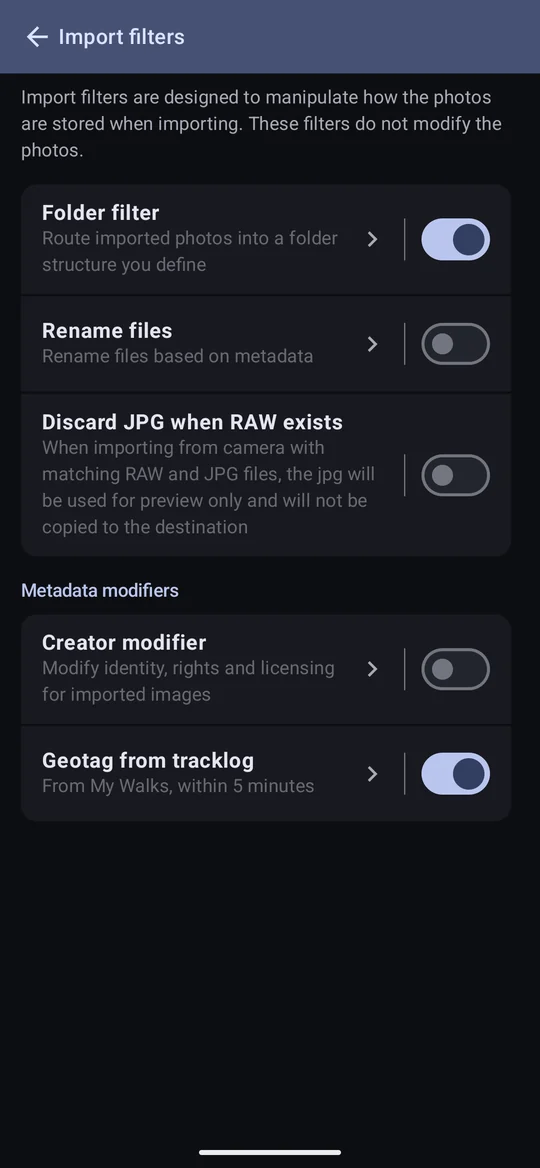
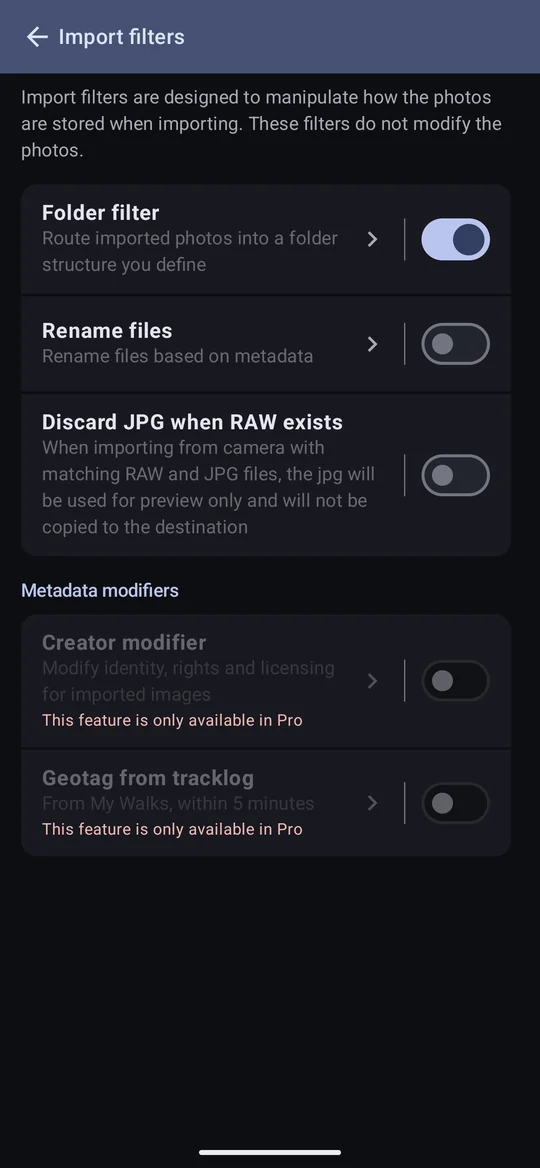
Folder filter
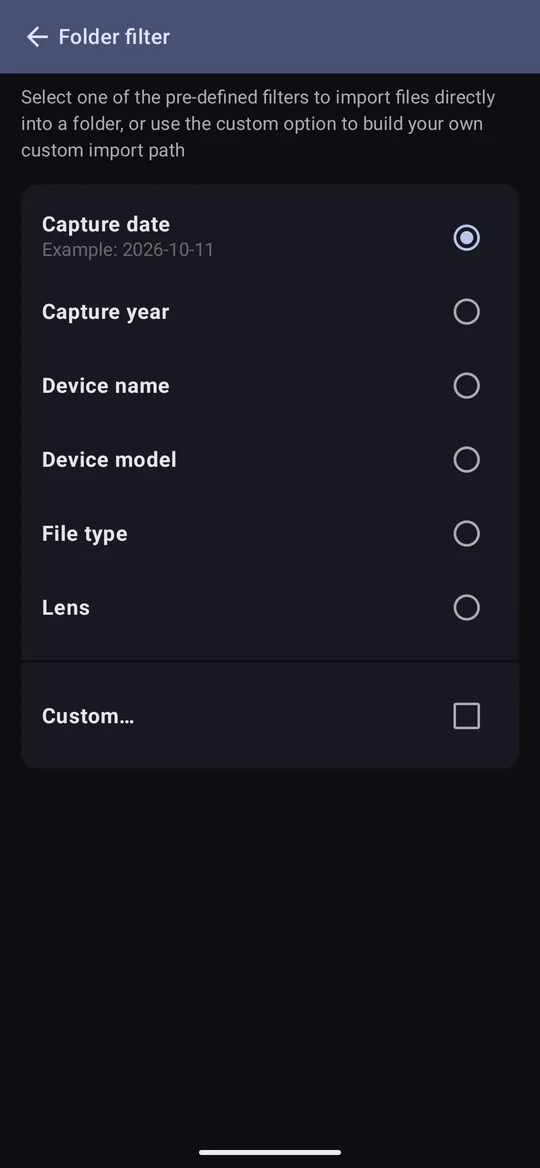
The folder filter sorts each photo into a folder inside the profile's photo storage as it arrives. Without one, every photo goes straight into the photo storage folder. The built-in filters are Free:
| Filter | Folder a photo lands in |
|---|---|
| Capture date | 2026-10-03 — a folder per day shot |
| Capture year | 2026 |
| Device name | The camera's own name, e.g. ILCE-6700 |
| Device model | The camera model from its EXIF |
| File type | ARW, JPG, DNG … |
| Lens | The lens model |
Custom folder filter Pro
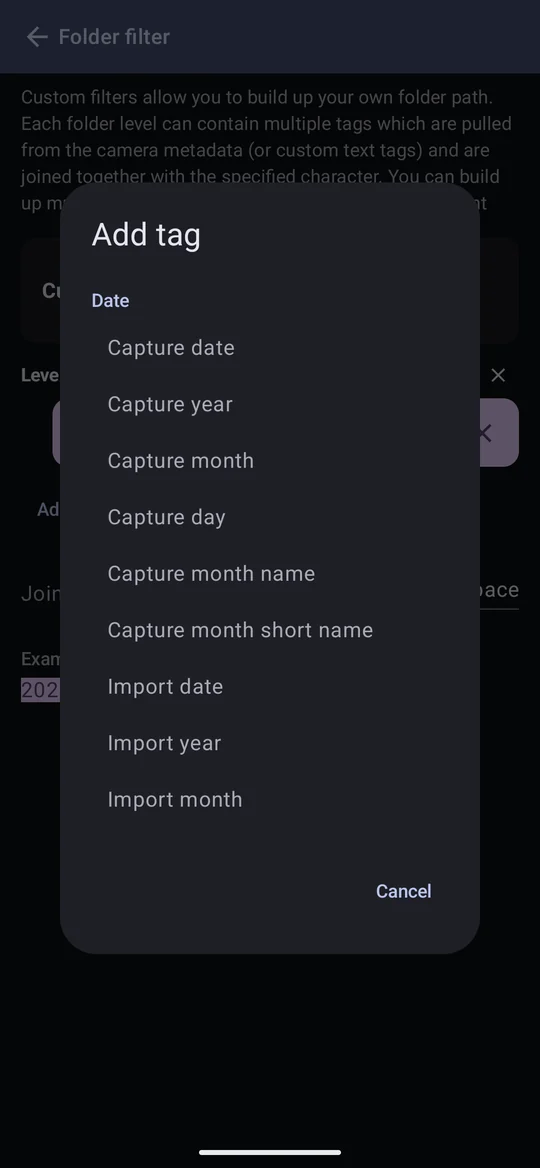
Custom… builds your own path: as many folder levels as you like, each made of one or more tags joined by the separator you choose (space, dash, underscore …), with an example underneath that updates as you go. Tags can be:
- Dates — capture date, year, month, day, month name or short name; and the same for the import date.
- Device — device name, device model; lens, lens spec.
- File — file type.
- Camera settings — ISO, shutter speed, aperture, focal length.
- Location — the nearest place.
- Custom text — any words of your own.
Anything a folder name can't hold is left out: the characters / \ : * ? " < > |,
and a dot at the very start or end of a level, so a place called Kamalabaria N.C. is filed
under Kamalabaria N.C. Windows and memory cards drop a trailing dot themselves, and a
leading one would hide the folder from other apps. The example under the filter always shows the
name as it will be made.
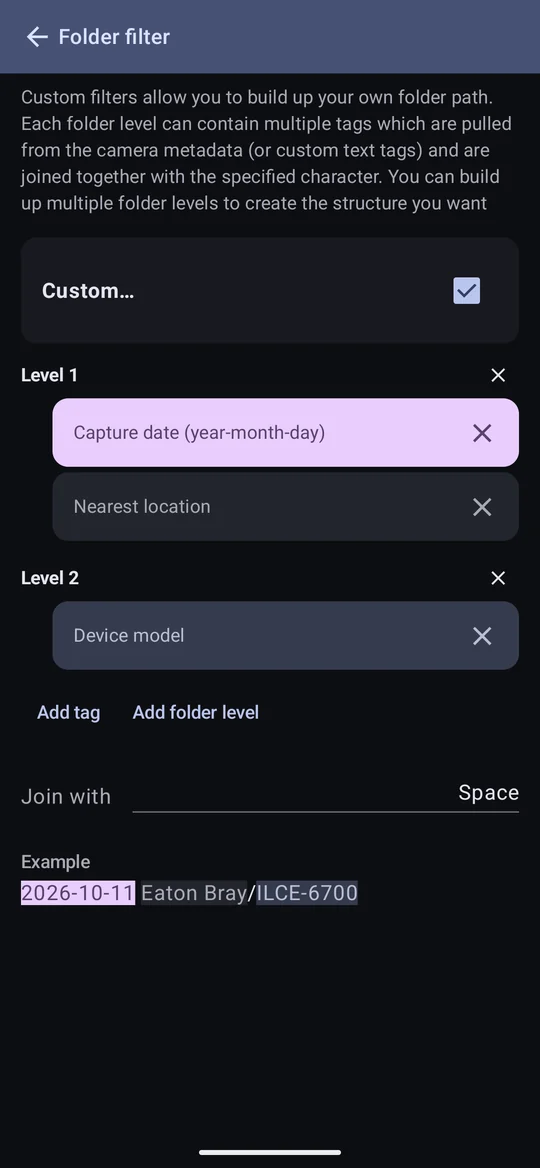
When a profile's folder filter currently sorts by nearest location, changing a photo's location afterwards — by Set metadata → Location or by moving it on the map — also moves its file into the new place's folder, and tidies away the old folder if it is now empty. That happens only for files still sitting where the filter would have put them; change the filter, and later location changes update the photo's details but leave its file where it is.
Rename files
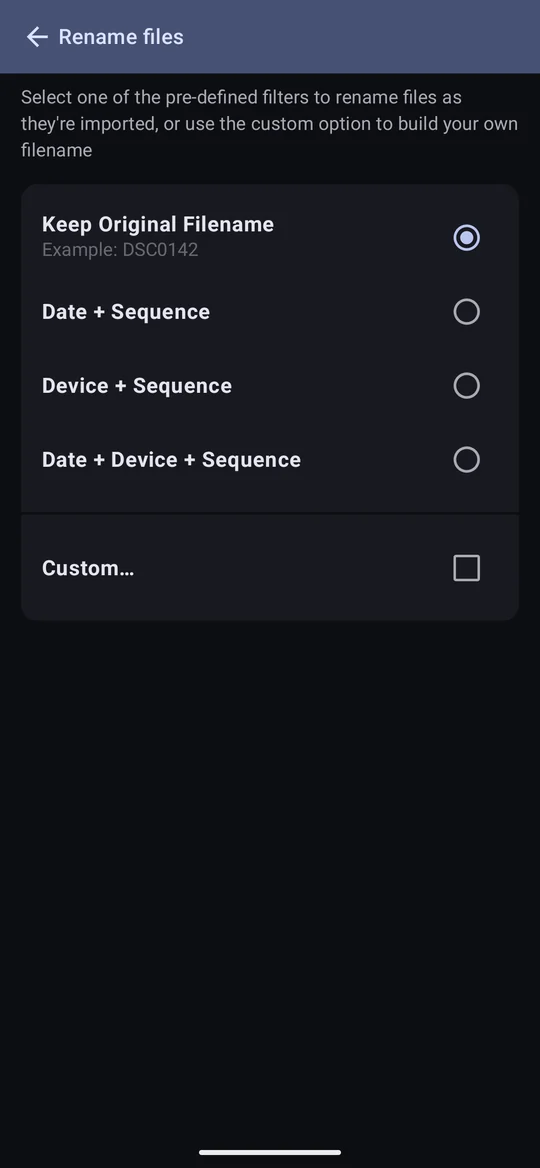
Cameras name files things like DSC01234. Photo Flux can rename each one as it arrives;
the original on the camera is never changed. The built-in patterns are Free:
- Keep Original Filename — the default.
- Date + Sequence
- Device + Sequence
- Date + Device + Sequence
Custom… Pro gives the same freedom over the filename as the custom folder filter does over folders — any tags, including the original filename, joined with a separator of your choice.

How names are settled
The folder is decided first, then the name. If a file of that name is already in the destination
folder, the new one gets _2 added (then _3, up to _99) rather
than replacing it — even with both filters off, because two cameras can both produce
DSC00001.JPG.
Discard JPG when RAW exists
When the camera saved a RAW and a JPEG of the same shot, this keeps only the RAW in the profile's folder: the JPEG is used for the preview and not copied. Handy for saving space when you shoot RAW+JPG only so the camera's own screen shows a JPEG.
Creator modifier Pro
The Creator modifier sets identity, rights and licensing fields on every photo the profile imports: creator, copyright owner, a copyright notice, usage terms, a rights URL and the copyrighted flag — taken from the licence you choose — plus your contact info (address, phone, email, website).
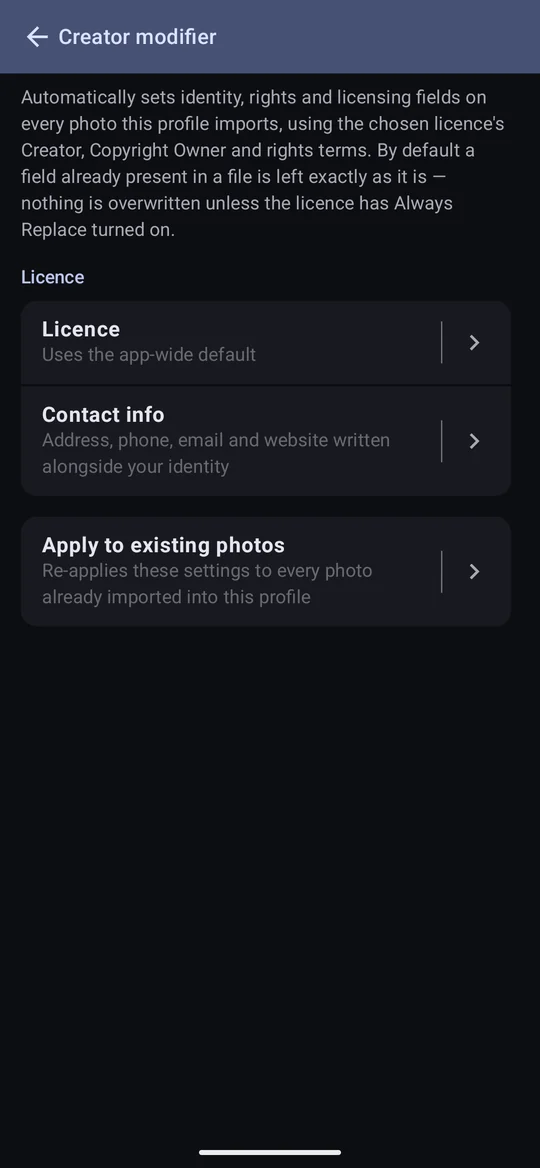

- It fills in; it doesn't overwrite. By default it only fills a field the file doesn't already have. A second shooter's photo that already carries their name keeps it. A licence with Always replace existing values switched on overwrites instead.
- The copyright year is the year the photo was taken, not the year you imported it: a 2019 photo imported in 2026 gets "© 2019 …".
- Apply to existing photos runs it over every photo already in the profile — changing the settings doesn't reach them on its own. Because it only fills gaps by default, running it twice never overwrites anything a previous run, or the camera, already settled.
Licences
Configuration → Manage licences holds the licences the Creator modifier can use. A licence is a name plus the values it writes:
| Field | Meaning |
|---|---|
| Creator, Copyright owner | Who made the photo, and who owns its copyright. |
| Usage terms, Rights URL | The licence's terms in words, and a link to them. |
| Copyrighted | Writes the "marked" copyright status. Off for a public-domain dedication such as CC0. |
| Always replace existing values | Off (recommended): only fill fields the file doesn't already have. On: always overwrite. |
| When usage terms or rights URL is blank | Ignore (default) leaves what the photo has; Preserve writes the field as explicitly empty; Remove deletes the field from the photo. |
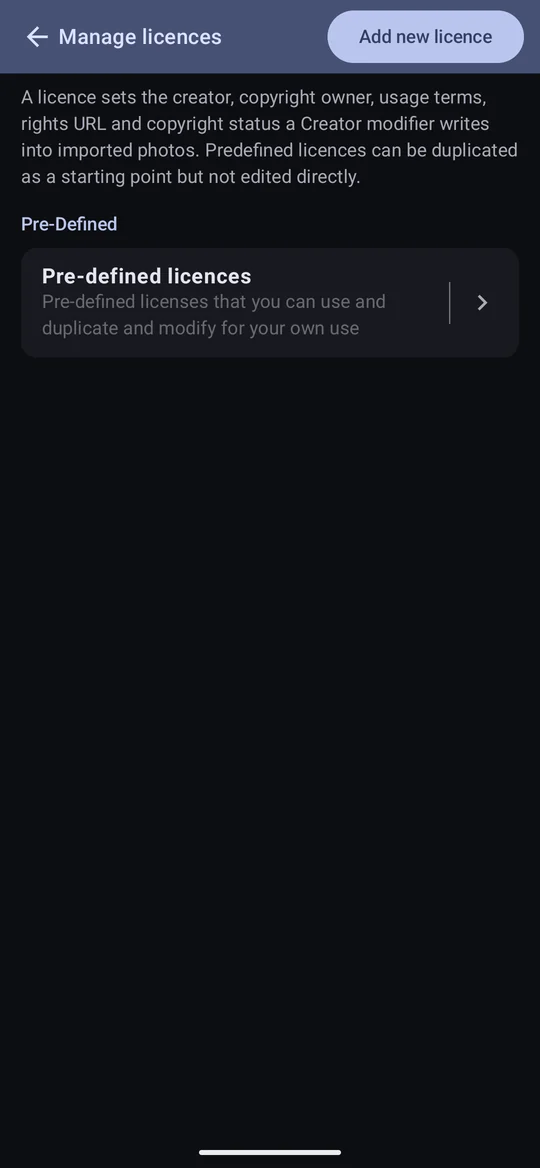
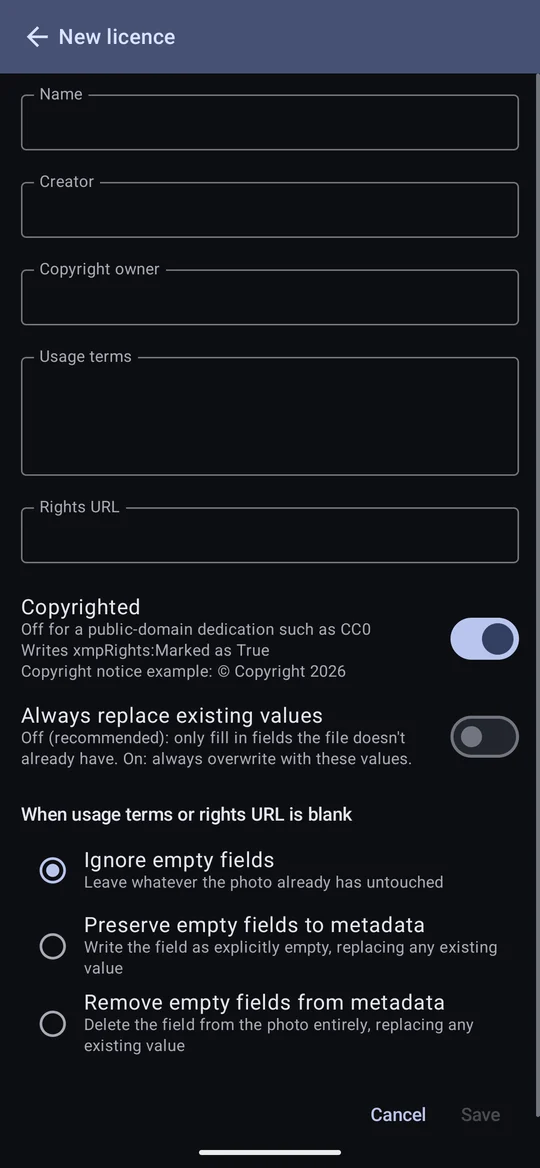
Photo Flux comes with pre-defined licences — the Creative Commons 4.0 set, CC0 and Editorial use only. They can't be edited: tapping one shows it, and its only action is Duplicate, which makes an editable copy. Creating or duplicating a licence is Pro; using one is not.
There is no "All rights reserved" licence, deliberately. A profile with no licence chosen writes no licence fields at all — no usage terms, no rights URL, no copyright status — which in practice is all rights reserved, without asserting it as a value.
Geotag from tracklog Pro
A camera without GPS records only when a photo was taken. If your phone recorded a track at the same time, Photo Flux can work out where you were at that moment and place the photo there. It needs a tracklog profile with a track in it, this switched on, and Pro. Recording tracks is free; reading one back onto photos is the Pro part.
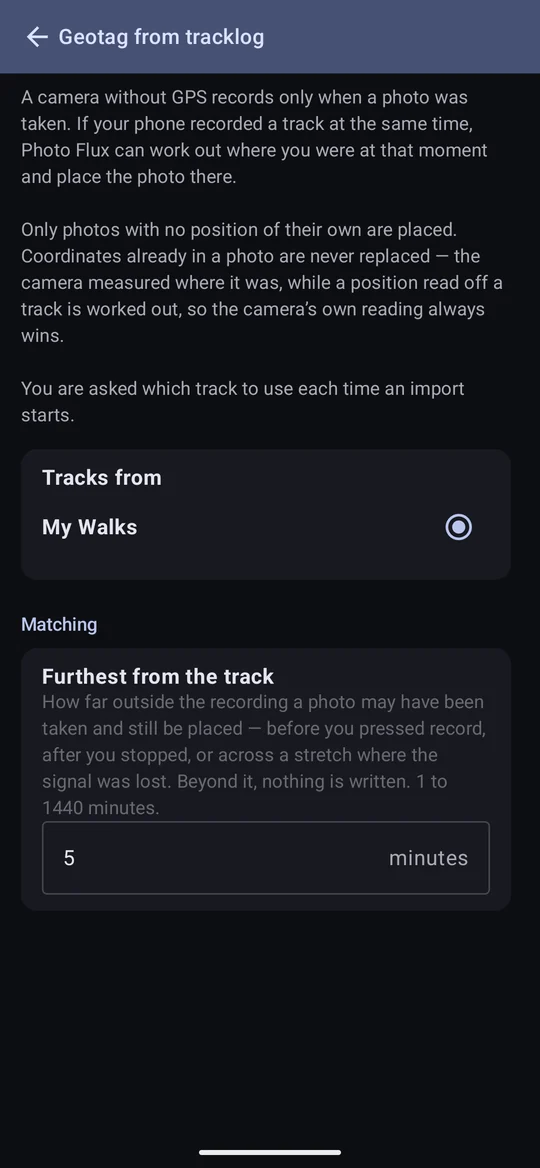
- You are asked which track every time an import starts. A card often holds more than one outing, and a wrong guess would put every photo somewhere plausible and wrong. The newest track comes first, so the usual case is one tap.
- A photo that already has a position keeps it. A camera's own fix is a measurement; a position read off a track is worked out.
- Between two recorded points the photo is placed proportionally along the line, not snapped to the nearest point.
- Furthest from the track (1 to 1440 minutes, default 5) is how far outside the recording a photo may be and still be placed — before you pressed record, after you stopped, or across a stretch where the signal was lost. Photos just before or after the walk are placed at its first or last position. Inside a gap longer than the window nothing is written: Photo Flux never invents a position.
- Why five minutes: standing still, recording thins right down to a point every couple of minutes, so a tighter window would refuse exactly the photos taken while you stood composing a shot.
- The camera's clock has to agree with the phone's. Photo Flux assumes the camera was set to the time zone the phone is in now. A camera left on another country's time, or a few minutes out, places photos wrongly or not at all — check it before a trip.
- A track merged from several walks is never joined up across the gaps between them.
- A GPX track from another app works too: bring it in with Import track first.
- Geotagging happens at import. A placed photo then behaves exactly like one with its own GPS: the nearest place is named, a by-place folder filter files it, and the coordinates are written into a JPEG so other apps' maps show it.
Auto photo stacking
Not an import filter, but set in the same editor: Auto photo stacking groups photos taken close together into one tile. Its settings — Detection time and Photos must be sequential — are covered under Stacks.