
User manual · Chapter 3
Importing photos
Plug in, tap Import, and the photos come across — named, sorted, paired and placed. This chapter covers what happens on the way and the choices that shape it.
Connecting a camera, card or drive
Photo Flux imports from four kinds of source:
- A camera over USB (PTP/MTP). Plug the camera in with its cable and switch it on. The first time, Android asks whether Photo Flux may use it — tick the box to remember the answer. A camera is always read from the top of its card.
- An SD card in a card reader, or a USB stick or drive. Plug it in. The profile reads the folder you chose for that drive when you added it.
- A connector — OneDrive, Google Drive, a NAS or a server — but only into an album, with Album Import.
- The phone's or tablet's own camera — photos taken with the camera button on a profile's gallery, imported as you take them. See The phone's own camera.
When a device that a profile uses is connected, the gallery's title bar names it under the profile, and an Import button appears in the toolbar. A device used by more than one profile asks which one first — see Choose a profile.
In a profile's Import devices, each device has a switch that imports from it automatically as soon as it is connected. A card reader or drive plugged in while Photo Flux is in the background waits until you bring the app back on screen — Android doesn't let an app start a long-running import from the background for a drive — and starts then. If it is unplugged before that, nothing is imported.
The phone's own camera
An import profile can take photos from the camera built into your phone or tablet. In the profile's Import devices, tap Add devices, tick Built-in camera and tap Add devices. The first time, Photo Flux explains and then opens Android's folder picker at DCIM › Camera, where most camera apps save their photos: tap Use this folder, then Allow. A second profile that uses the camera doesn't ask again. Save the profile.
The profile's gallery now has a round, see-through camera button at the bottom right. Tap it and your camera app opens. Every photo you take is imported into the profile as the camera app saves it — sorted, renamed and given its metadata exactly as an ordinary import would be — while you carry on shooting. There is no progress window; the notification shows how many are being imported and how many have arrived, and its Cancel stops the session straight away — anything not yet imported stays in the camera app's folder, and what already came in stays in Photo Flux.
Come back to Photo Flux and your new photos appear in the gallery. For a few seconds afterwards a small label above the camera button says Importing 3 photos… or Checking for new photos…: the last few shots are still coming in, and Photo Flux is waiting in case your camera app is still finishing one — some phones take a few seconds to process a photo after the shutter. When the label goes, everything has arrived.
- Only photos taken with the button are imported. The rest of your camera roll is left alone, and so are photos taken by opening the camera app any other way.
- The session ends a few seconds after you come back to Photo Flux, once no more photos are arriving, or after 30 minutes without a new photo — or at once when you tap Cancel. If Photo Flux is closed by Android part way through, the photos it missed are imported the next time you open it.
- If your camera app saves somewhere else, nothing can be imported, and when the session ends a notification says so. Open the profile's Import devices, tap Built-in camera, then Import folder, and choose the folder your camera app really uses — often Pictures or DCIM itself.
- Photo Flux never asks for permission to use the camera or to see all your photos: it opens your own camera app, and reads only the one folder you chose. Like a card import, it does need Photo location to keep each photo's GPS position.
Running an import
Tap Import. Depending on how the profile is set up, one or two questions come first:
- Which track? — if the profile geotags from a tracklog. The newest track is offered first; Skip imports without placing anything, Cancel doesn't import at all.
- Event — if the profile has events switched on.
Then the Import Photos window shows the progress: how much space is free where the photos are going, which file is being copied, and running counts of what has been skipped or has failed. It can be cancelled at any point; a cancelled import keeps what had already arrived.
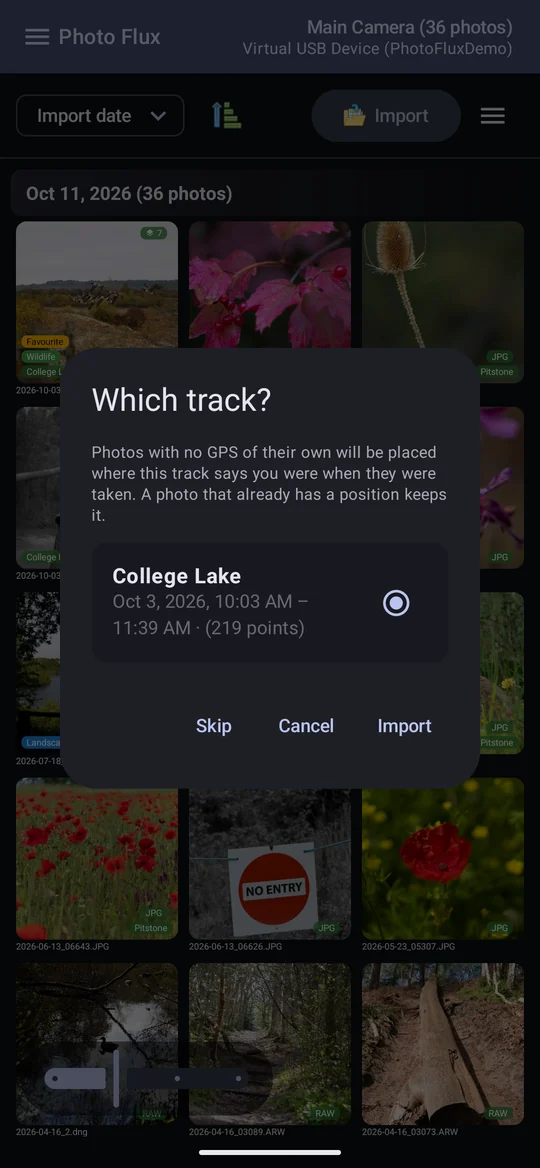
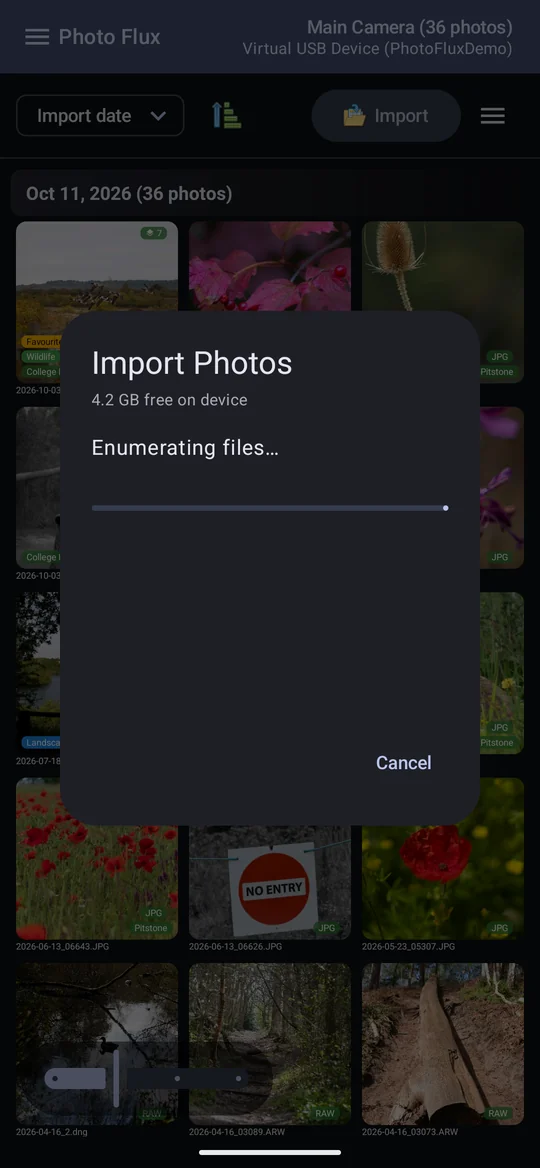
An import keeps going if you switch to another app or the screen locks: it runs with a progress notification in the shade, carrying a Cancel button. When one finishes while you are away, an Import complete notification says how many photos came in, and how many were skipped or failed — or that the import failed, and why. Tap it to open the gallery for that profile. It isn't posted while you are watching the import in the app.
What happens to each photo
- It is copied into the profile's folder — into the subfolder and under the name the folder filter and rename settings say.
- Its EXIF and IPTC metadata are read: camera, lens, ISO, shutter, aperture, focal length, date taken, GPS and more.
- A RAW file has the full-size preview the camera embedded in it extracted, so you can see it without developing it.
- A RAW and a JPEG of the same shot —
DSC01234.ARWandDSC01234.JPGin the same folder — become one photo, shown with a RAW badge. - If it has a GPS position, the nearest place is named. If not, and a track was chosen, it may be placed on the track.
- The Creator modifier, if switched on, fills in your name, copyright and licence.
- Location, tags and the event are written into the file (JPEG and DNG) or a sidecar (other RAW). See Metadata.
- A fingerprint of the picture is recorded, ready for duplicate detection.
Within one import, photos close together share one place name: everything inside about 3 km of a place already named in that run reuses the name, so one walk doesn't fan out across five neighbouring villages. This only applies to the photos being imported, never to ones already there.
What counts as already imported
An import skips a photo the profile already has, judged by its filename alone (capitals don't matter, so DSC0001.ARW and dsc0001.arw are the same file), not by the picture. So re-running an import, or plugging the same card in again, only brings across what's new. Two things follow that can surprise:
- A file renamed on the camera or card comes in again, as a new photo.
- A different photo with the same name does not.
The two halves of a RAW+JPG pair can arrive on different imports — a camera writing JPEGs to one card and RAWs to the other, say. When the RAW comes in after its JPEG, the two become one photo, and everything you did to the JPEG in the meantime stays: its tags, title, event, rejection, crop and location.
A photo you removed in Photo Flux comes back on the next import if it is still on the card — Remove, Remove RAW and Remove JPG delete Photo Flux's copy, never the camera's. To keep it gone, delete it from the card too.
The Duplicates screen is a different thing: it compares the pictures themselves, across everything already imported.
What isn't imported
Videos are not imported. A camera's or card's video files are left where they are; only photos — JPEG, HEIC/HEIF and the supported RAW formats — are listed and copied. PNG isn't either: it is a screenshot and graphics format, not one a camera writes.
Events
With Enable events on import switched on in the profile, every import starts by asking for an Event name — Fred's Wedding, College Lake Walk. Everything imported in that run gets it. It is optional: leave it blank, or tap Skip, to import with no event. Photos already in the profile keep the event they had. Events can also be set afterwards on any photos — see Events.
Add or sync
The profile's Import mode decides what an import may remove:
- Import and add photos (the default)
- Photos come off the device and join what is already in the profile. Nothing is ever removed. This is what you want unless you are sure you want the other.
- Sync photos to device
- The profile becomes a mirror of the camera: after the new photos are copied in, any photo whose file is no longer on the camera is deleted from the profile. Clear the card in the camera, and the next sync clears the matching photos here too. A sync profile is a copy of the card, not an archive of everything you ever shot. The progress window says Sync Photos rather than Import Photos.
Sync tells you before it deletes anything. If photos in the profile are no longer on the camera, the import stops before copying a single file and says how many, with three answers:
- Copy and Skip — bring in what's new and leave the missing ones alone, this time only. The profile stays set to sync.
- Copy and Delete — the full mirror. Deleted photos cannot be recovered.
- Cancel import — stop before anything happens.
Sync is careful about what it treats as gone:
- It mirrors exactly one device. It can't be chosen until the profile has a single device, and while it is chosen you can't add a second — two cameras filling one folder would each see the other's photos as files to delete.
- Matching is on the camera's own filename, so renaming and folder filters make no difference.
- A RAW+JPG pair survives as long as either half is still on the card.
- Photos in an album are never touched.
- If the camera lists no files at all, nothing is deleted — that is far more likely a connection problem than an empty card. Likewise if the camera is disconnected or the card pulled while it is being read: that run copies what it found and deletes nothing.
- A cancelled import, or one that stopped because space ran out, deletes nothing.
Removals appear as a third progress bar once copying has finished, and the count is given at the end.
Subfolders
Include subfolders when importing is on by default, so a card reader or drive profile imports every folder below the one it is bound to. Off, it imports only the files sitting directly in that folder. It appears once a card reader or drive folder is bound — a camera over USB always imports its whole card.
Turning it off on a sync profile deletes nothing from subfolders: sync still looks at the whole card to decide what has gone, so photos imported from a subfolder earlier stay as long as they are still on the card.
Running out of space
- Photo Flux checks before it starts. It adds up what it is about to copy — leaving out anything already imported — and compares it with the free space where the photos are going. If it won't fit, the import doesn't begin: "This import needs 3.1 GB, but only 1.2 GB is free… Nothing has been copied."
- If it only just fits, it asks. An import that would leave almost nothing free shows how much would be left, with Continue and Cancel. The line is 500 MB, or a tenth of the volume on a card too small for that to be sensible.
- If space runs out anyway, the import stops rather than grinding on. Everything already copied is kept and fully imported; the rest stays on the card, and the result says how many arrived, how many didn't, and roughly how much more room is needed. Free some space and run it again — the photos already here are skipped.
- The free-space line in the import window turns red as the destination fills, and a photo interrupted part way through is removed rather than left half-written.
Keeping the location in card imports
Android removes the GPS position from every photo an app reads off a card or drive unless the app has the Photo location permission — and a copy made without it has no location, for good. So before such an import Photo Flux checks, asks if it needs to, and if it still isn't allowed, says so and offers Cancel, Import anyway or Settings. When Android asks about access to photos and videos, choose Allow all (in Android's Settings: Permissions › Photos and videos › Always allow all). Camera imports over USB are not affected.