
User manual · Chapter 19
Troubleshooting
Most problems have a short list of causes. Find the symptom below; if it isn't here, write to support with the details listed at the end.
Importing
- The camera is plugged in but nothing happens
- Check the camera is switched on and in its USB/PC connection mode (some cameras need MTP or PTP chosen). Android asks the first time whether Photo Flux may use the camera — if you said no, unplug it and plug it in again to be asked. Check the cable carries data, not just charge. The camera must also be ticked in the profile's Import devices.
- A card or drive imported nothing
- The profile reads the folder chosen for that drive: if it was a subfolder, photos elsewhere on the card aren't seen — and with Include subfolders when importing off, only files directly in that folder are. Edit the device in Import devices to choose a different folder.
- "Choose a profile" every time I connect
- The device is in more than one profile's Import devices. Remove it from all but one — see A device used by more than one profile.
- Some photos were skipped
- The profile already had a file with the same name and size — see
What counts as already imported. Two cameras that both
name files
DSC00001.JPGcollide in one profile; give each its own. - My videos didn't come across
- Photo Flux imports photos only. Videos stay on the card.
- Photos I removed came back
- Removing a photo deletes Photo Flux's copy, not the card's. The next import sees a file it doesn't have and copies it again. Delete it from the card too.
- The import says there isn't enough space
- Nothing has been copied — free some space and import again. See Running out of space.
- An SD card import didn't start while the app was in the background
- Android doesn't allow it; the import starts when you open Photo Flux.
- A sync deleted photos
- That is what sync does when photos are no longer on the camera — and it always asks first. Use Import and add photos unless you want a mirror. See Add or sync.
Locations
- Photos from a card have no location
- Android strips GPS from photos an app reads off a card unless it has the Photo location permission, and a copy made without it can't get it back. Allow it (in Android's settings: Permissions › Photos and videos › Always allow all) and import again — remove the location-less copies first, or they'll be skipped as already imported.
- Photos weren't placed on my track
- Check the camera's clock and time zone match the phone's; check the photos fall within the track, or within Furthest from the track of its ends; and remember photos with their own GPS keep it. Placing needs Pro. See Geotag from tracklog.
- The place name is a village down the road
- The built-in names are towns and villages. Name the place yourself, then run Rebuild metadata on the photos already imported.
- The map is blank
- The map needs an internet connection to load tiles.
Connectors and export
- "Can't reach" a NAS or server on my network
- On Android 17 and later Photo Flux needs the Local network permission (it may appear as Nearby devices). Check it in Android's settings for the app. Check the phone is on the same network, and the host and port.
- SMB connects to an old NAS but nothing works
- Only SMB2 and SMB3 are supported, not SMB1.
- FTP logs in but every upload fails with 425, 450 or 522
- The server demands TLS session reuse, which Android can't do. Turn it off on the server
(
require_ssl_reuse=NOin vsftpd). See FTP. - SFTP: every file fails "permission denied"
- The account's starting folder isn't writable — choose the writable subfolder. See SFTP.
- SFTP or SCP: "The server's identity key has changed"
- If you know the server was reinstalled or replaced, tap Trust new key. If not, don't: something may be intercepting the connection.
- Nextcloud refuses my password
- With two-factor login on, make an app password in Nextcloud and use that.
- A USB drive connector no longer recognises the drive
- Was it reformatted? A reformatted drive is a new drive — register it again.
- An export finished, but files on the USB drive are damaged
- Always eject the drive in Android before unplugging it. See USB Drive.
- Google Drive won't let me choose a folder
- By design: Photo Flux uses only its own Photo Flux folder in your Drive. Use OneDrive or a network share to choose any folder.
The library
- A photo shows in the gallery but won't open
- Its file has gone — deleted outside Photo Flux, or by Google Photos' Free up space. Select the photos and run Rescan metadata; it offers to remove the missing ones.
- Lightroom doesn't show my tags or location for a RAW
- RAW files (other than DNG) carry them in an XMP sidecar, which needs Pro and Enable XMP
sidecar on. Make sure the
.xmptravelled with the RAW, and run Rebuild metadata for photos imported before sidecars were on. - Lightroom doesn't see my rejects
- Switch on Settings → Operation → Write rejected tags to metadata, then run Rebuild metadata on the culled photos.
- The Duplicates screen finds nothing
- Rejected photos are left out, HEIC files and RAWs without a preview have no fingerprint, and copies made with Copy to album, or marked Meant to be copies, are never listed. Try Looks alike at a lower similarity.
- I moved to a new phone and Photo Flux started empty
- That's deliberate. Photo Flux keeps nothing in Android's backup or in a phone-to-phone transfer: its profiles, connectors and library point at folders and saved passwords that only work on the phone that made them. Your photos themselves are ordinary files in your folders, and move like any others. On the new phone, go through the welcome guide, choose the storage folder, and set up your profiles and connectors again. A Pro purchase restores itself.
Tracklogs and the camera link
- A track stopped on its own
- After half an hour without moving, recording stops itself — you are told when it does.
- A track recorded nothing, or very little
- Usually no GPS signal — indoors, or in a deep valley. The GPS fix lost alert says so. Standing still also records very few points, by design.
- The camera connects but photos have no location
- Location Information Link must be switched on in the camera. See Which cameras.
- A camera that worked is no longer found
- Forget it in Android's Bluetooth settings and pair it again — common after a camera firmware update. The provider's Connection log shows each step.
- The link doesn't come back after a restart
- Location must be set to Allow all the time, and the camera paired through Android's companion dialog. Otherwise open Photo Flux once after each restart.
Asking for help
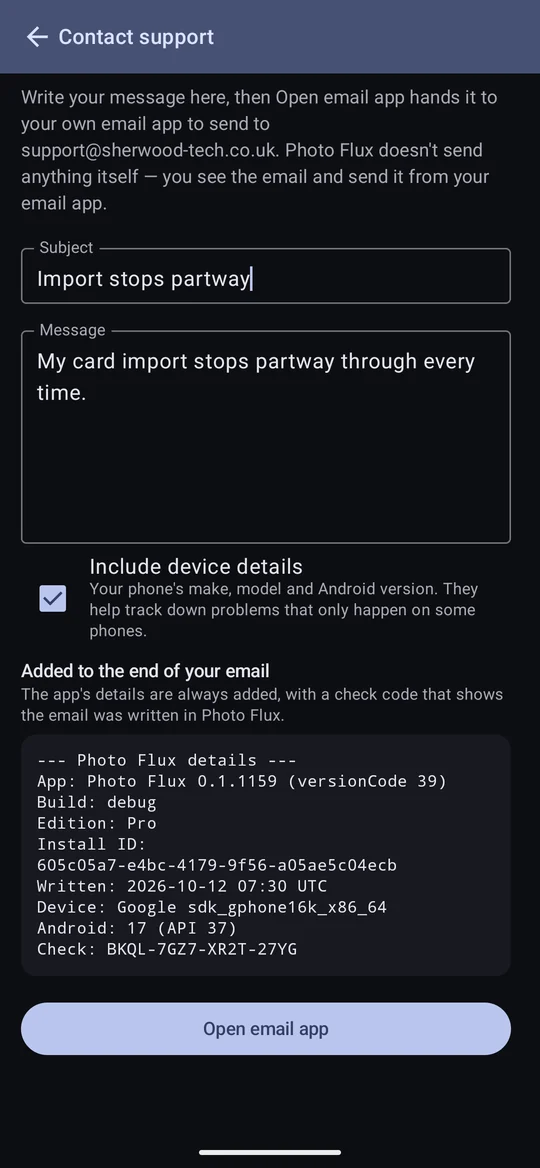
The easiest way is Configuration → Contact support, in the app. Write a subject and your message, then tap Open email app: Photo Flux hands the email to your own email app (Gmail, Outlook or whichever you use), addressed to support, for you to read and send. Photo Flux never sends anything itself.
At the foot of the email it adds a short block of details, shown on the form before you send:
- Always: the Photo Flux version, whether you're on Free, Pro or the trial (and your order ID if you bought Pro), a random install ID made by the app, and when you wrote it — with a check code showing the email came from the app. When we invite beta testers, this is how we know you have Photo Flux installed.
- If you leave Include device details ticked: your phone's make, model and Android version.
You can also write to support@sherwood-tech.co.uk from anywhere. Either way, it helps a great deal to say:
- the camera, card reader or server involved;
- what you did, what you expected, and what happened instead — including any message, word for word;
- for a camera link problem, the provider's connection log;
- if you're not writing from the app: which phone or tablet, which version of Android, and the Photo Flux version (at the top of the drawer and in About).