
User manual · Chapter 9
Culling: reject, compare, duplicates
Most shoots need cutting down. Photo Flux gives you a plain reject, two side-by-side comparison tools for bursts, a sharpness measure to say where to look first, and duplicate detection.
Rejecting photos
A rejected photo is one you have decided against but not yet deleted. Reject one in the viewer (the Reject button in its title bar), or select several and use Actions → Reject. Rejected photos are marked and counted in the day's heading ("36 photos, 4 rejected"). Clear rejected takes the mark off.
Nothing is deleted until you choose to: Actions → Remove rejected, which appears while any rejected photo is in view, deletes every rejected photo shown, and their files, after asking. That can't be undone.
Switch on Settings → Operation → Write rejected tags to metadata and a reject is written into the photo's metadata in the form Lightroom, Bridge and Camera Raw read — so a card culled on the tablet in the field opens at home with the rejects already flagged. It is off by default, because writing a file on every reject slows a quick cull down. Rejects made elsewhere are always read: a file that arrives flagged imports as rejected. See Metadata.
Inside a stack, Keep only this on a photo rejects every other frame and takes you back to the gallery; the stack's tile becomes the photo you kept.
Comparison Reject Pro
Comparison Reject shows two frames side by side with zoom and pan locked together, so a burst can be judged on the same eyelash rather than a general impression. Open it from a stack's Actions → Comparison Reject to compare the whole burst, or from a selection to compare what's ticked. It needs at least two photos.
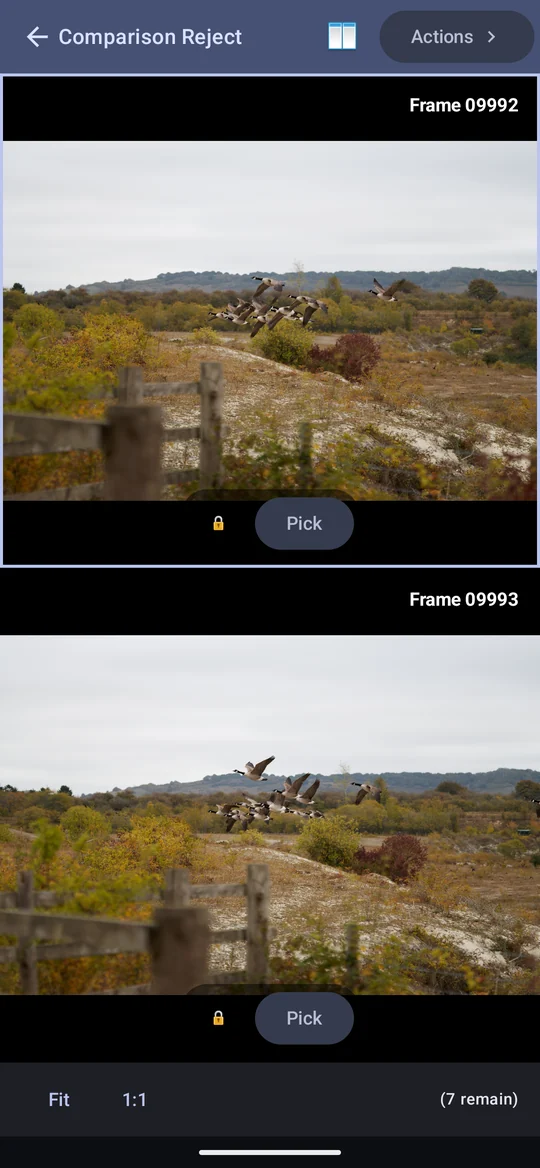

It works as a knockout. The frame still standing holds the first pane, and each new challenger arrives in the second. Tap Pick on the better one: the other is rejected and the next frame takes its place. Picking the challenger moves it across. Carry on until one frame is left — (7 remain) counts down.
- Picking also rejects the loser — by default. This writes to files if rejects are written to metadata, so it is worth knowing; switch it off in Comparison Reject's Actions and the choice is remembered.
- Zoom together. Pinch or drag one pane and the other follows to the same part of its own frame. Double-tap a pane to switch it between fit and 1:1; Fit and 1:1 at the foot move both. 1:1 is one pixel of the photo as decoded per screen pixel — the same detail the viewer shows at 1:1.
- The padlock unlocks a pane to inspect it on its own. Locking it again snaps it back to wherever the other pane is.
- Only the exposure settings the two frames disagree about are shown beside them. Two frames that differ in nothing show nothing.
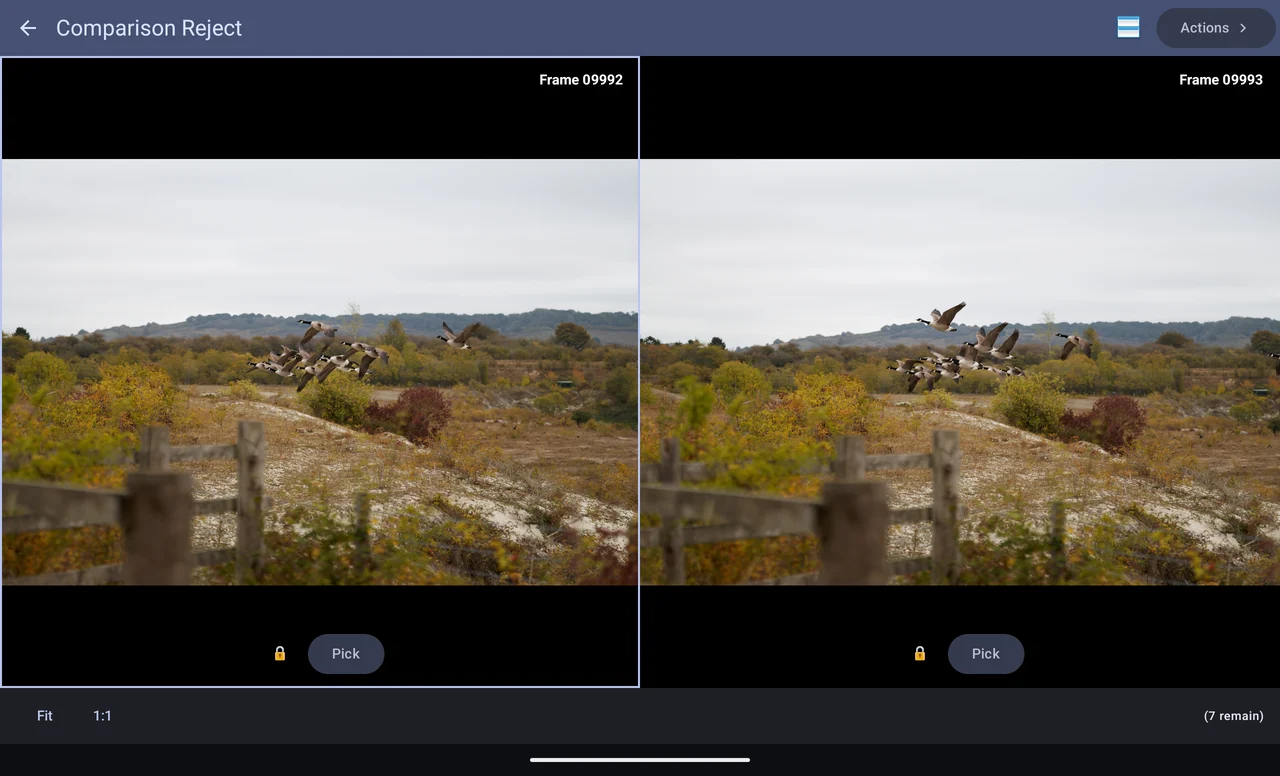
- Layout follows the screen — one above the other in portrait, side by side in landscape — and the button in the title bar overrides it either way.
- Rejected frames aren't offered again. Running it a second time compares only what is still in the running, so a cull can be done in more than one pass. Each run starts fresh.
- With a keyboard: arrow keys move between panes, Enter or Space picks, R rejects, Backspace clears, F fits, 1 goes to 1:1, Esc leaves.
Sorting by apparent sharpness
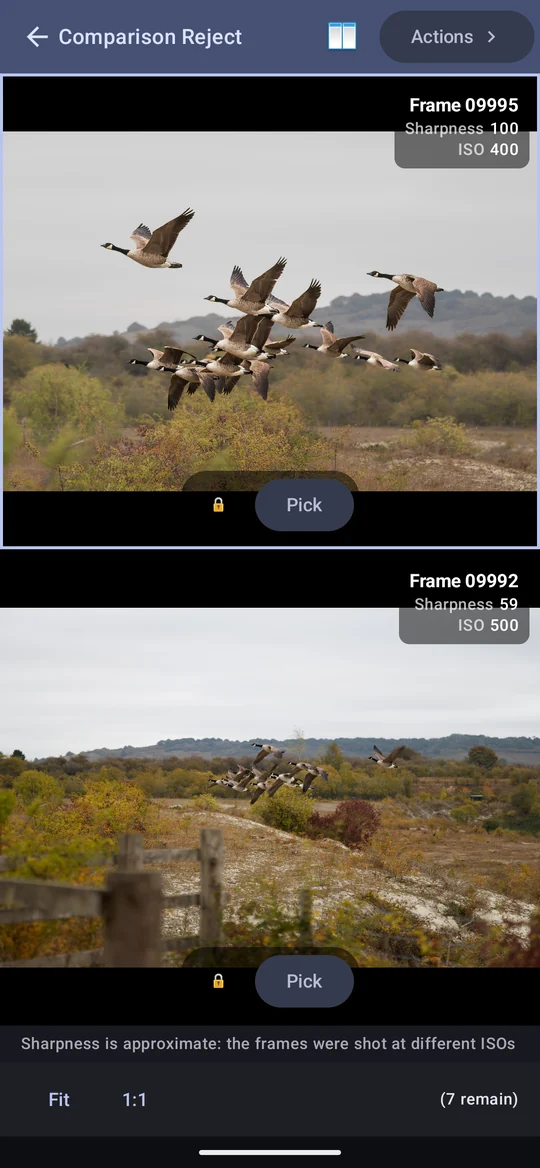
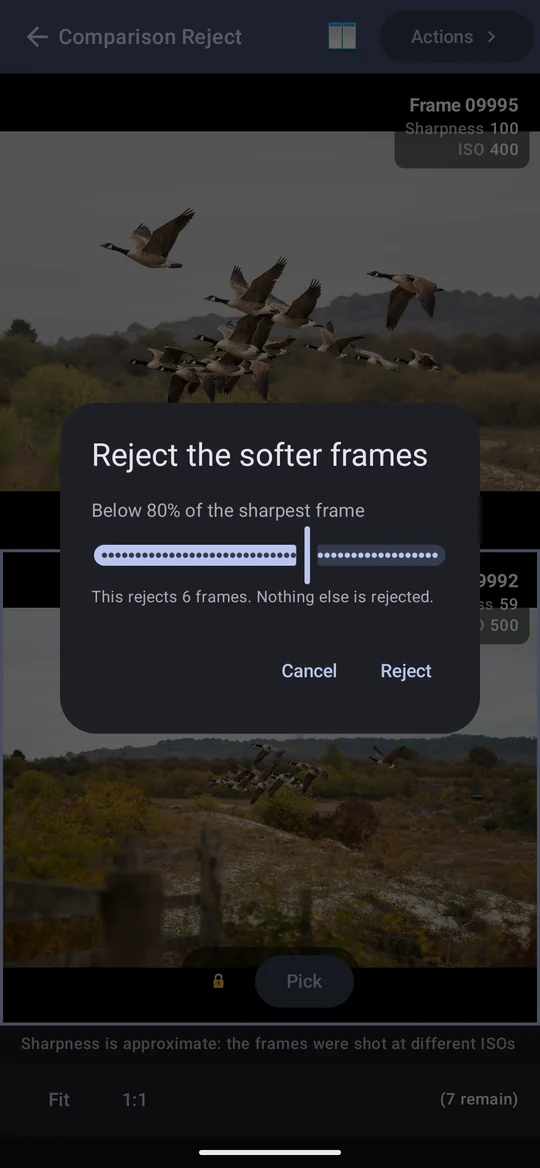
Actions → Sort order → By apparent sharpness measures every frame and opens on the two most promising, each pane showing its score. Date taken, the default, is the camera's order.
- Scores are relative to the best frame, which is 100. "59" means 59% of the sharpest frame's fine detail — not 59 out of a fixed scale. Remove the best frame and the others are rescaled.
- Zoomed in, the score is for what is on screen. Put the eye at 1:1 and the order becomes "how sharp is the eye". At fit it is each frame's sharpest region.
- "Apparent" means an impression, not a verdict. It measures fine detail, so a frame of a busy subject can outscore a sharper frame of a plain one. It only means anything between frames of the same scene.
- "Approximate" appears when frames were shot at different ISOs (different noise), or when a RAW's embedded preview is much smaller than the sensor. The order is then a rougher guide.
- The first sort of a stack takes a moment, while every frame is measured at full resolution; later ones don't.
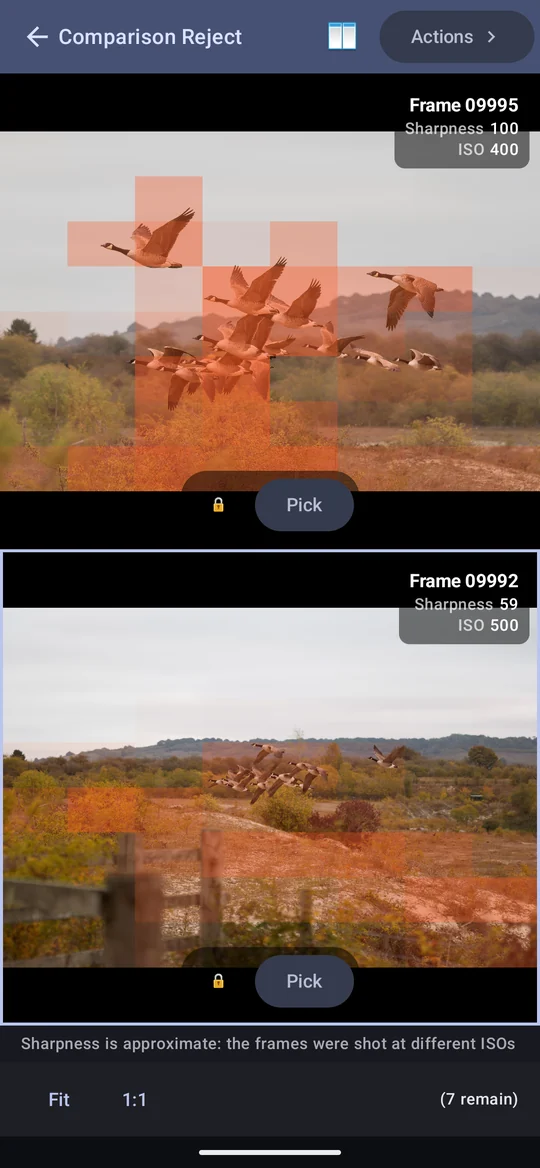
- Sharpness heatmap tints the regions that scored highest, so you can see what the measure was looking at.
- Reject frames below a sharpness… rejects every frame under a percentage of the best, after telling you how many. Nothing is rejected by sorting alone, and these are ordinary rejects — Clear rejected undoes them.
Compare Stack Pro
Compare Stack, on the same menu, is the other way through a burst. Where Comparison Reject is a knockout, Compare Stack is a walk: frames 1 and 2, then 2 and 3, then 3 and 4, so every neighbouring pair is seen and you can go back and forth before deciding anything.
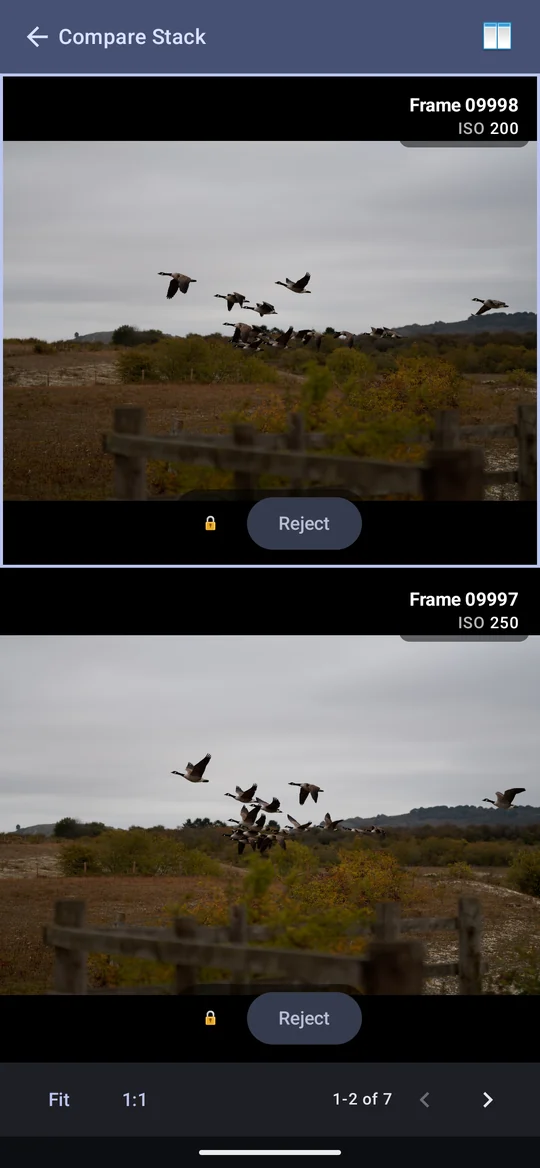
- Swipe to move along, or use the arrows at the bottom — which is what to use once zoomed in, since a drag then pans. The bar says where you are: 3-4 of 9.
- There is no Pick. Reject is how a frame leaves: the next one along takes its place, so the pair closes up and you carry on.
- Zoom, pan, the padlock, 1:1 and the layout button all work as in Comparison Reject.
Duplicates Pro
Actions → Find duplicates finds every copy of the same photo — imported twice, into two profiles, or into overlapping albums — shows what each copy carries, and lets you keep one with nothing lost. Choose the scope (this album, this profile, or all) and the comparison:
- Identical
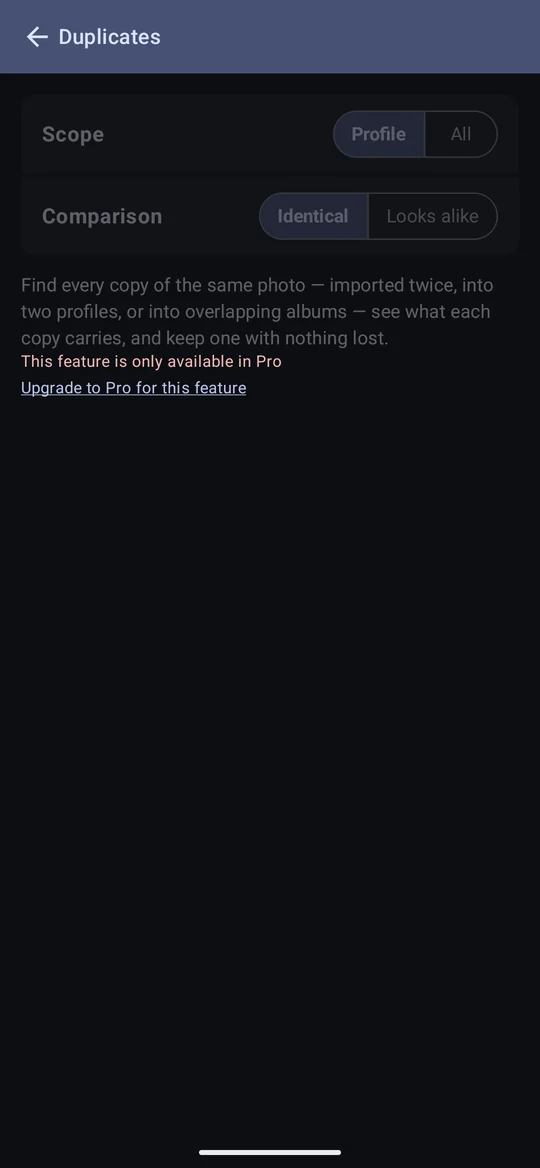
- The same picture: the image data is identical, whatever metadata each copy carries — so a copy since geotagged or tagged still matches. For a RAW, the picture is its embedded preview. HEIC files and RAWs with no preview have no fingerprint and are never matched.
- Looks alike
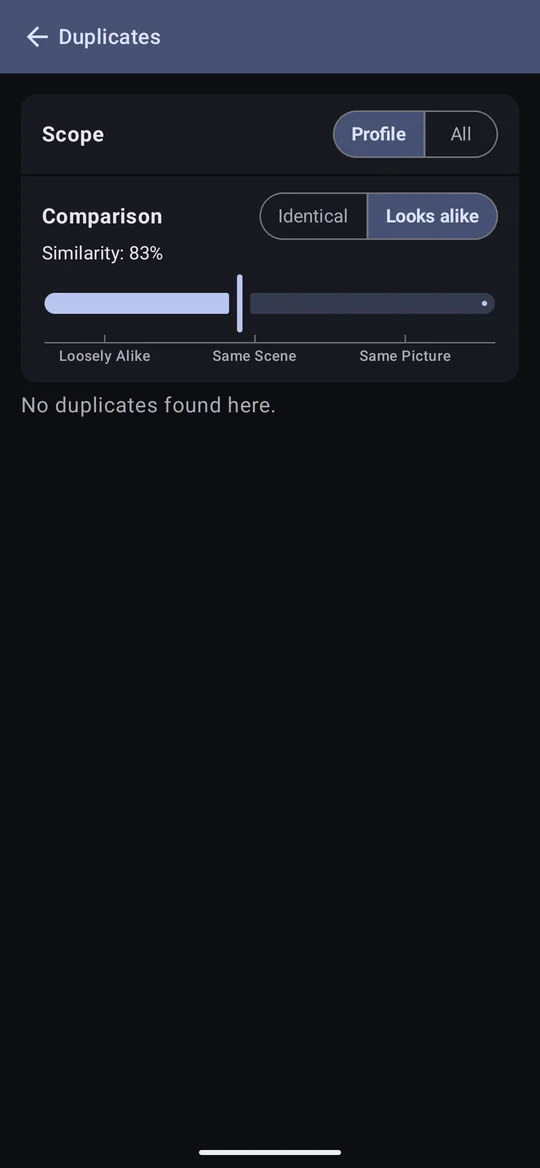
- Photos that look like each other, measured on their thumbnails, so it survives resizing, re-compression, mild edits and a quarter turn. The slider sets how alike: Same Picture (94%) finds re-exports and resizes; Same Scene (84%) also finds other frames of the same view and other crops; Loosely Alike (74%) goes further — below about 80% unrelated photos start to match. Each photo shows its percentage against the group's first.
Resolving a group
- Keep this keeps one copy and rejects the others. The kept copy gains the others' tags, and their event, title and location where it has none. Each copy shows what differs (location, tags, title, event, reject, crop) so you can choose.
- Keep copies in… resolves every identical group at once, keeping the copy in the profile or album you choose.
- Meant to be copies hides a group for good — say, a photo you deliberately keep in two albums. A further copy arriving later brings it back. Copies made by Copy to album are never listed.
- Nothing is deleted. The other copies are rejected exactly as Reject would; Clear rejected undoes it, and Remove rejected in the gallery is how they are finally deleted. Rejected photos are left off this screen, so a resolved group disappears. A copy holding a file the kept one lacks (the RAW of a pair, when a lone JPEG is kept) is left alone. Nothing on a card, and nothing already exported, is touched.
- Looks-alike groups are never resolved in bulk. Use Compare, or reject one photo at a time. Stack these makes a group into a stack, when every photo is in one import profile and outside albums.
- A stack appears once, as its first unrejected frame ("Stack of N"), and frames of one stack are never matched with each other. Rejecting a stack rejects the whole stack.
Every photo's fingerprints are recorded as it is imported, even on Free, so everything is ready to check the moment you upgrade.
Find similar images Pro
From the viewer, Actions → Find similar images finds this photo's look-alikes. Choose how alike and where to look (this profile, or everywhere), and the gallery shows the photo followed by its matches, most alike first, each with its percentage.
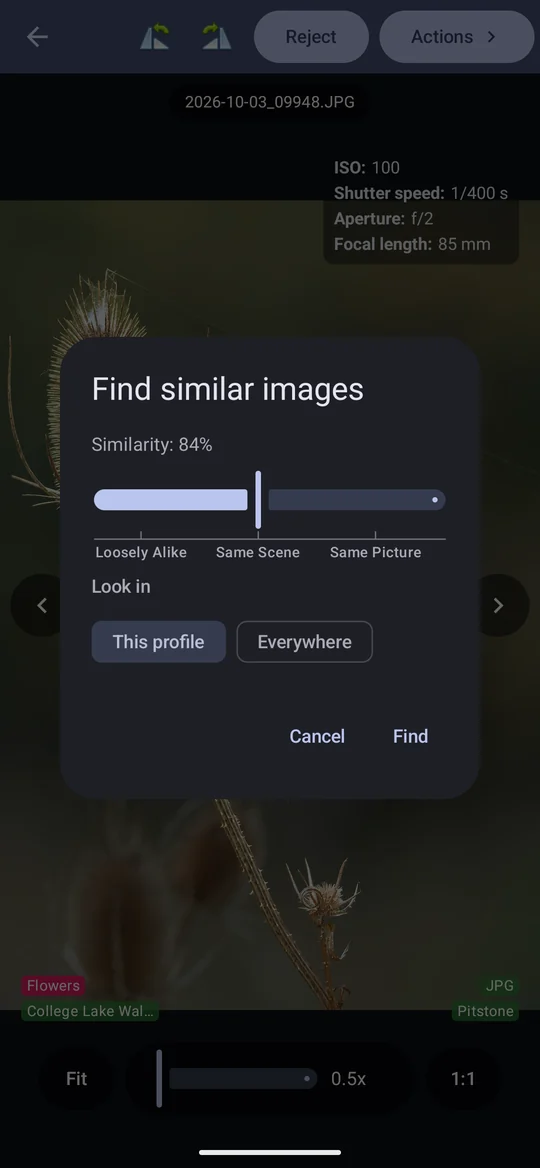
The result is a stack that isn't saved. It works like any stack — Compare, Compare Stack, reject, Reject other — and rejects made in it are real. A match that is itself a stack shows once and opens in place when tapped. It goes when you leave it or pick another profile or album; Stack these turns it into a real stack when every photo is in one profile outside albums. If nothing matches: "No similar images found. Try a lower similarity, or look further."