 Forget Me Not
User manual · Chapter 3
Quick add
One line, typed or spoken, and the app works out the rest — then shows you what it understood before it saves a thing.
Saving what quick add works out needs Pro or the thirty-day trial. Typing or dictating a line, and seeing the whole of what the app understood, still works on Free — only the Add button is refused, so you can try this chapter out in full before deciding anything. See Free and Pro.
How it works
Quick add is the fourth button on the bar at the foot of the screen. Type a sentence into the box, or tap the microphone and say it.
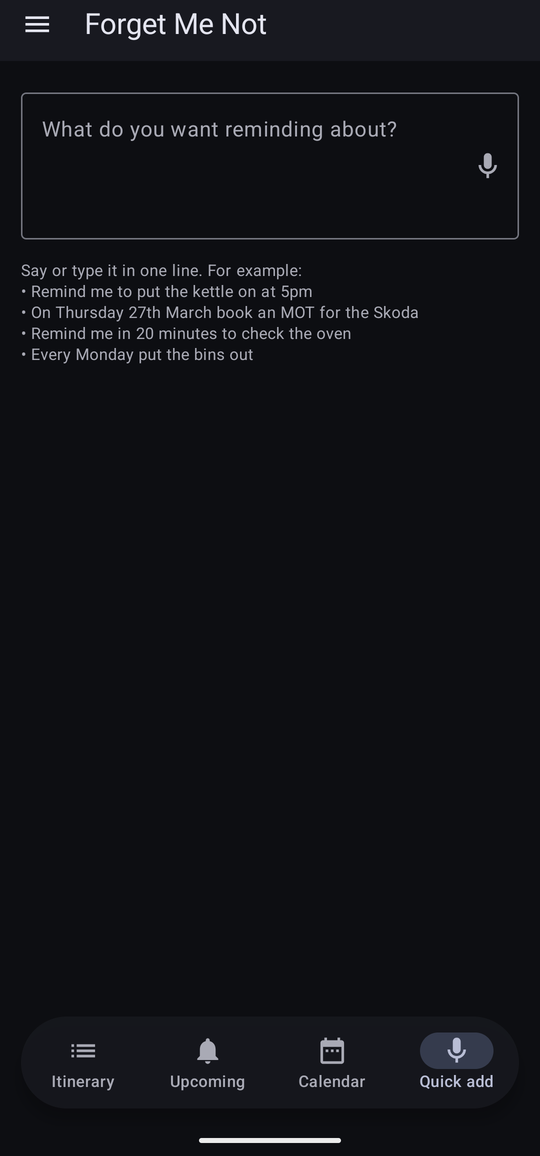
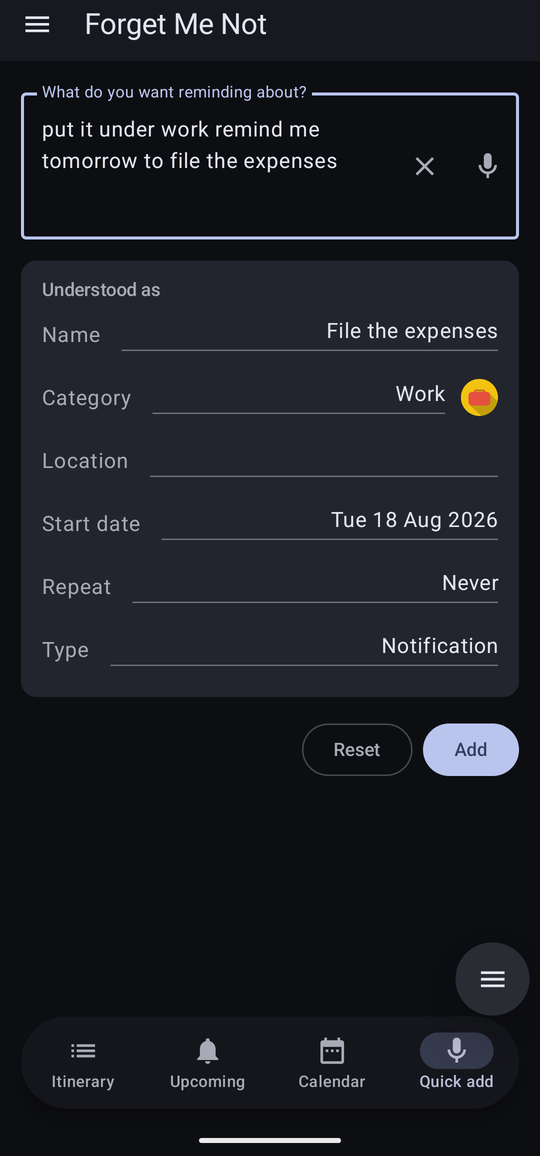
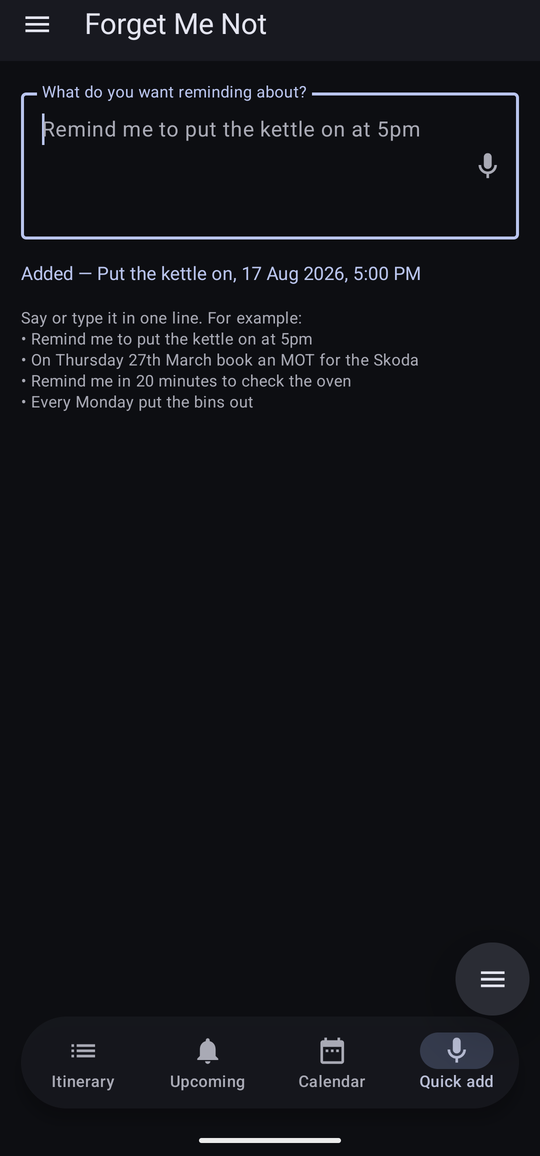
Nothing is saved until you tap Add. Until then the preview is just a reading of your sentence, and it changes as the sentence does.
On Free, Add is the one thing that is greyed out. A standing notice at the top of the screen says so before you start talking, rather than letting you find out after you have finished.
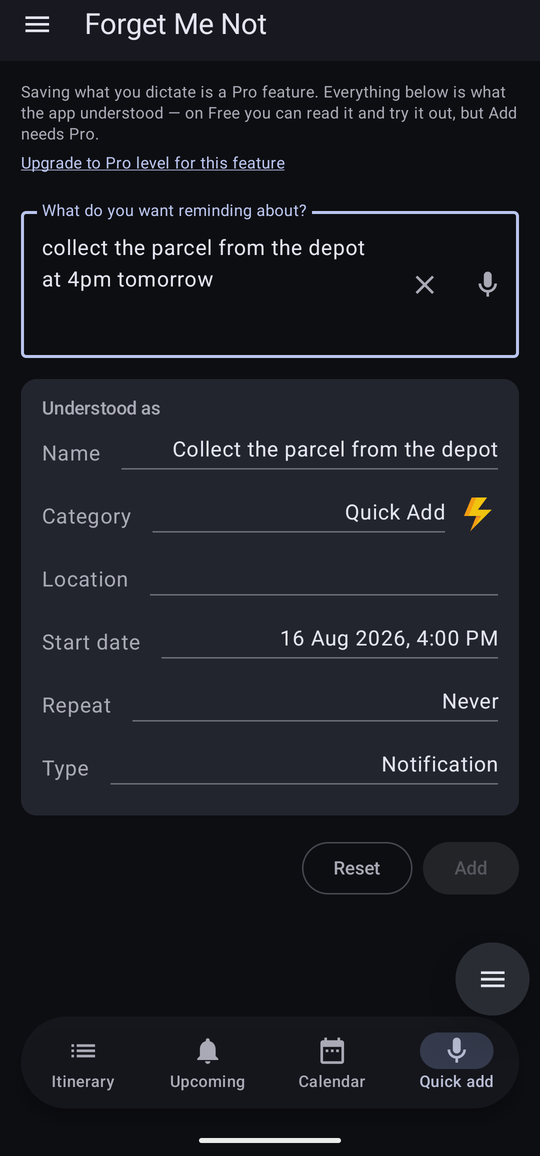
The “Understood as” panel
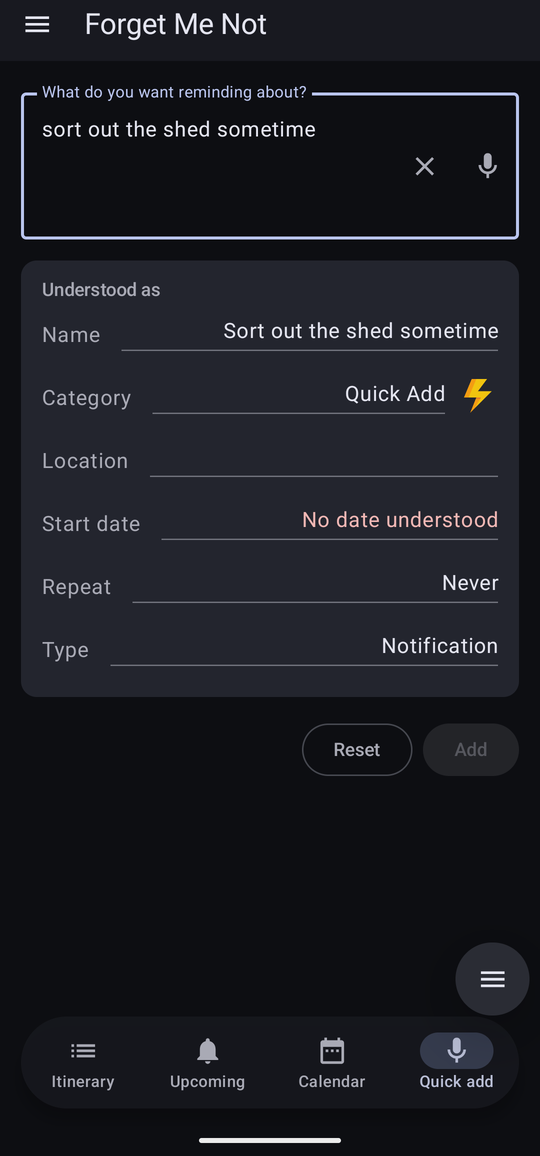
This is the part that matters. The app never guesses silently — it lays out exactly what it took from your words, in the same rows you would have filled in by hand:
- Name — the sentence with the timing words taken out.
- Category — where it will be filed.
- Location — if the sentence named one.
- Date and Time — when it will fall due.
- Repeat — if the sentence implied one.
- Type — Notification, or Important if you asked for an alarm.
Every row is the same row the full editor uses, and every one of them can be tapped or typed into right there — there is no separate editor to hand off to. Tap the wrong-looking Category and pick another; tap Name or Location and type over them; tap Date, Repeat or Type to open the same pickers the full editor opens. The moment anything is changed by hand, the box above goes quiet — its heading changes to Editing Reminder (Click reset to try again) — because a keystroke landing in the sentence at the same time as a manual change could silently undo it, and the two are not allowed to fight over the same field.
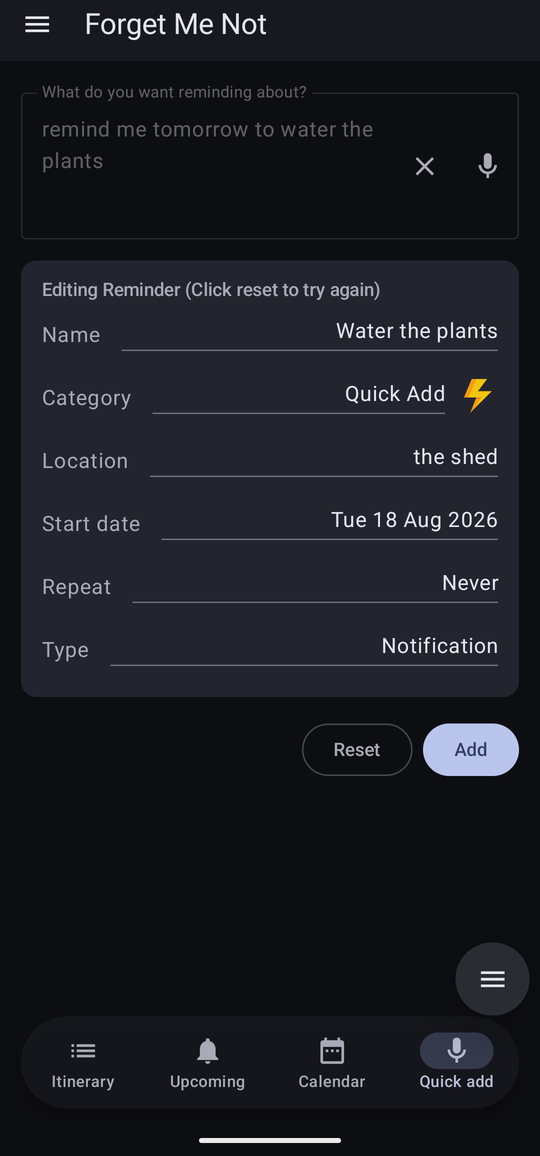
Two buttons sit under the panel:
- Add saves it as shown, and confirms with “Added — Put the kettle on, 17 Aug 2026, 5:00 PM”.
- Reset clears the box and any hand-made changes, and hands the fields back to the sentence.
What it can understand
Ordinary English, written the way you would say it. A few hundred phrasings are covered; these are representative rather than exhaustive.
| What you say | What you get |
|---|---|
| remind me to put the kettle on at 5pm | Put the kettle on — today at 17:00 |
| on Thursday book an MOT for the Skoda | Book an MOT for the Skoda — next Thursday |
| remind me in 20 minutes to check the oven | Check the oven — twenty minutes from now |
| every Monday put the bins out | Put the bins out — next Monday, repeating weekly |
| dentist at half past nine tomorrow | Dentist — tomorrow at 09:30 |
| pay the gas bill on the 1st of next month | Pay the gas bill — the 1st of next month |
| take the tablets every day at 8pm | Take the tablets — 20:00, repeating daily |
| ring mum at quarter to six | Ring mum — 17:45 |
| in a couple of hours check the roast | Check the roast — two hours from now |
| set an alarm to get up for work at 8am | Get up for work — 08:00, filed under Alarms, marked Important |
| every weekday take my tablets at 8am | Take my tablets — 08:00, repeating on Monday to Friday |
| remind me when I leave Tesco to get a lightbulb | Get a lightbulb — location Tesco |
| put it under work remind me tomorrow to file the expenses | File the expenses — tomorrow, filed under a category named Work, if you have one |
Two conventions are worth knowing:
- A time that has already gone today moves to tomorrow. Ask at four in the afternoon for something at nine and you will get nine tomorrow morning, not nine this morning.
- A bare hour is read as the next sensible one. “at 8” means whichever eight o'clock is coming, and the preview says which one it settled on — which is exactly why the preview is there.
Give a sentence only a time and no task — “at 6pm” — and it is saved as A Quick Reminder at that time, on the reasonable assumption that you will know what you meant.
Alarms
If the words mention an alarm — or call the reminder important, urgent, priority or crucial — it is treated the same way: filed under the category named as the alarm category in Settings, and marked Important so that it interrupts. An alarm that waits politely in the notification tray is not an alarm.

If you would rather alarms were filed like anything else, set Settings → Defaults → Alarm category to None.
Dictating instead of typing
The microphone button beside the box hands over to your phone's own speech recognition. Where the phone can do the listening itself the words never leave it, and this app records nothing and keeps nothing either way.
If the microphone permission has not been given, the app says “Dictation needs permission to use the microphone.” If the phone has no speech recogniser or no language pack, it says that instead. Typing is unaffected in either case.
When it cannot work it out
Quick add would rather say it does not know than save something wrong.
| What it says | What to do |
|---|---|
| No date understood | There is no time or date in the sentence it can act on. Add one — “tomorrow”, “at 5pm”, “on the 3rd” — or tap the Start date row and set it by hand. |
| There's already a reminder with that name at that date and time. | The same sentence has been added twice. Change the wording, or tap the Name or Start date row to change either by hand. |
| Choose a category above, or set one in Settings under Quick add category. | The quick add category has been set to None. Point it at a category under Settings → Defaults. |
Which category it goes in
Say a category by name — “put it under work”, “file this under personal”, “new health reminder to book a check-up” — and it is used if it matches one you already have, by name, whatever case you typed it in. No match, and it falls back to whichever of the settings below applies. Naming an alarm still wins over a named category, the same as it always has.
Otherwise, quick add does not stop to ask, so it has to be told in advance. Two settings under Settings → Defaults decide:
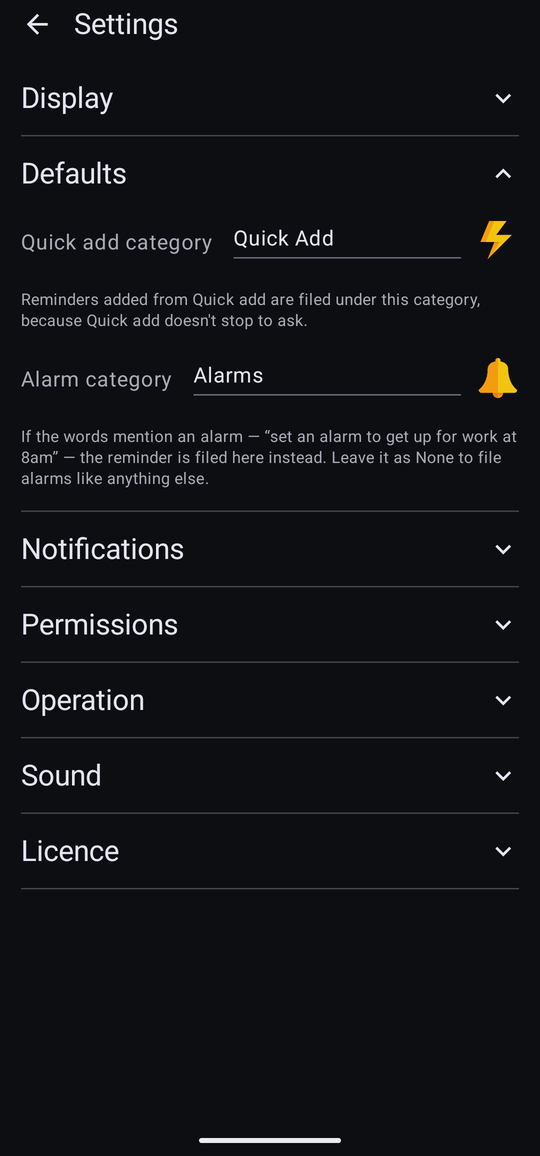
- Quick add category — where everything from this screen is filed. A new install creates a category called Quick Add and points this at it, so the screen works the first time you use it.
- Alarm category — where anything mentioning an alarm goes instead. A new install creates Alarms for the purpose, and marks it as an alarm category so its reminders can be given a tone from the Alarms folder and played at alarm volume.
Both are ordinary categories once made. Rename them, re-icon them, point the settings somewhere else entirely — nothing goes looking for them by name afterwards.