 Forget Me Not
User manual · Chapter 1
Getting started
What you need, what happens the first time you open the app, and the permissions Android will not hand over until you say so.
What you need
Forget Me Not runs on any phone or tablet with Android 8.0 (Oreo) or later. It works the same on both, laying itself out for the screen it is given — on a tablet in landscape the calendar puts the month on one side and the plan on the other rather than stacking them.
There is nothing to sign into and no account to make. Everything you put into the app is kept on the device, and nothing is sent anywhere — unless you later choose to turn on cross-device sync, which is off by default and entirely optional. Until then, nothing is kept anywhere else for you either, which is what Chapter 10 is about.
The welcome guide
The first time you open the app you get a guide rather than the app. Its first page says what the app is for — including what costs nothing and what is part of Pro, so there is no surprise later; the pages after it ask for one Android permission each.
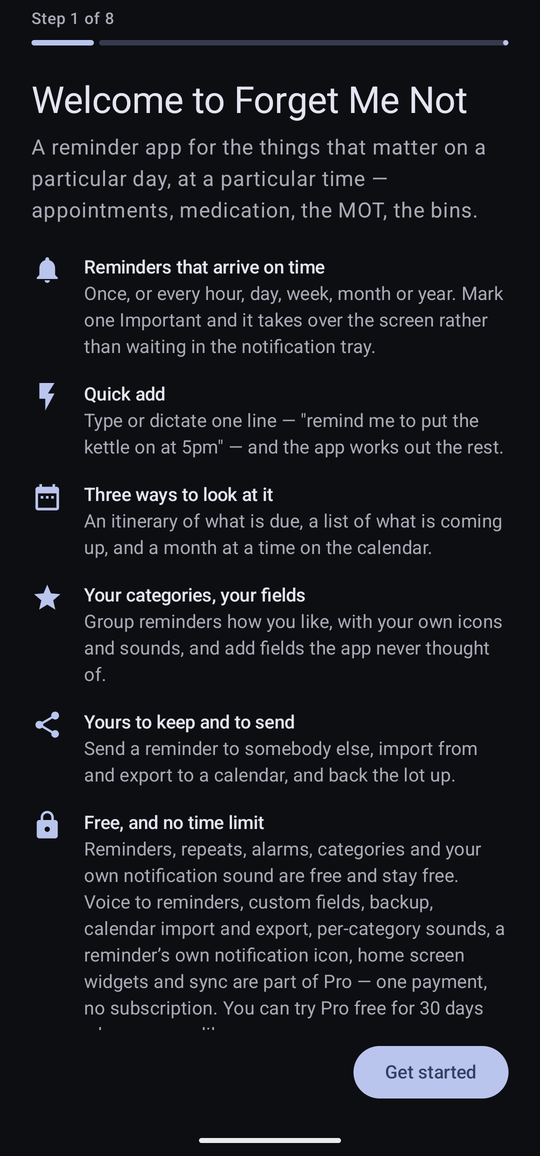
A counter at the top — Step 1 of 8 — says how far through you are. The number of steps varies with the version of Android you are on, because different versions guard different things: older ones ask for fewer.
The permissions, one by one
Every permission page is laid out the same way: what the permission is called, whether it is already allowed, Why it is needed, and Without it. That last heading is the important one. The app tells you plainly what it loses, so that saying no is a decision rather than a guess.
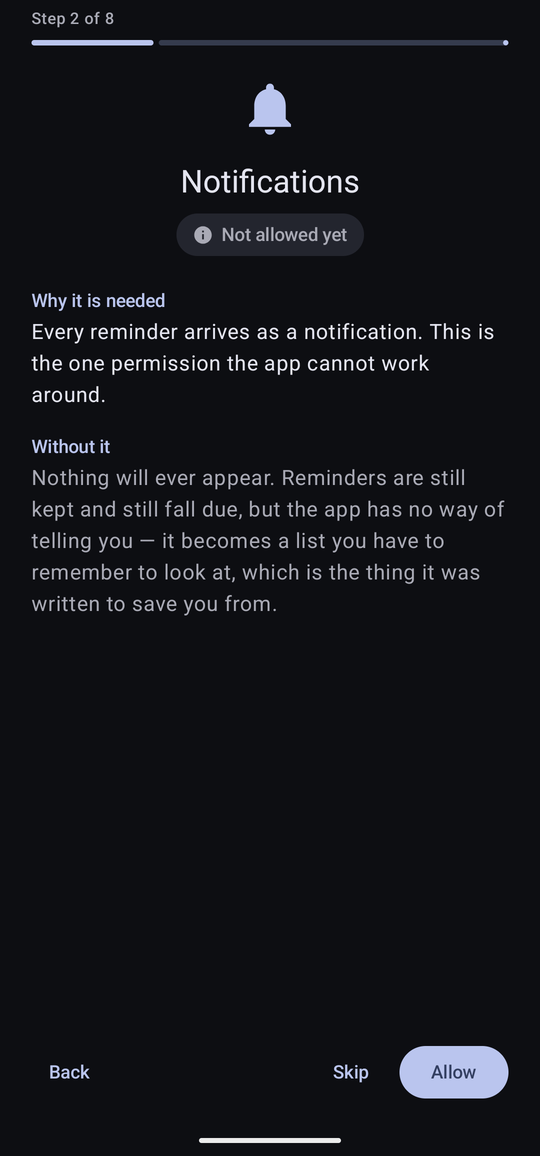
Tapping Allow hands you to Android's own dialog, or to the relevant system settings screen. Answer it and you come straight back to the same page of the guide with its status re-read. Tapping Skip moves on without asking for anything.
| Permission | What it is for | Without it |
|---|---|---|
| Notifications | Every reminder arrives as a notification. | Nothing ever appears. Reminders are still kept and still fall due, but the app has no way of telling you. This is the one permission it cannot work around. |
| Alarms and reminders | Lets a reminder be set for the minute you asked for. | Reminders arrive late, by an unpredictable amount. Only asked for on some Android versions; on newer ones it cannot be revoked and no page appears. |
| Unrestricted battery use | Stops Android deferring the app's work while the phone is idle. | A reminder due while the phone is in a pocket or on a bedside table may not arrive until the phone is picked up. This is the commonest cause of a late reminder. |
| Display over other apps | Lets an Important reminder appear over whatever is on screen. | An Important reminder arriving while you are using the phone comes through as an ordinary notification. Ordinary reminders are unaffected. |
| Full screen notifications | Lets an Important reminder open its own screen from its notification, which is how it reaches you while the phone is locked. | Android quietly demotes Important reminders to ordinary ones unless this or Display over other apps is allowed. |
| Microphone | Dictating a reminder on the Quick add screen. | Quick add still works; the microphone button is simply hidden and reminders are typed. Nothing else changes. |
| Calendar | Reading the events in your calendars and writing reminders out to one, on the Import/Export screen. | That screen has nothing to work with. Everything else is unaffected — and the app never deletes anything from a calendar whatever you allow here. |
Between them, Notifications, Unrestricted battery use and — if you intend to use Important reminders — Full screen notifications are what make the app do its one job. The other three each buy a specific feature and can be left alone without affecting anything else.
Skipping and changing your mind
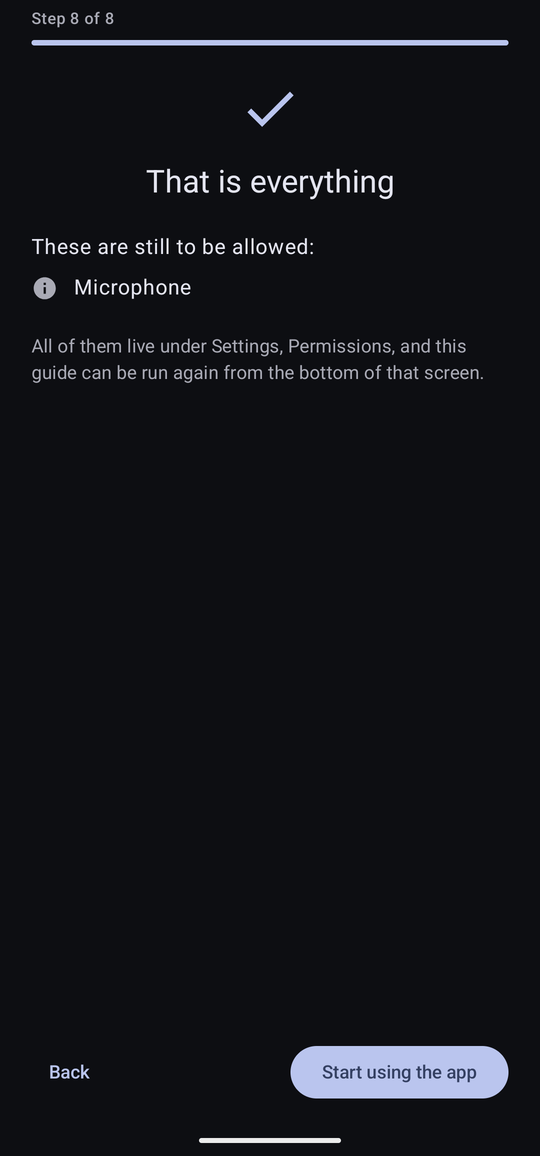
The last page lists whatever is still outstanding, so you leave the guide knowing exactly what you have and have not given.
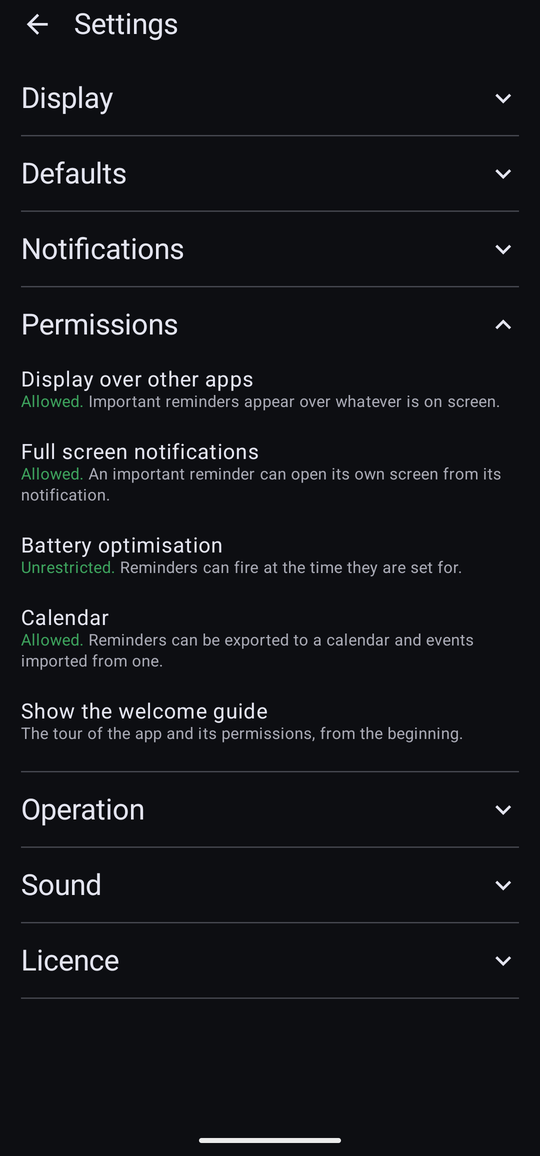
None of it is a one-off decision. Settings → Permissions carries a live row for the four that can be changed after the fact — Display over other apps, Full screen notifications, Battery optimisation and Calendar — each saying what it is currently set to and opening the right system screen when tapped.
The rest are Android's own runtime permissions, and live in Android's app settings for Forget Me Not. The simplest way back to any of them is Show the welcome guide at the foot of that section, which runs the whole tour again from step one and asks for each in turn.
Your first look at the app
After the guide you land on an empty itinerary. The bar along the foot switches between the four screens you will spend all your time in — Itinerary, Upcoming, Calendar and Quick add — and the round button at the bottom right adds a reminder.
Until you have made your first reminder, the Itinerary and Upcoming screens say what they are each for rather than sitting empty, and each offers a Create your first reminder link that does exactly what the round button does.
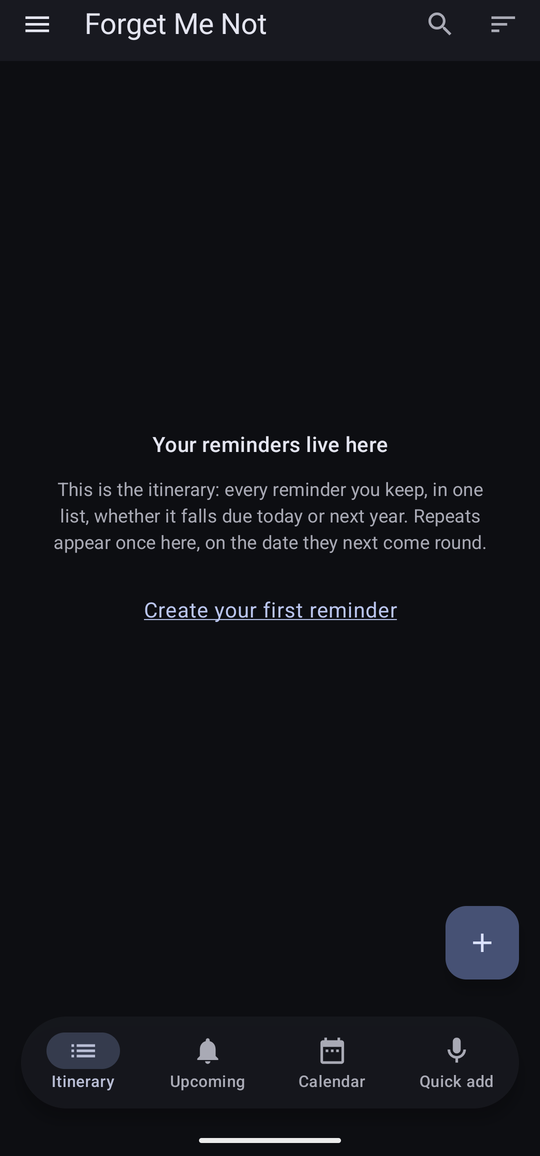
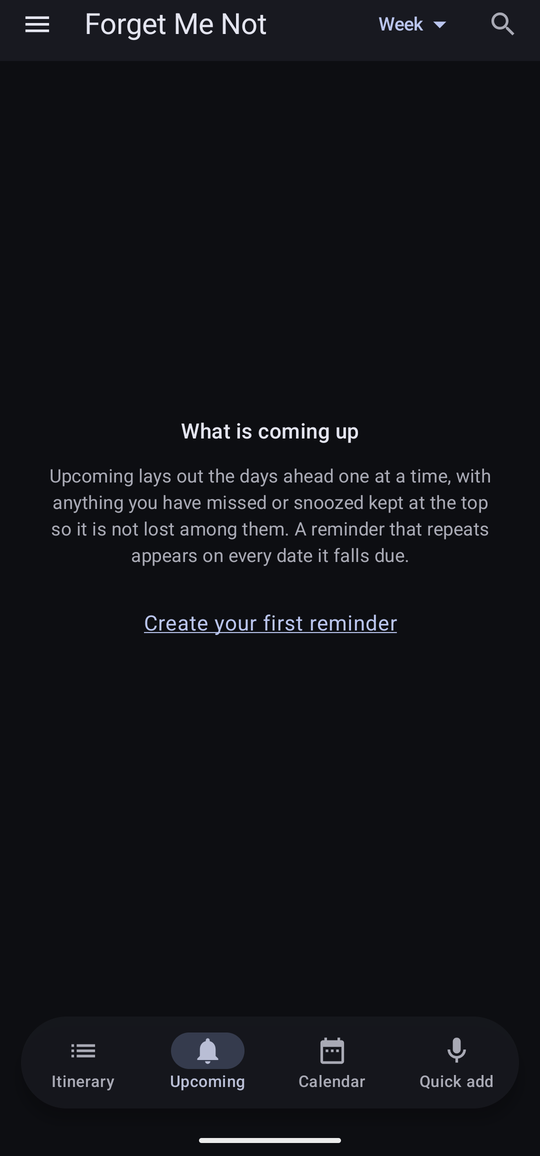
Both revert to a plain No reminders in … once you have reminders — the explanation is for a new install, not for a category you have filtered to that happens to be quiet.
Your first reminder, explained as you go
The editor the link opens is the same one you will use from then on, but for the first reminder only it explains itself. Under every option is a line in blue saying what that option is for and whether you have to answer it — most of them are optional, and the app says so rather than leaving you to wonder. The dialogs behind each row do the same.
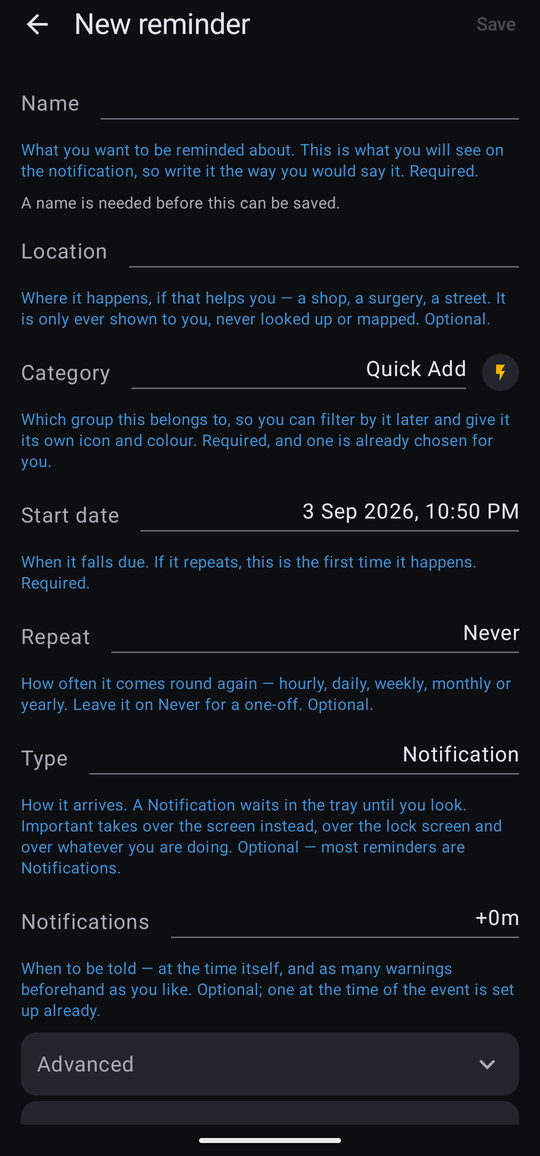

Once that first reminder is saved the help stops, everywhere and for good. The editor goes back to the plain form, and so does every dialog — nothing has to be turned off.
The menu button at the top left opens the drawer. Your categories are listed there with a count against each, and everything else the app can do lives under Configuration at the top.
The version number at the very top has (Free) or (Pro) beside it in green, which is the quickest way to tell which tier you are on. While the thirty-day trial is running it reads (Pro) with the days remaining underneath.
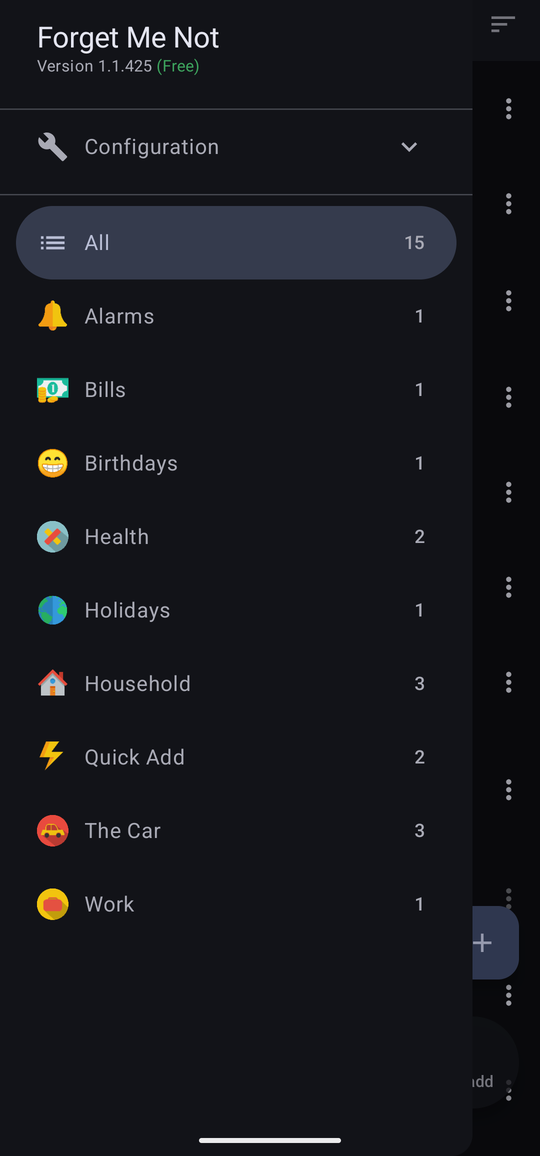
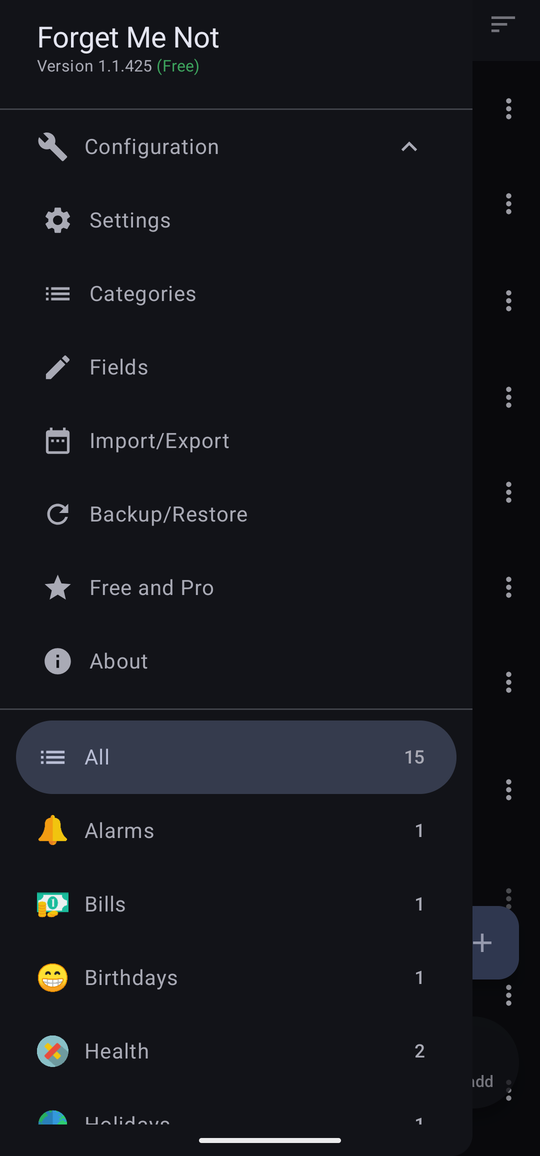
A new install arrives with two categories already made — Alarms and Quick Add — and one field, Notes. They are not examples: Quick add needs a category to file things under, and it is pointed at one out of the box so it works the first time you use it. All three are ordinary once created, and can be renamed, re-iconed or deleted like anything else.
When a new version is out
Every time the app opens, it quietly checks Google Play for a newer version — the same background check Chapter 13 describes for Pro, and nothing more than that.
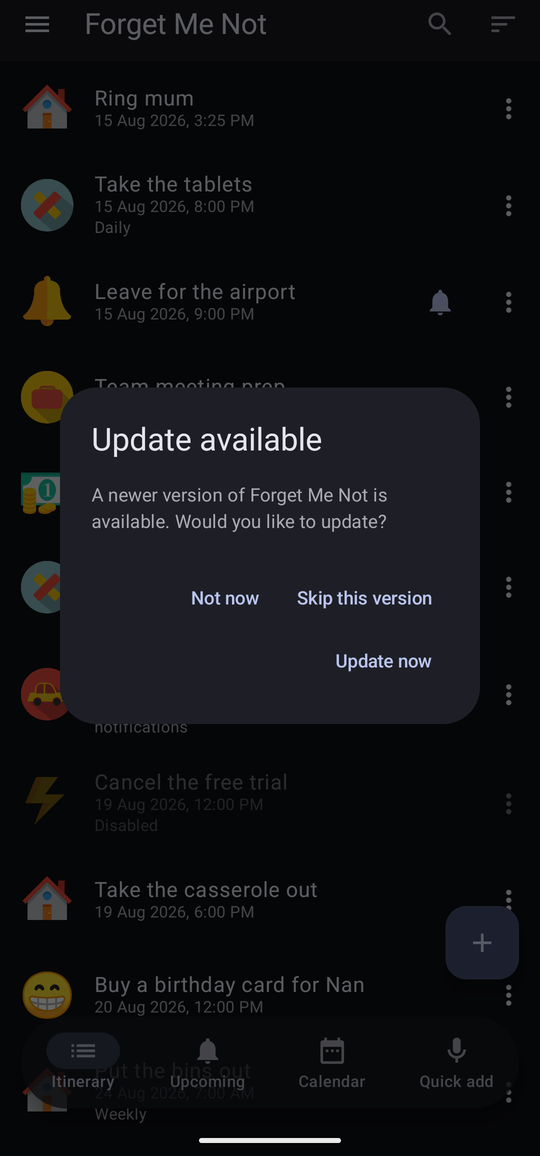
Not now closes the dialog and asks again next time the app opens. Skip this version does not turn the check off either — it only waves off the version currently on offer, so the next one after it is still announced.
Your first reminder
The quickest way in is Quick add. Type or say one line — “remind me to put the kettle on at 5pm” — and the app shows you what it understood before it saves anything. Chapter 3 covers it in full.
For anything with more to it than a name and a time, the round + button on the itinerary opens the full editor. That is Chapter 2, and it is the next thing to read.