 Forget Me Not
User manual · Chapter 2
Reminders
A reminder is a name and a moment. Everything else on the form is optional — but the optional parts are where the app earns its keep.
Making one
The round + button at the bottom right of the itinerary opens an empty editor. A reminder needs a Name and a Category; each says so underneath itself while it is empty, and Save stays greyed until both are answered. A new reminder starts in whichever category you were looking at, or failing that the one quick add files things under — so usually only the name is left to fill in.
On Free, the + button explains itself instead of opening an editor once you have twenty live reminders. Nothing you already have is affected — the limit is on adding a twenty-first, and a reminder that has been and gone gives its place back on its own. Editing an existing reminder is never refused. See Free and Pro.

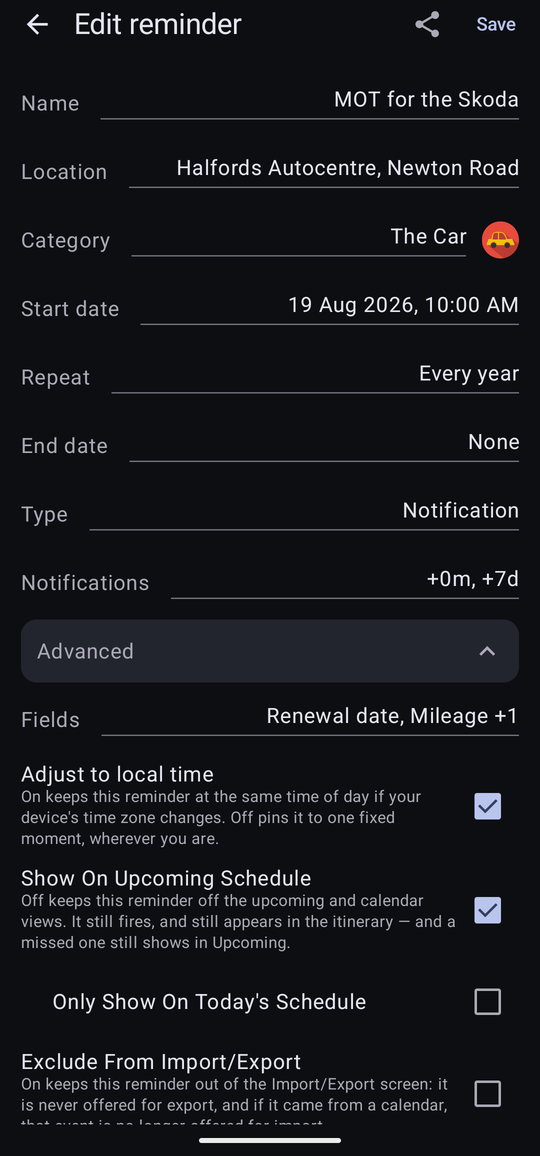
Tapping any existing reminder opens the same form under the title Edit reminder. Nothing is written until you tap Save.
Two reminders cannot share a name and a date and time. Try it and the app says “There's already a reminder with that name at that date and time.” Change either one and it saves. The rule exists so that a reminder is identifiable — by you, and by the calendar export and the share file.
The form, row by row
Every row on the editor is asked for the same way: tap the row, answer the dialog, and the row shows what you chose. There is no mixture of dropdowns, spinners and inline pickers to learn.
| Row | What it does |
|---|---|
| Name | What the notification will say. Required. |
| Location | Free text, shown on the row, in the editor and in the occurrence panel. Nothing is looked up or mapped. |
| Category | Which group it belongs to, which decides its icon and — if the category has its own — its sound. Required. |
| Start date | When it is due, and whether it is all-day. See below. |
| Repeat | Never, hourly, daily, weekly, monthly or yearly. |
| Type | An ordinary notification, or Important. |
| Notifications | When to be told. One at the time of the event by default; add as many as you like. |
| Advanced | Folded away by default: Fields, a notification icon of its own, and the switches that decide where a reminder shows up. See Chapter 7 and below. |
Date and time
Tapping the Start date row opens one dialog for everything about when a reminder starts: an All day event switch at the top, and — while that is off — a date chip and a time chip below it. Tapping either chip expands it to its full picker and collapses the other back down to a chip beside it, since a phone only has room for one full-size picker at a time.
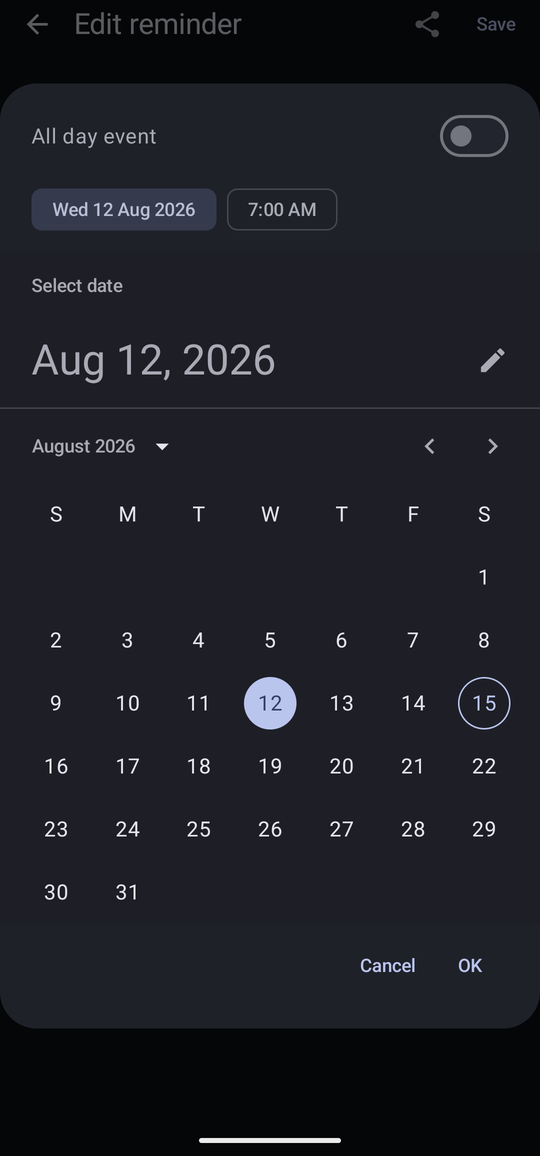
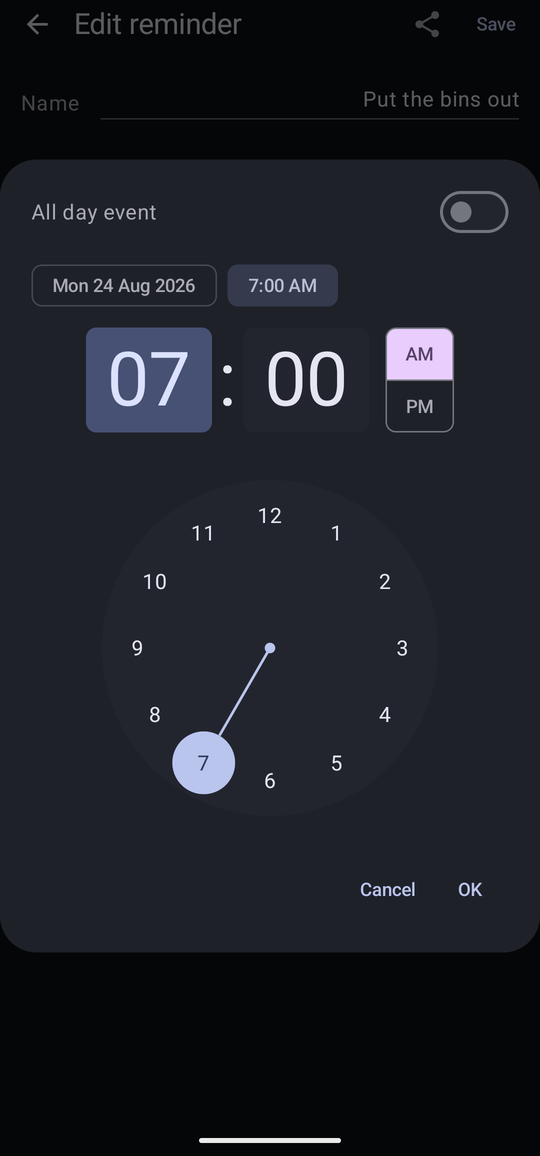
When the date chosen is not today, the clock opens on the morning rather than on the current hour — a reminder set for next Tuesday is far more often for nine o'clock than for whatever time it happens to be while you are typing. A time that has already gone today is refused, with “Choose a time from … onwards”. A reminder cannot be set for the past, because there would be nothing for it to do.
All-day reminders
Turn on All day event, at the top of the Start date dialog, and the time chip goes: the reminder is a date, not an appointment. A birthday, a renewal, a bin day.
An all-day reminder fires at midnight at the start of its day. That is deliberate — a due date is something you want to know about as the day begins, not at whatever hour you happened to create it. If you would rather be told at a civilised hour, add a notification for the time you want (see below) — or set an ordinary timed reminder instead.
Important is not available on an all-day reminder; the Type dialog says “Not available for an all-day reminder”. Taking the screen over at midnight would not be a service to anybody.
Repeats
The Repeat row offers Never, Every hour, Every day, Every week, Every month and Every year.
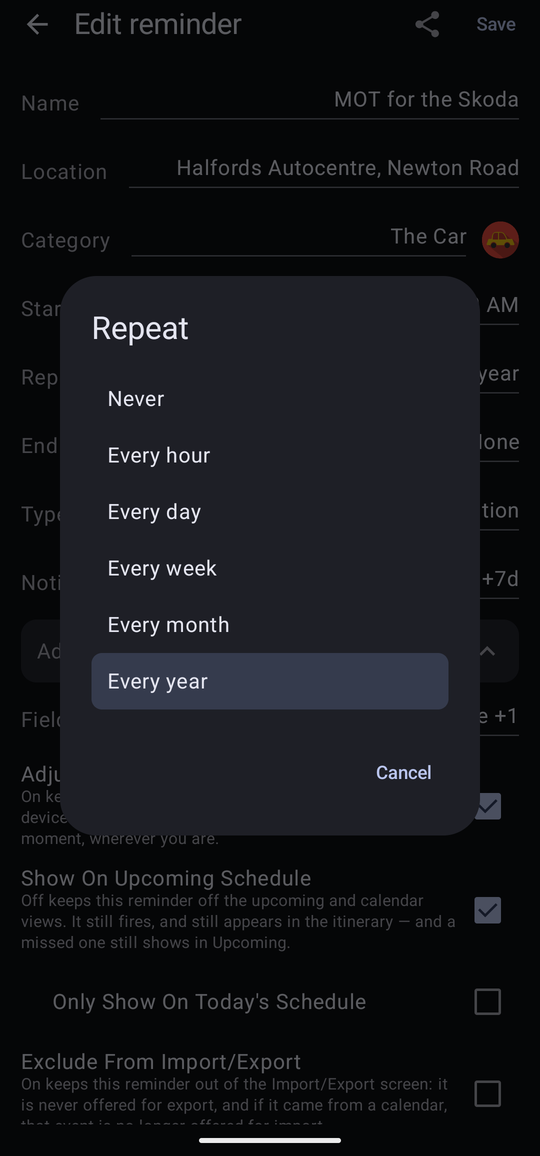

Choose Every week and a Repeat on row appears with a chip for each weekday. The day the reminder starts on is fixed on and cannot be turned off — the app says so — but you can add as many of the others as you like. A weekday stand-up is Monday to Friday on one reminder rather than five.
A monthly repeat on the 31st is counted from the start date rather than nudged along month by month, so passing through February does not strand the rest of the series on the 28th.
Every hour does exactly what it says, for ever. It is genuinely useful for medication on a strict schedule, and a menace on anything else. The calendar export warns about it specifically, because exporting one fills a calendar with thousands of entries.
Ordinary or Important
The Type row decides how loudly a reminder arrives.
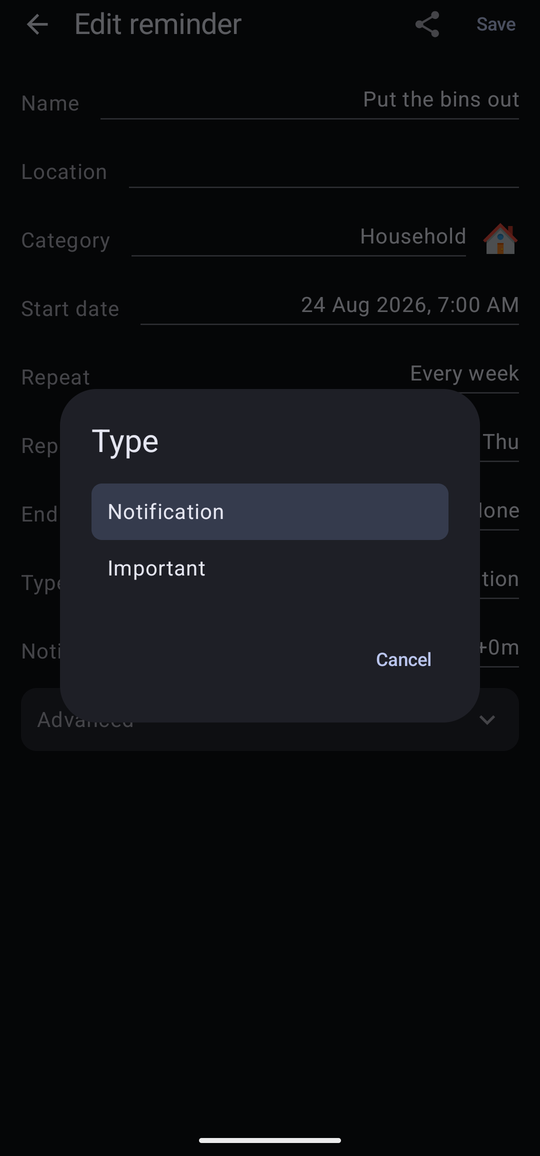
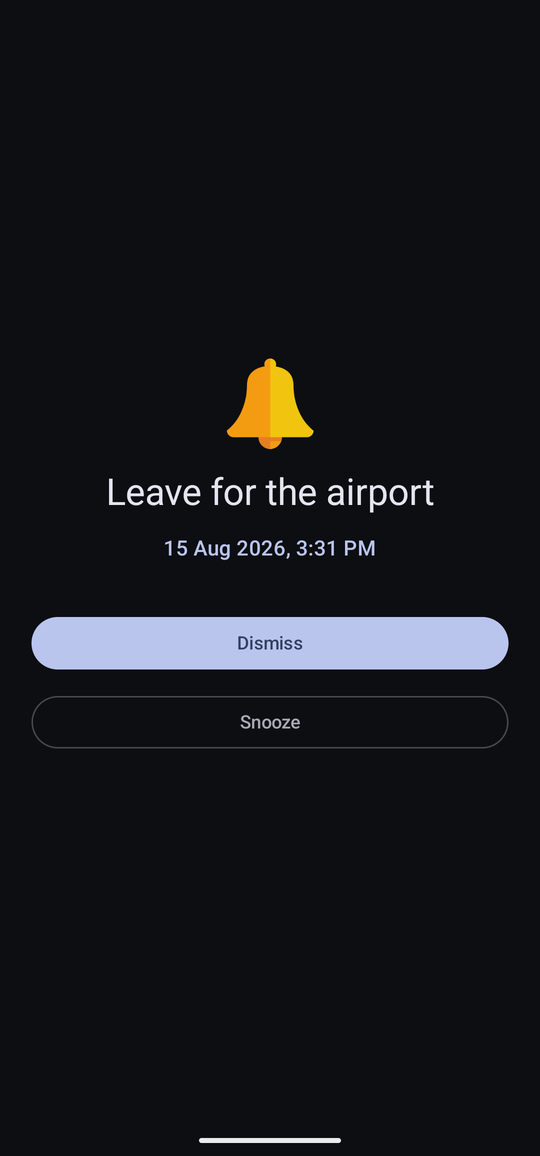
- Notification — an ordinary entry in the notification tray, with Dismiss and Snooze. It waits for you.
- Important — takes over the screen, over the lock screen and over whatever app you are using. For the things that are no use five minutes late.
Important reminders lean on two Android permissions — Display over other apps and Full screen notifications — and Android silently demotes them to ordinary notifications if it has neither. The app notices when that has happened and says so, rather than leaving you to wonder. Chapter 5 goes into it.
Notifications before the event
Every reminder starts with one notification, at the time of the event. The Notifications row opens the list, and you can add as many more as you want.

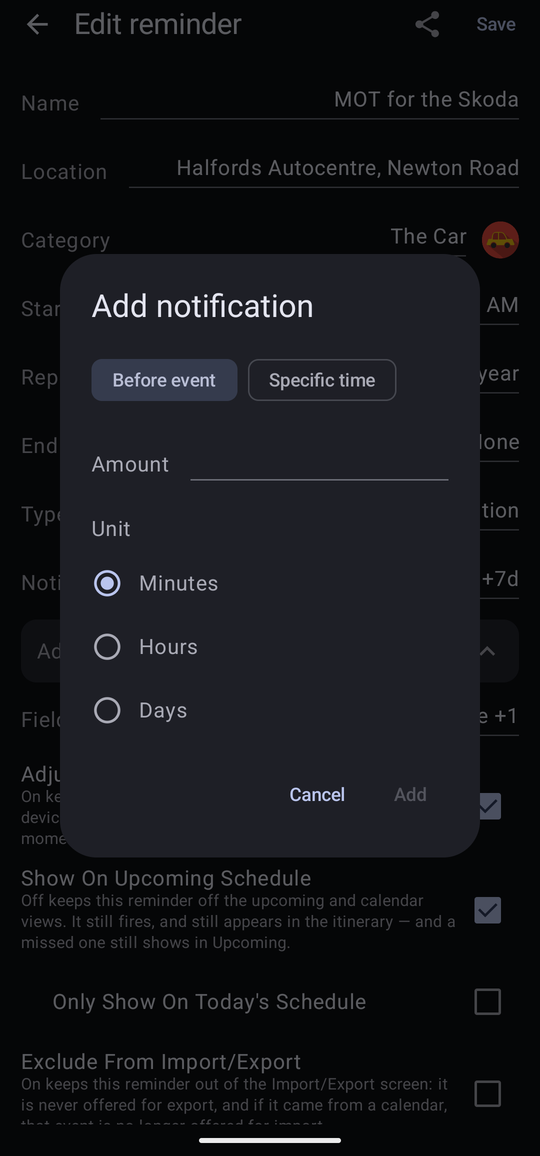
- Before event — an amount and a unit: 30 minutes, 2 hours, 7 days. The notification says what it is early about: “In 30 minutes · 10 Aug 2026, 9:30 AM”.
- Specific time — a date and a time of your own choosing, unrelated to when the event is. Useful for pinning an all-day reminder to a sensible hour.
An alert whose moment has already passed is never armed, so give yourself room: a reminder set an hour out with a thirty-minute warning has already used half of it by the time you finish typing.
A Specific time alert cannot be written to a calendar — the calendar format has no way to hold one. The Import/Export screen flags any reminder carrying one, and exports the rest of it faithfully. See Chapter 9.
Fields and location
Location is a free line of text. Nothing is looked up, mapped or searched — it appears on the reminder's row, in the editor and in the occurrence panel, and that is all it is for.
Fields are anything else you want to keep with a reminder: a policy number, a renewal date, a premium, a mileage. Tap the row, then Add field, and pick from the fields you have defined.
On Free the Fields row moves out of Advanced into a second folding section, Pro Settings, along with Notification Icon and Exclude From Import/Export. They are shown rather than hidden, with the real field names already on that reminder, so you can see that nothing has been thrown away — they are simply not editable until you are on Pro. See Free and Pro.
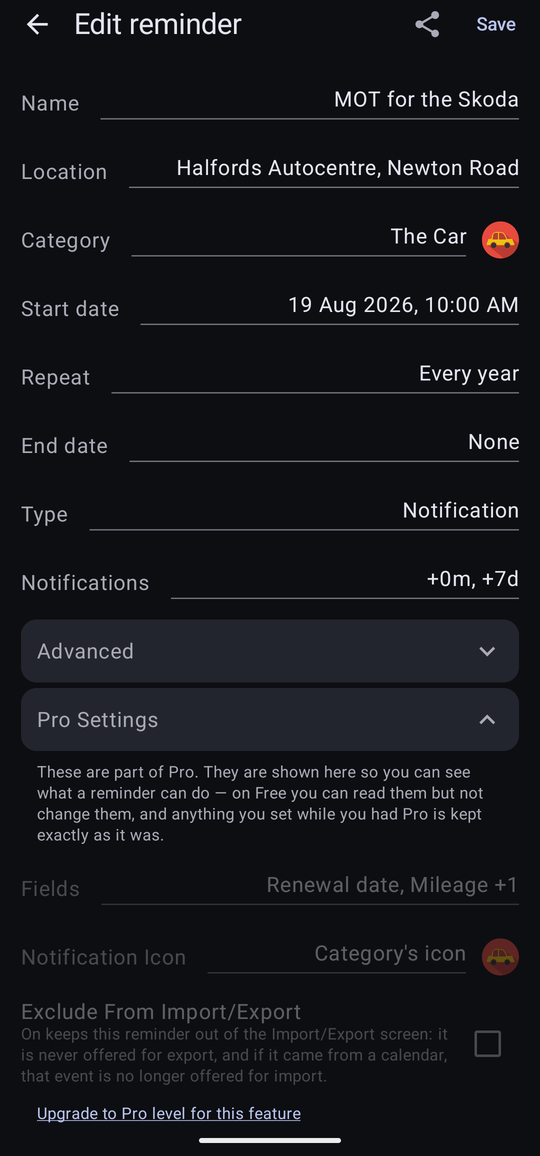
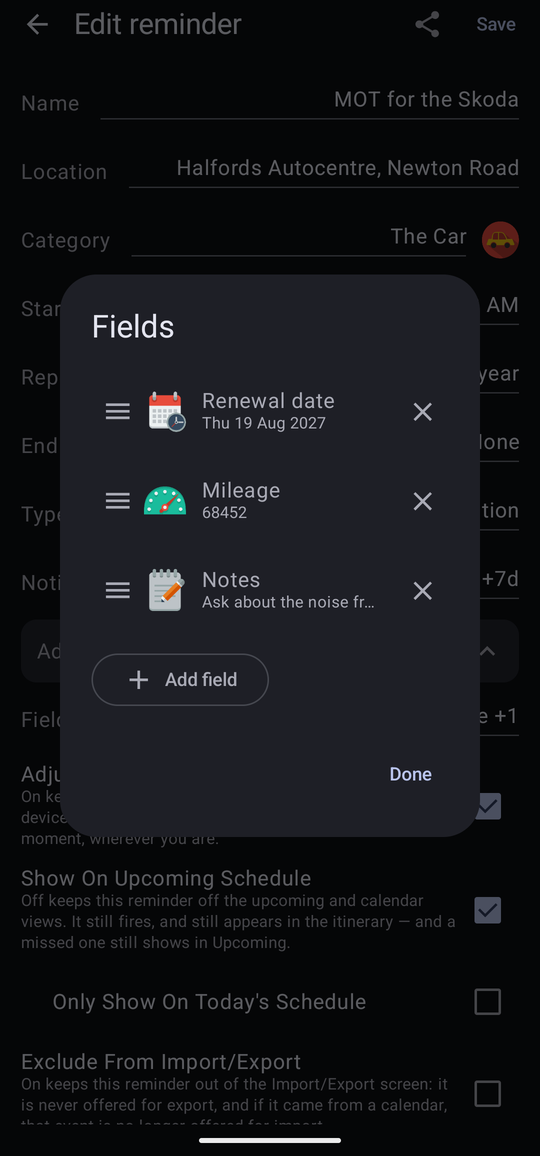
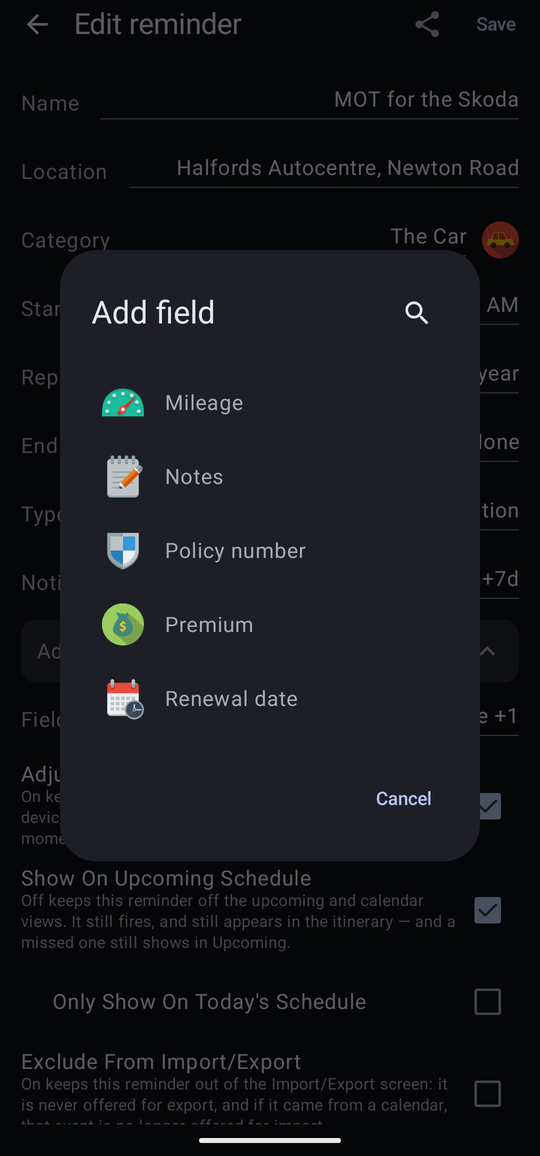
The handle at the left of each row drags it into position, and the order is kept. A reminder can hold the same field more than once — two phone numbers, two reference numbers — and each copy keeps its own value. Chapter 7 covers defining them.
Advanced: a notification icon of its own
Every reminder has an icon on every tier — its category's. What needs Pro or the thirty-day trial is choosing a different one for a single reminder. On Free a reminder that was given its own icon falls back to its category's everywhere it is drawn: the notification, the badge on the itinerary and calendar rows, and the editor row below. The chosen icon is kept, not cleared, and comes back with Pro. See Free and Pro.
A reminder's icon is its category's — that never changes here. What Notification icon, under Advanced, adds is a second icon just for this one reminder, carried only by the notification it posts. Everywhere else — the itinerary, Upcoming, the calendar — the row still shows the category's icon exactly as it always has; once a notification icon is set it appears there too, in miniature at the corner of the category's icon, so it is clear at a glance which reminders carry one without opening each in turn.
Tap the row to choose one: a built-in icon, one from an icon pack, or a photo cropped from your device — the same three routes choosing a category's icon offers. Remove icon takes it away again, and the reminder goes back to showing only its category's icon, on the notification as everywhere else.
Advanced: local time and the three switches
Advanced, folded shut by default, also holds four further switches — the rarer settings, out of the way until they are wanted.
| Switch | What turning it on does |
|---|---|
| Adjust to local time (on by default) |
Keeps the reminder at the same time of day if the device's time zone changes — travelling with a 9am reminder keeps it firing at 9am wherever you land. Turn it off and it pins to one fixed moment instead, wherever you are. Not offered on an all-day reminder, which has no time of day for a zone change to disturb. |
| Show On Upcoming Schedule (on by default) |
Turn it off and the reminder disappears from Upcoming and the calendar, while still firing and still appearing in the itinerary. This is for the standing arrangement — a daily tablet, a weekly bin day — that would otherwise bury everything else. A missed occurrence still shows in Upcoming regardless: something that was due and was not dealt with is outstanding work. |
| Only Show On Today's Schedule | The reminder appears on Upcoming and the calendar only on the day itself, rather than on every future date it will fall on. A daily errand shows once, today, instead of filling the next three weeks. |
| Exclude From Import/Export | Keeps the reminder out of the Import/Export screen entirely: never offered for export, and if it came from a calendar, that event is no longer offered for import. |
Duplicating, pausing and deleting
Every row on the itinerary carries a ⋮ menu of its own.
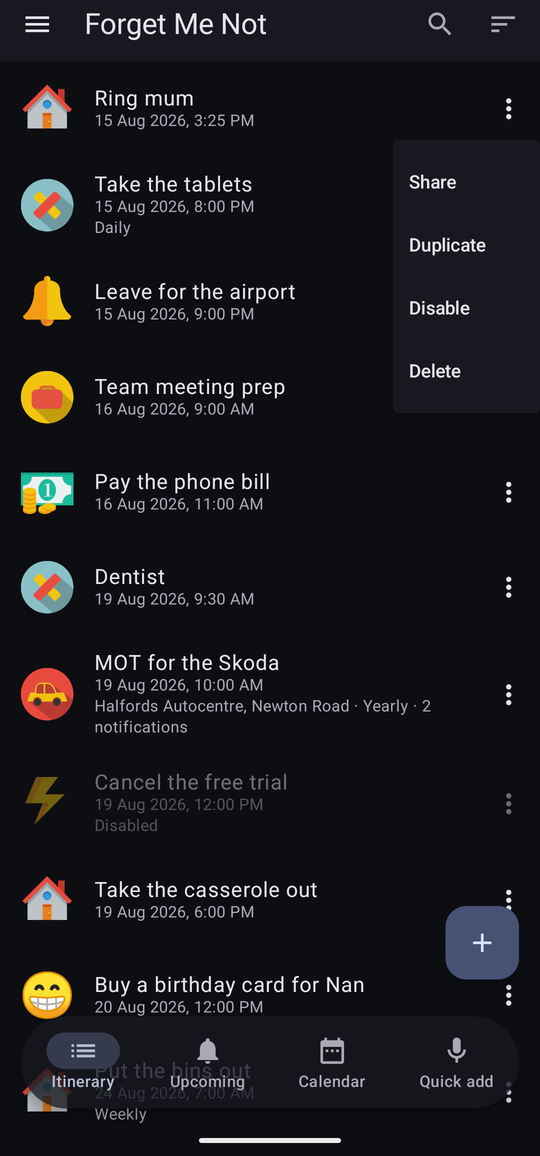
- Share — send this one reminder to somebody else as a file. See Chapter 8.
- Duplicate — a copy to edit, for the next of something you have already set up carefully.
- Disable — pauses it. The row stays, greyed and marked Disabled, and nothing fires until you Enable it again. Better than deleting something seasonal.
- Delete — gone, with its past and future events. The confirmation names the reminder and says so.
Working on several at once
Long-press any row on the itinerary and the list goes into selection mode: tick as many as you like and the bar at the foot becomes Cancel, Delete, Category and Notify.
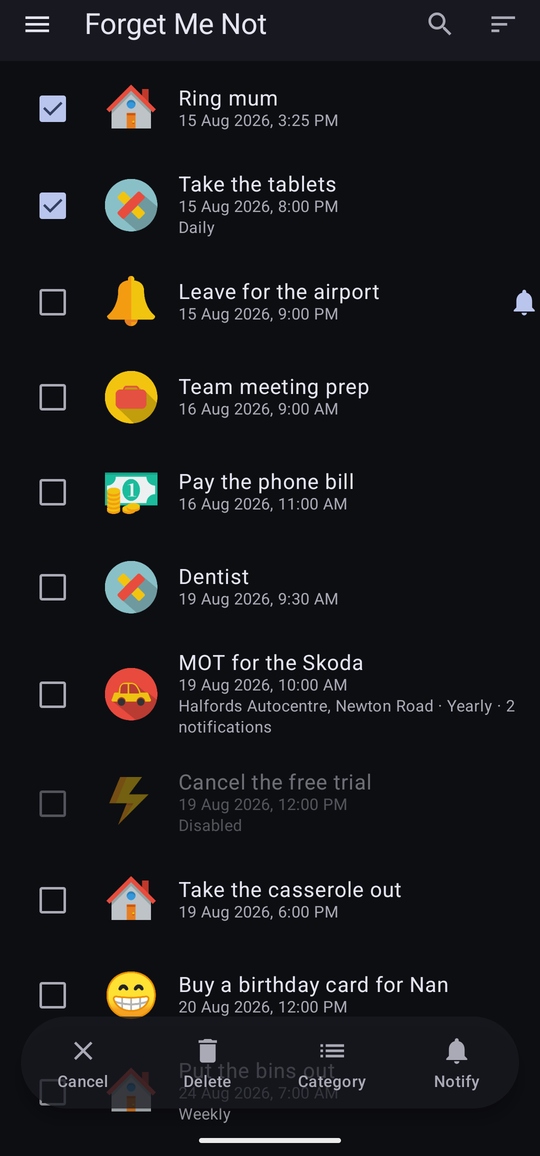
- Category — files all the chosen reminders under one category, after confirming.
- Notify — sets one alert across all of them. The confirmation is explicit that this replaces every notification on the chosen reminders rather than adding to them.
- Delete — removes them all, after a confirmation that counts them.