 Forget Me Not
User manual · Chapter 15
Widgets
Three home screen widgets: what is due next, everything due today, and a one-tap way into quick add — each one placed the ordinary Android way, and each one styled to suit the home screen it sits on.
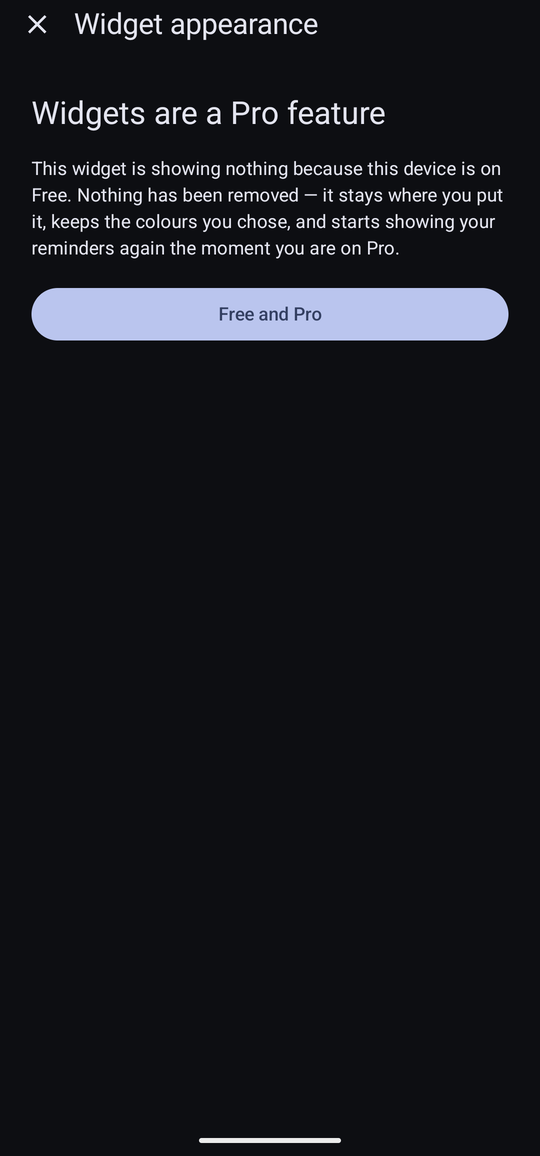
Everything in this chapter needs Pro or the thirty-day trial. A widget placed on Pro is never removed if you go back to Free: it stays where you put it, keeps the background and text colour you chose, and starts showing your reminders again the moment you are on Pro. In the meantime it shows nothing at all — the app will not turn your home screen into an advertisement — and its own settings screen says why. See Free and Pro.
Adding one
Widgets are placed the same way as any other app's: press and hold an empty part of the home screen, choose Widgets, then find Forget Me Not — search for it if the list is long. Three previews are on offer, one for each widget below. Press and drag whichever one is wanted onto the home screen and let go.
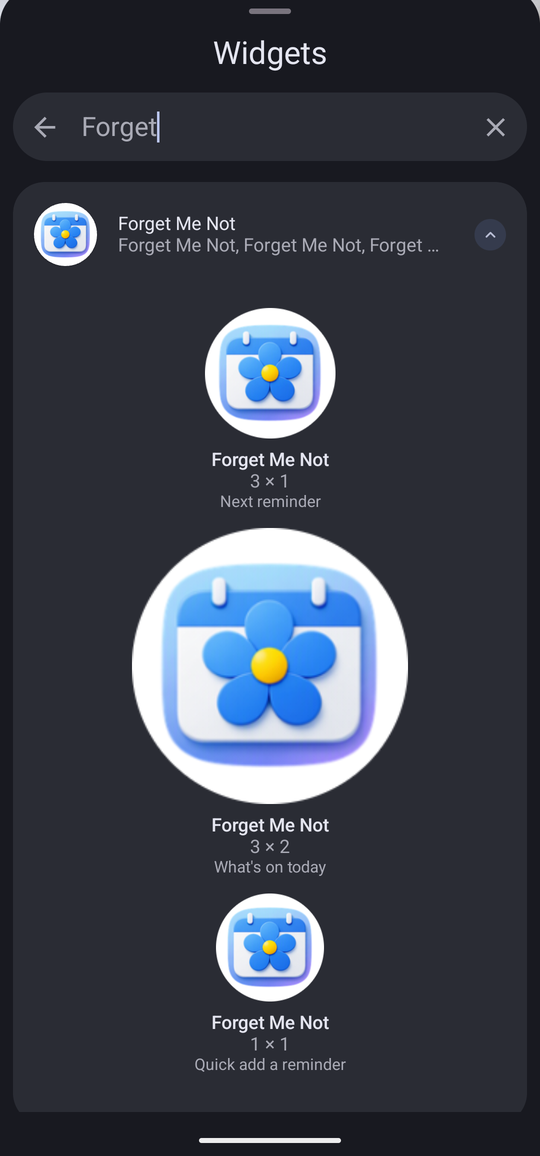
The moment one lands, its appearance screen opens automatically — see below. Widgets can be resized afterwards by dragging their edge handles, and moved or removed the same way as any other launcher item.
The three widgets
Each widget opens the app when tapped rather than trying to do everything itself — a widget is a window onto the app, not a second copy of it.
| Widget | Size | Shows | Tapping it |
|---|---|---|---|
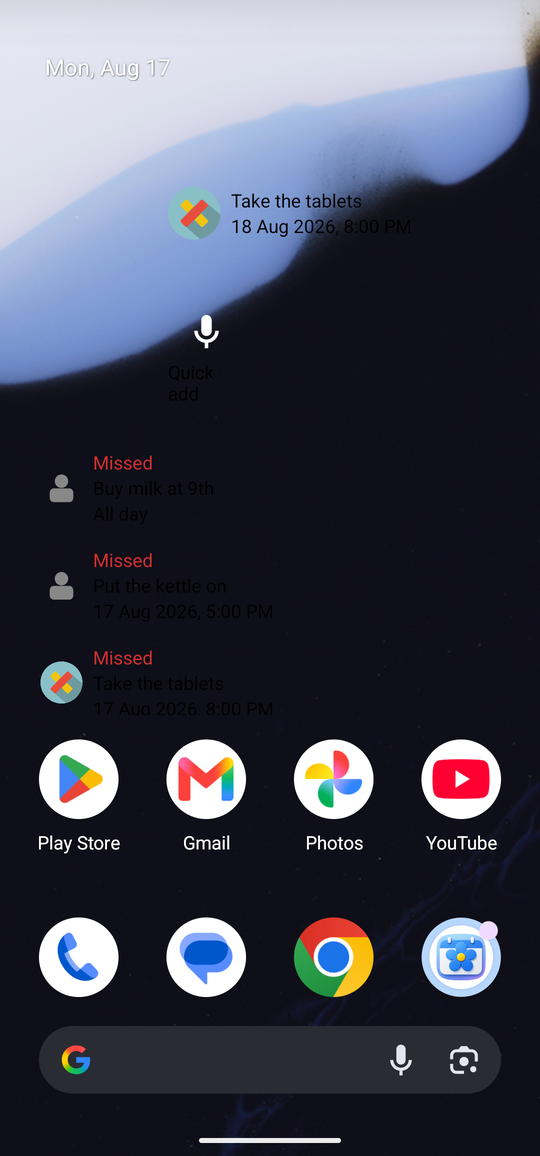
| Next reminder | 3 × 1 | The single soonest upcoming reminder — its category icon, name and time, or “Nothing upcoming” when the list is empty. | Opens that reminder. |
| What's on today | 3 × 2 | Every reminder due today, in order, each with its icon and time — or “All day” in place of a time for one that has none. Anything overdue and unanswered is headed Missed in red, exactly as it is on the itinerary. Empty days say “Nothing on today”. | Opens the reminder under a finger; the widget itself scrolls if the list runs long. |
| Quick add | 1 × 1 | A microphone and the words “Quick add” — nothing else, since it holds no data of its own. | Opens the app straight into quick add, already listening — see Chapter 3. |
Changing how one looks
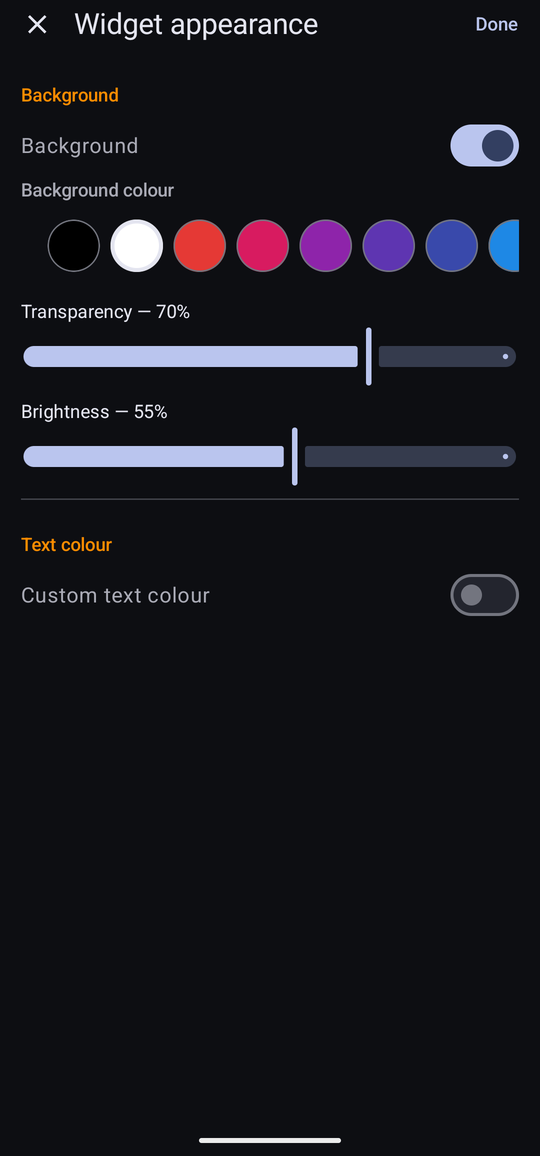
Every widget can be given its own background and text colour, independent of the other copies of it and independent of the phone's own theme. This screen opens the moment a widget is placed, and again later from Widget settings on the press-and-hold menu of an already-placed one.
| Control | What it does |
|---|---|
| Background | Off by default, so a newly placed widget shows the home screen through it, same as before this setting existed. Turn it on to reveal a colour swatch and two sliders. |
| Background colour | Black, white, or any colour from the category and field icon palette. |
| Transparency | How much of the wallpaper still shows through the chosen colour — 0% is fully see-through, 100% is solid. |
| Brightness | Darkens the chosen colour itself, toward black, independently of how transparent it is. |
| Custom text colour | Off by default, leaving the platform's own adaptive colour. Turn it on to fix the text to one colour from the same palette, regardless of wallpaper or theme. |
| Message | Quick Add only. The wording under the microphone, if you want something other than Quick add — “Say it”, or a name of your own. Left blank it uses the built-in wording rather than showing nothing. |
Changes take effect as soon as Done is tapped. There is no border option — Android's widget corners are already rounded by the launcher, and a border independent of the background could only ever be drawn with a seam where that rounding meets a straight edge, so it was left out rather than shipped looking wrong.
Keeping itself up to date
Next reminder and What's on today redraw themselves the moment something changes — a reminder added, edited, snoozed, dismissed or completed updates the widget straight away, not on the next timer tick. Android also refreshes every widget on its own schedule regardless, about every half hour, as a backstop for anything the app was not running to catch.