
User manual · Chapter 14
Connectors and export
A connector is a destination you set up once — a NAS, a server, your OneDrive or Google Drive, a USB drive. After that, sending photos to it is two taps.
Connectors
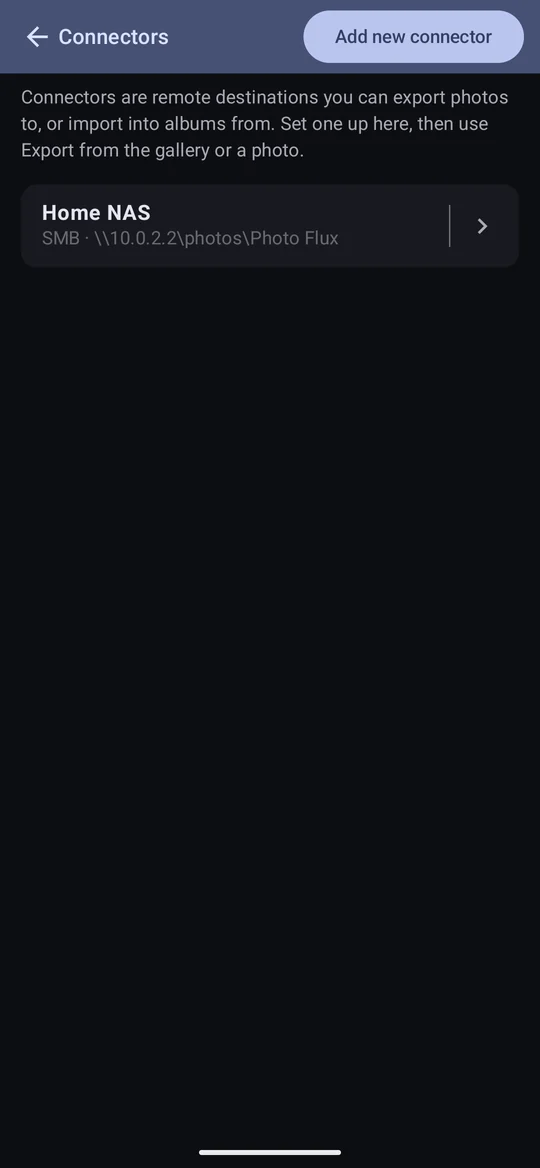
Configuration → Connectors lists your connectors; Add new connector makes one. A connector is used to export photos to, to import albums from, and as the destination of a Pass-Thru profile.
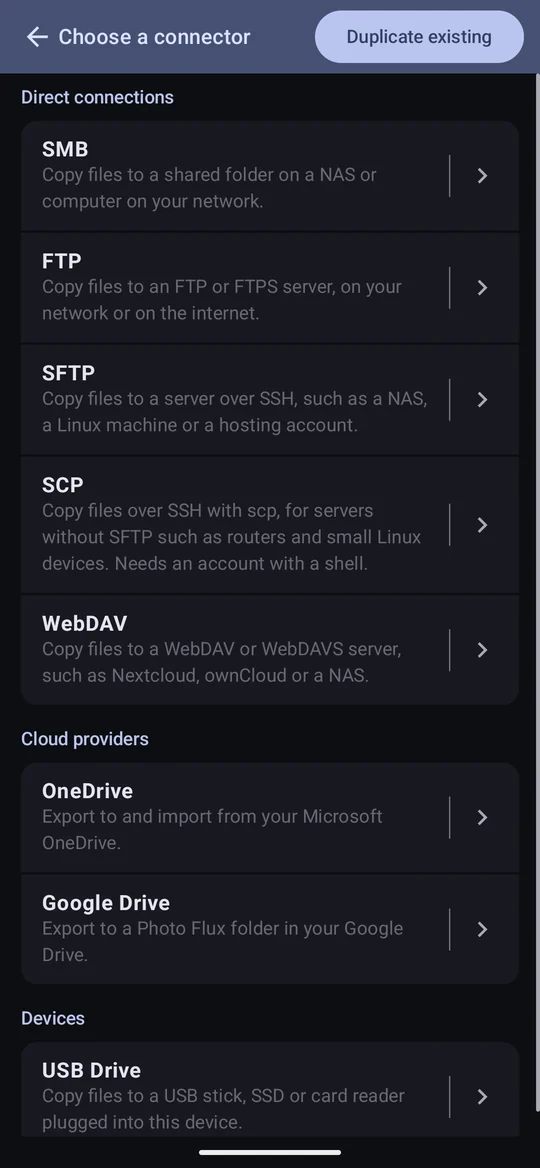
| Connector | For | Tier |
|---|---|---|
| SMB | A shared folder on a NAS or a Windows, Mac or Linux computer | Pro |
| FTP | An FTP or FTPS server, on your network or the internet | Pro |
| SFTP | A server over SSH — a NAS, a Linux machine, a hosting account | Pro |
| SCP | SSH servers without SFTP, such as routers and small Linux devices | Pro |
| WebDAV | Nextcloud, ownCloud, or a NAS's WebDAV | Pro |
| OneDrive | Your Microsoft OneDrive — export and import | Pro |
| Google Drive | A Photo Flux folder in your Google Drive — export and import | Pro |
| USB Drive | A USB stick, SSD or card reader plugged into the device | Free |
Duplicate existing, at the top right of the connector list, starts a new connector filled in from one you already have — server, user, password, folder, settings — so a second folder on the same server is one change. A OneDrive or Google Drive copy is already signed in to the same account. The copy is named "… (copy)" until you rename it.
A network connector's password is encrypted with a key held in Android's secure keystore and is only ever sent to that server. Photo Flux never sees your Microsoft or Google password at all — you sign in on their own pages. See the privacy policy.
Exporting photos
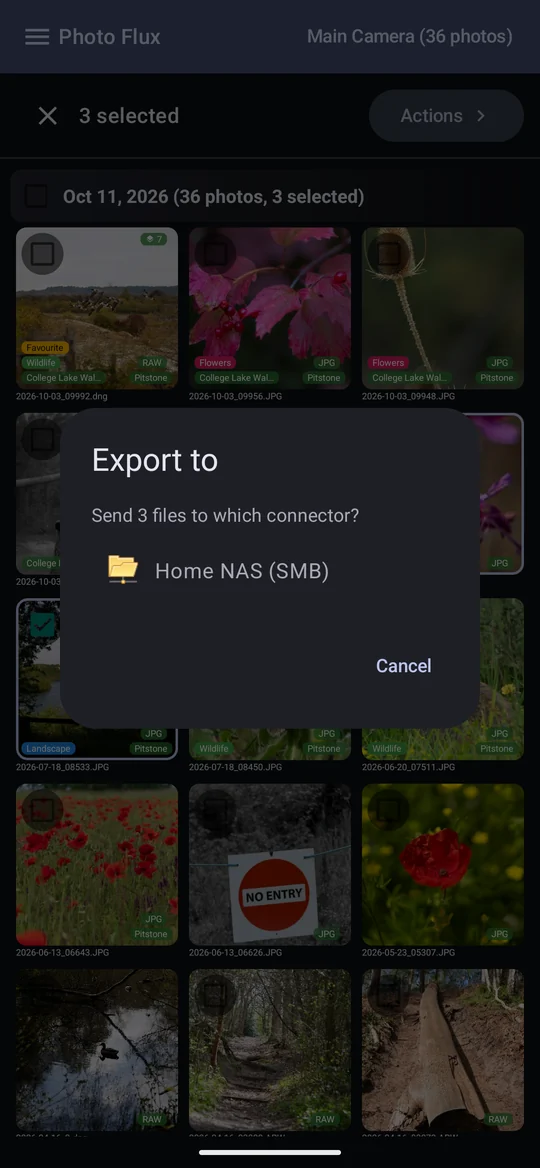
Select photos and tap Actions → Export (or Export all with nothing selected, or Export in the viewer), then choose the connector. A progress window shows each file as it goes; like an import, it carries on with the screen locked, with a notification and a Cancel button.
- The destination mirrors your folders. The subfolders your folder filter made are
recreated under the connector's folder —
Photo Flux/2026-10-03/…. If a photo's folder can't be worked out, it goes into the connector's folder itself rather than failing. - Re-running is cheap and safe. A file already at the destination at the right size is skipped, so running an export again after a failure or a cancel picks up where it left off. OneDrive and Google Drive go further: a file counts as sent only once the service confirms the same content, and one that changed is sent again.
- A RAW+JPG pair sends both files (with "All files") — never the preview extracted for the screen.
- Exporting sends the original, at full size, with any crop travelling alongside as metadata — an export is an archival copy, not a rendering. To send rendered, cropped copies, use JPEG only (as edited) below.
- Sent files are dated when the photo was taken, so a file browser at the destination sorts them by when they were shot. This works on SFTP, SCP, SMB, FTP (if the server allows it), OneDrive, Google Drive, and WebDAV on Nextcloud, ownCloud and rclone — not on a USB drive, where Android gives no way to set it.
- Cancelling stops between files, so a half-written file is never left behind.
- An export with failures stays on screen with the counts and the first failure's reason until you tap Done. A clean one closes itself.
What to send
Each connector has a What to send choice under Advanced options. Two connectors can point at the same place with different choices.
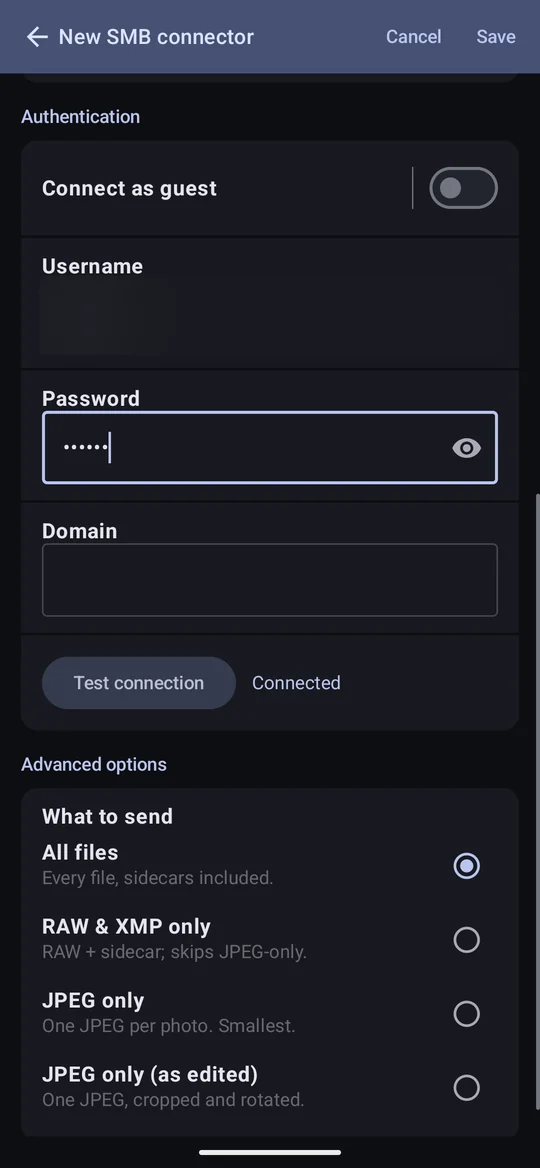
- All files (default)
- Every file, sidecars included.
- RAW & XMP only
- The RAW and its sidecar; JPEG-only photos are skipped.
- JPEG only
- One JPEG per photo. A RAW with no JPEG sends its extracted preview, named after the RAW — the JPEG the camera embedded, so its size and metadata vary by camera (often no GPS, sometimes no date).
- JPEG only (as edited)
- As JPEG only, but a cropped or rotated photo (or a HEIF) is sent as a new rendered JPEG that keeps its date, camera, location and keywords — though not its title or XMP tags — under the photo's own name. Point it at the same folder as an "All files" connector and the two replace each other's copy of an edited photo.
Photos a choice has nothing for are listed, not failed: "N photos had nothing to send under …".
Export processing
Some places are better kept private: a nest, a rare plant, a site that shouldn't attract visitors. Export processing takes the location out of the copies that leave Photo Flux, while the photos in the app keep theirs, so your map and tracks carry on working.
- Remove GPS coordinates from exported files takes out the position from the standard GPS fields, which is where apps and websites look for it.
- Remove location on export takes out the place names in the file's standard fields: city, region, country and location.
- Remove maker notes from JPEGs takes out the camera maker's private notes, where some cameras keep their own copy of the position, along with extras like focus points. RAW files keep theirs, because they can be needed to develop the photo.
All three are on every connector, in its editor's Export processing group, and on every profile except tracklog and GPS provider ones, on the profile's Export filters page: Edit profile, then the Export filters row under Import filters. With that row's own switch off, none of the profile's options applies; a connector's still do. If either the profile or the connector asks, it happens. So a sensitive profile stays protected wherever it goes, and a public destination gets nothing with a location, whichever profile sends to it. A profile's options also apply when you share its photos, and to a Pass-Thru profile.
- It can't reach copies you've already sent. Turning an option on changes what is sent from then on. Delete earlier copies at the destination, then export again.
- Folder and file names stay. If a profile uses Nearest Location in its folders or renaming, names can still show where a photo was taken. Photo Flux warns you about this.
- Your own words stay. A tag, title, event or caption that names a place isn't changed.
- A RAW keeps its private notes. Some cameras keep extra data of their own in a file. Remove maker notes from JPEGs takes it out of JPEGs, but it can't be taken out of a RAW safely. For the most sensitive sites, send JPEGs with that option on, using What to send, or leave GPS off on the camera.
Each copy is checked after it is cleaned. If Photo Flux can't be sure a file is clean, it doesn't send it and tells you which one. With these options on, an export sends every photo again rather than skipping those already there, because a cleaned copy is the same size as the original and the two can't be told apart.
Photo Flux tells you when maker notes may remain. A RAW always keeps its notes, and a JPEG keeps them unless Remove maker notes from JPEGs is on.
- Sharing asks first: Private maker notes may remain, with how many files. Choose Share anyway or Cancel. Nothing leaves Photo Flux until you choose. Tick Don't ask again for this profile to stop the question. The profile's Ask before sharing files with maker notes, on its Export filters page, brings it back.
- An export says on its result how many files were sent with maker notes in them, and stays open until you tap Done. If it also took maker notes out of JPEGs, it says how many, and that they were checked.
A RAW counts as keeping its notes even when Photo Flux can't find them, so the message says may.
Exporting on the road
- Losing the connection isn't an error. An export that loses Wi-Fi or signal pauses, says Waiting for a connection, and carries on by itself when it's back, sending the interrupted file again.
- A dropped connection is retried even with a good signal: a failed file is sent again on a fresh connection, up to three tries, and an export keeps reconnecting for up to ten minutes before giving up.
- Mobile data asks once for an export over 25 MB, showing its size (an upper bound — files already there are skipped). A metered Wi-Fi, such as a phone's hotspot, counts as mobile data.
- Losing Wi-Fi to mobile data pauses to ask when more than 25 MB is left: Wait for Wi-Fi or Continue on mobile data.
- A finished OneDrive export leaves a notification with how many photos are now there and a View button; a lapsed sign-in or a full OneDrive offers Sign in or Free up space.
SMB
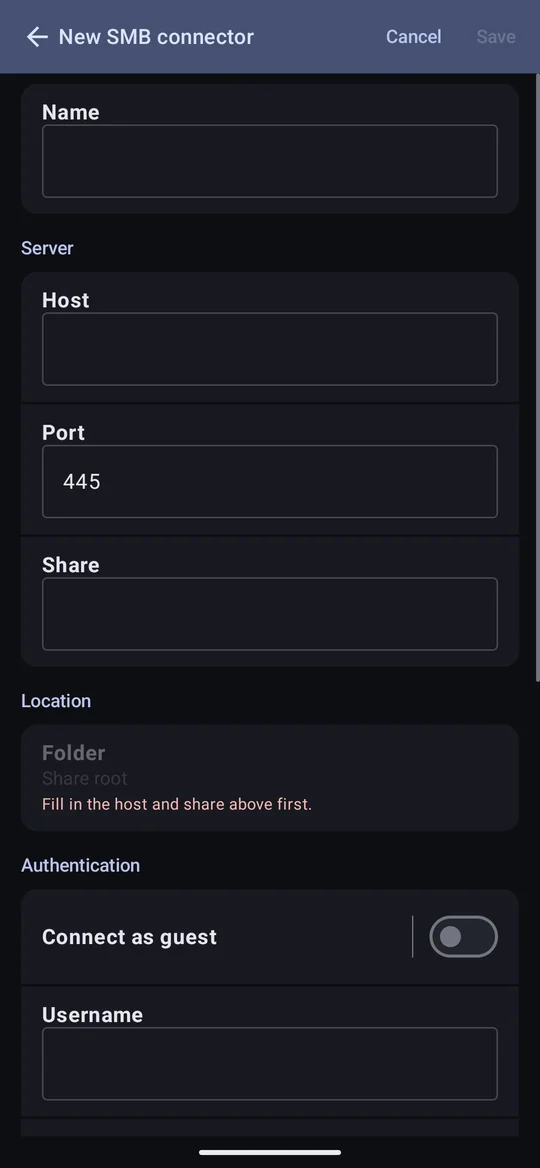
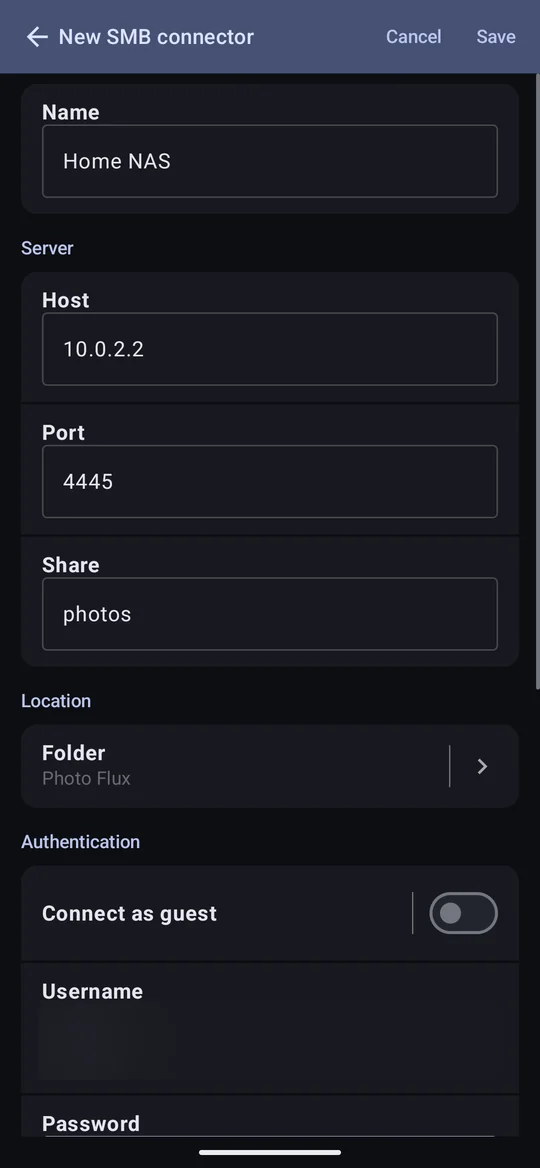
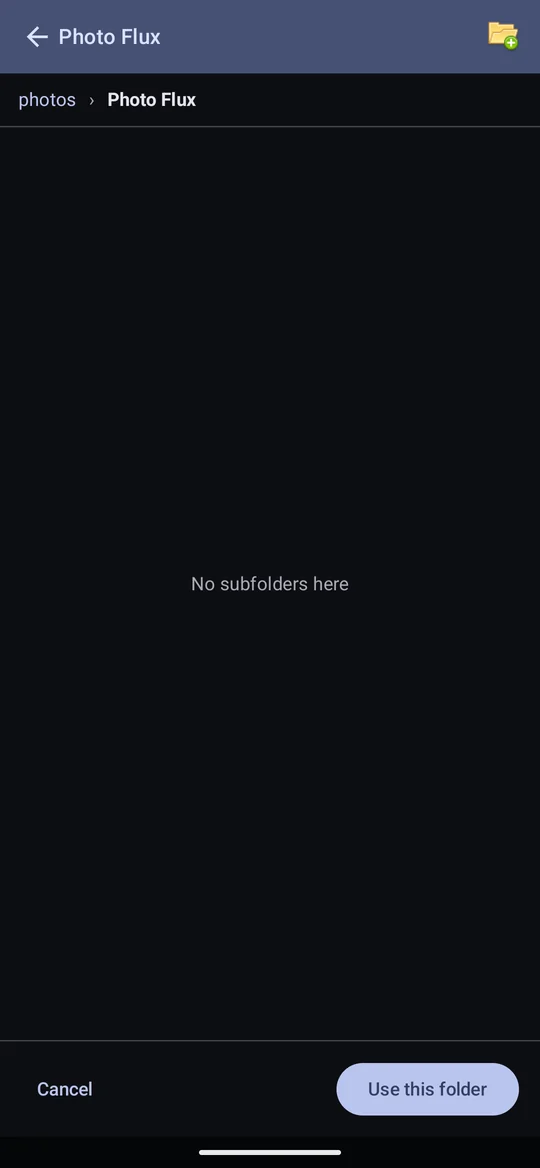
For a shared folder on a NAS or computer. Fill in the Host (a name or IP address), Share, and a Username and Password — or Connect as guest — and a Domain if your network uses one. Test connection checks it; Folder browses the share, where you can make a new folder.
- SMB2 and SMB3 only. SMB1 isn't supported; modern Windows and NAS boxes have it off anyway.
- On Android 17 and later, reaching anything on your network needs the Local network permission.
FTP
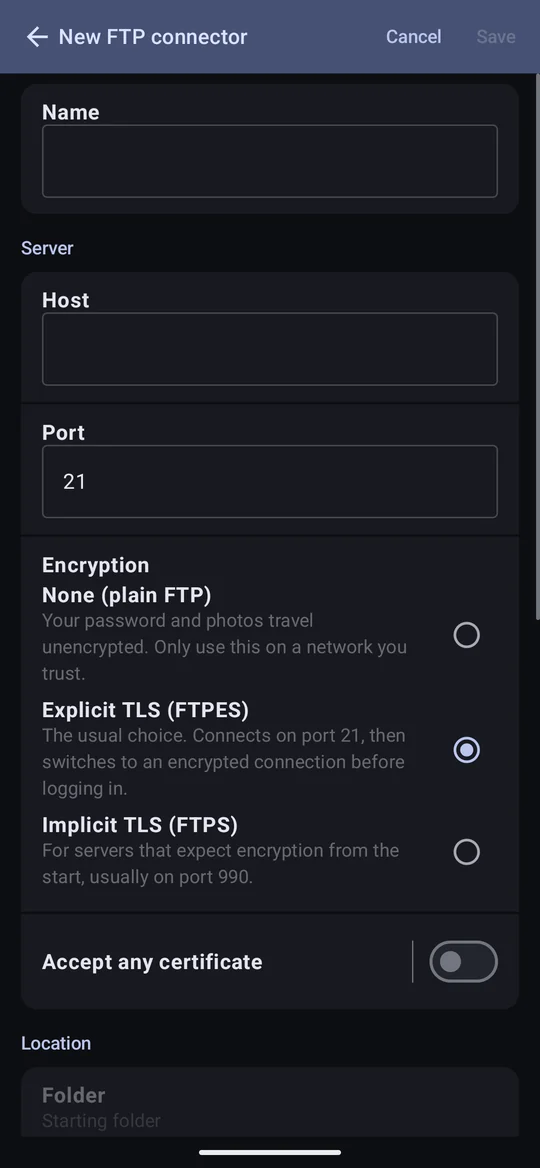
- Encryption: Explicit TLS (FTPES), port 21, is the default and what most NAS boxes offer; Implicit TLS (FTPS) is the older kind on port 990; None sends the password and every photo in the clear, and the form says so in red. Changing the mode moves the port with it unless you typed your own.
- Accept any certificate is for a NAS's self-signed certificate. Off, the certificate must be trusted by Android and name the host you typed. On, the connection is still encrypted but no longer proves who is at the other end.
- Log in anonymously for a server that allows it.
- Always passive mode — a phone is almost never reachable from the server. A server behind a router needs its passive port range forwarded.
- The folder is relative to where your login starts (usually your home folder), shown as Starting folder — not the server's root.
- Servers that demand TLS session reuse can't take uploads — vsftpd with
require_ssl_reuse=YES, and FileZilla Server by default. Login and Test connection succeed, then uploading fails with a 425, 450 or 522 reply; the message says to turn the requirement off on the server.
SFTP
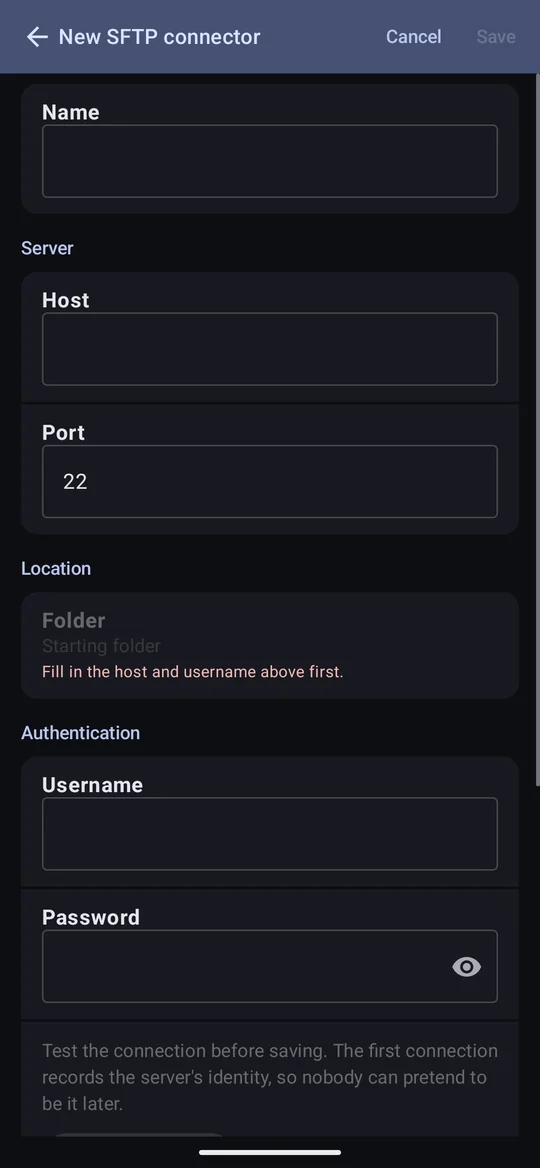
- The server's key is recorded the first time — by Test connection or by browsing for a folder — and Save waits until it has been. Every later connection presenting a different key is refused before the password is sent.
- "The server's identity key has changed" means either the server was reinstalled or
replaced, or something is intercepting the connection. If it was replaced, tap Trust new
key under the failed test. The message quotes the new key's fingerprint, the one
ssh-keygen -lfprints on the server, if you want to compare. Changing the host or port forgets the key automatically. - Password login only for now; key files aren't supported. The password is sent once, never retried.
- The folder is relative to where your login starts.
- A locked-in ("chrooted") account can't write to its starting folder. Many Docker and NAS SFTP setups put the account in a folder it can't write to, with the writable one a level down. Test connection passes (it only lists), but every file fails permission denied — choose the writable subfolder.
SCP
Use SFTP whenever the server offers it. SCP is for SSH servers that don't — routers and small Linux devices running Dropbear, or OpenSSH with SFTP switched off. The form, the recorded server key and the password rules are exactly SFTP's.
- SCP needs an account with a shell. SCP itself only copies files, so listing and making folders run ordinary commands on the server. An account limited to file transfer, or a Windows server, fails Test connection with "Logged in, but this account has no Unix shell…" — use SFTP there.
- A file that changes while it is being sent fails, since SCP announces the size first. It is sent on the next export.
WebDAV
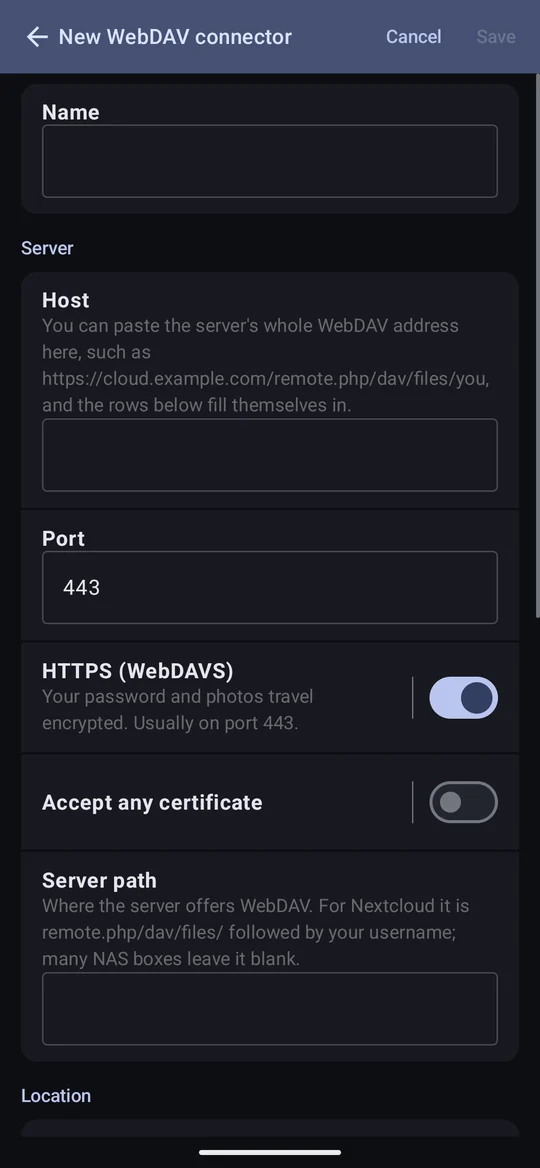
- Paste the whole address into Host. Nextcloud (Settings → WebDAV, bottom left of
Files), ownCloud and most NAS WebDAV pages show one address; pasting it fills in HTTPS, host, port,
server path and username. Nextcloud's server path is
remote.php/dav/files/username. - Server path vs Folder: the server path is where the server offers WebDAV (part of its address); the folder is where photos go, chosen by browsing below it.
- Nextcloud with two-factor login needs an app password, made under Settings → Security → Devices & sessions; your account password is refused.
- HTTPS off sends the password and photos unencrypted. A server's "redirect to https" is reported, not followed — switch HTTPS on and use the address the message quotes.
- Accept any certificate for a self-signed certificate, as with FTP.
- Username and password are optional for a server that allows anonymous access. Digest login is used when offered, Basic otherwise; Windows (NTLM) login isn't supported.
OneDrive
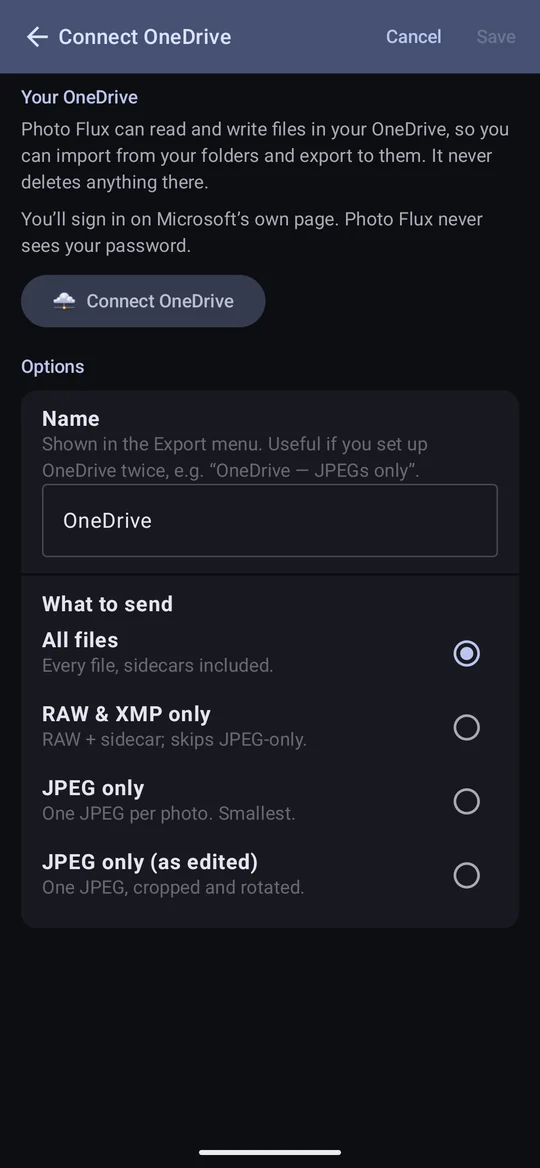
- Connect OneDrive opens Microsoft's own sign-in page in your browser. Photo Flux never sees your password.
- Why Microsoft says "full access to your files": Album Import browses your own folders, which the narrower "app folder" access wouldn't allow. Photo Flux never deletes, moves or renames anything there.
- Photos go to Pictures › Photo Flux by default, with your folders mirrored inside; any other folder can be chosen, and an import can start anywhere in the drive.
- Large files go up in pieces and resume after a dropped connection. A file counts as sent only once OneDrive confirms the same content.
- Sign out makes Photo Flux forget the connection; it doesn't sign you out of Microsoft in your browser. To remove Photo Flux's access altogether: account.live.com/consent/Manage.
- Personal Microsoft accounts are supported. A work or school account may work where the organisation lets users approve apps themselves.
- Two OneDrive connectors can use the same account — one per "What to send", say. Each signs in on its own, and signing out of one leaves the other connected.
Google Drive
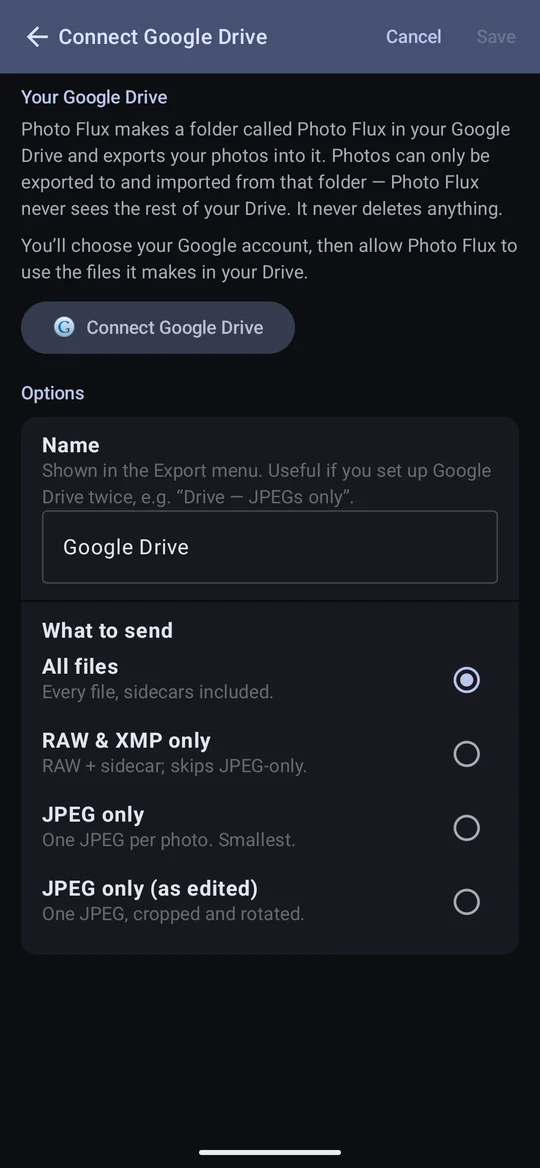
Photo Flux makes a folder called Photo Flux at the top of your My Drive and works only inside it: photos can only be exported to and imported from that folder. You can't choose another Drive folder. That is deliberate — it is Google's narrowest access, so Photo Flux cannot see, read or change anything else in your Drive. If you need to use any folder in your cloud storage, OneDrive or a network share is the better fit.
- Connect Google Drive shows Android's Google account picker, then Google asks you to allow Photo Flux to see, edit, create and delete only the specific Google Drive files you use with this app — the files Photo Flux made, nothing else. It never deletes anything there even so.
- Moving or renaming the Photo Flux folder in Drive is fine. Deleting it means opening the connector and saving it again.
- Each Google account has its own Photo Flux folder. Reconnecting the same account, or setting Google Drive up twice, reuses the folder that's there.
- No password or token is kept by Photo Flux; the access is held by Google Play services on the device. Deleting the connector makes Photo Flux forget the account, but Google keeps the access until you remove it at myaccount.google.com/connections. Either way the folder and its photos stay in Drive. After removing access, an export offers Sign in to reconnect.
- A file counts as sent only once Drive confirms the same content.
USB Drive

- Plug the drive in — a USB stick, an SSD or NVMe enclosure, or a card reader — and tap Register drive….
- When Android's folder screen appears, choose the top of the drive. Whatever you choose becomes what Photo Flux can see, so a subfolder there means you can't later choose a folder above it — register again to fix it. Choosing a folder on internal storage instead is refused, since that could never be "plugged in".
- Folder: browse the drive and pick any folder, or make a new one. Your folder structure is recreated inside it.
- Exporting to an unplugged drive waits rather than failing: a prompt names the drive, and plugging it in starts the transfer by itself. The selection isn't lost.
- Reformatting a drive breaks its registration. Photo Flux recognises a drive by its volume serial number, which formatting changes, so a reformatted drive comes back as a stranger — register it again. There's no more stable identity Android offers.
Eject the drive in Android (Settings → Storage → the drive → Eject) before pulling it out. Photo Flux makes each file leave Android's cache as it is written, but the drive's own cache is beyond any app's reach, and the drive is only marked clean when it is ejected. Photo Flux can't eject for you — that is something only Android can do. This is the most likely way to lose an export the app reported as successful.
Deleting a connector
Deleting a connector deletes its stored details from the device, never anything at the destination. If a Pass-Thru profile sends through it, the confirmation names it; that profile needs another connector chosen before it can send again.