 Forget Me Not
User manual · Chapter 7
Fields
A reminder is a name and a moment. A field is everything else you would otherwise have to keep in your head, or on a bit of paper in the glovebox.
Defining fields and filling them in needs Pro or the thirty-day trial. Nothing you make is ever deleted if you go back to Free: every definition and every value is kept, and each reminder shows you its own fields under Pro Settings, greyed out but readable. See Free and Pro.
What a field is
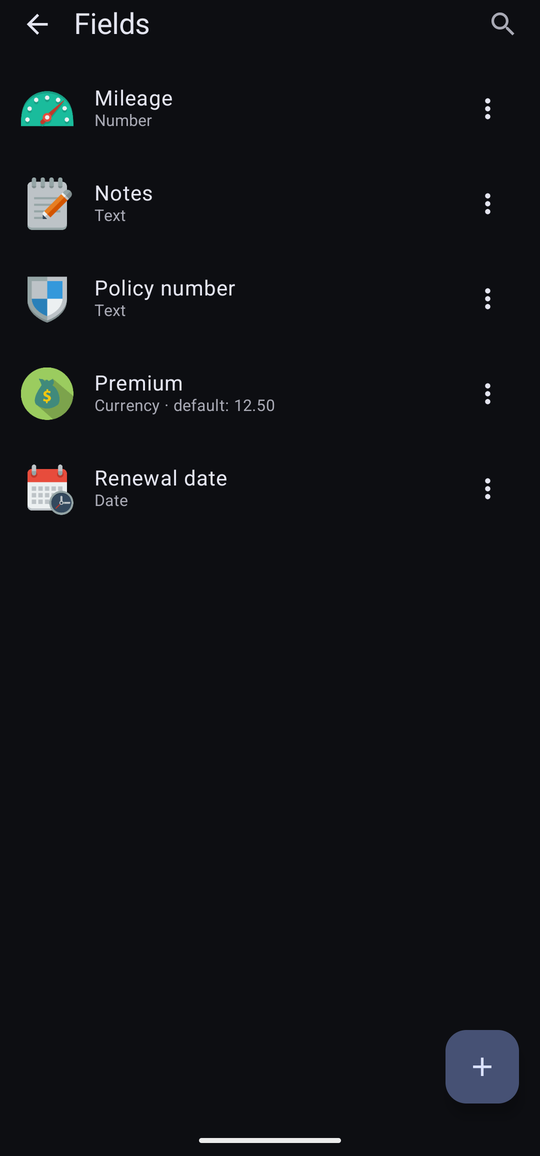
A field is a piece of information you define once and can then attach to any reminder. The renewal on a car insurance reminder. The policy number. The premium. The mileage at the last service. The note about what to ask the dentist.
A new install arrives with one already made — Notes — because a note is the thing a reminder most often needs a line of, and having one there answers the question of what a field is meant to be rather better than an empty screen does.
Defining one
The + button opens an empty field. Give it a name, choose a type, and — if it helps — a default value and an icon.
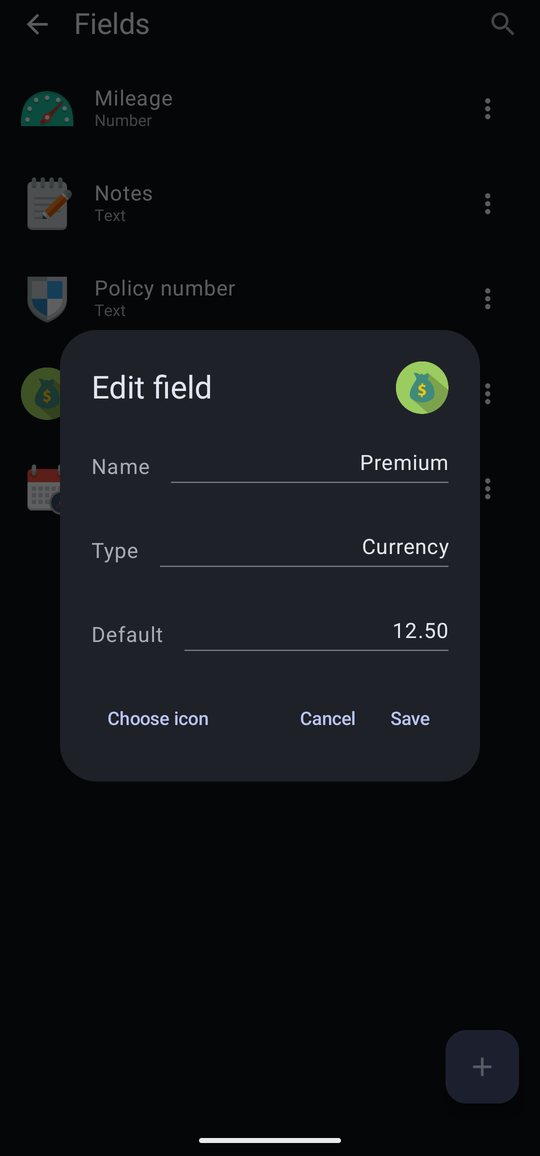
Icons work exactly as they do for categories: the built-in set, one of the icon packs the app ships with, or an image of your own — see Chapter 6. A field cannot take a photograph, so the two photo buttons are simply absent from its picker. The icon appears on the field's row and beside its value on a reminder.
The search box at the top of the Fields screen filters the list, and says “No fields match” when nothing does.
The four types
The type decides what keyboard you get when you fill the field in, and how the value is shown afterwards.
| Type | What you get | Good for |
|---|---|---|
| Text | An ordinary text box. Nothing is parsed or checked. | Notes, policy numbers, reference numbers, names. |
| Date | A date picker, and the value shown as a proper date afterwards. | Renewals, expiries, the date of the last service. |
| Number | A numeric keyboard. | Mileage, meter readings, quantities. |
| Currency | A decimal keyboard, and the value shown with your currency symbol. | Premiums, bills, subscriptions. |
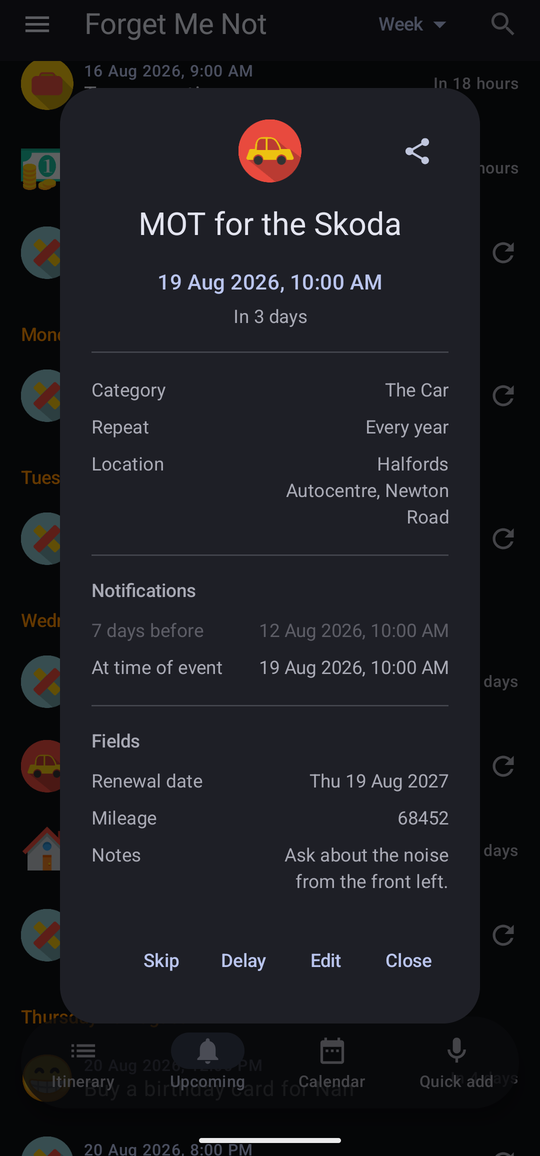
The type is about presentation, not restriction — nothing is validated beyond giving you the right keyboard. A Date field shows as Thu 12 Aug 2027 rather than as a number, and a Currency field as £412.60 rather than as 412.60, on the reminder and in the occurrence panel alike.
Default values
A field can carry a default. Give Premium a default of 12.50 and its row on the Fields screen reads default: 12.50; the box arrives pre-filled the first time the field is added to a reminder, and can be typed over.
Defaults suit fields whose value is usually the same and occasionally not. Notes deliberately has none, because a note that arrives pre-filled is one more thing to clear.
Putting one on a reminder
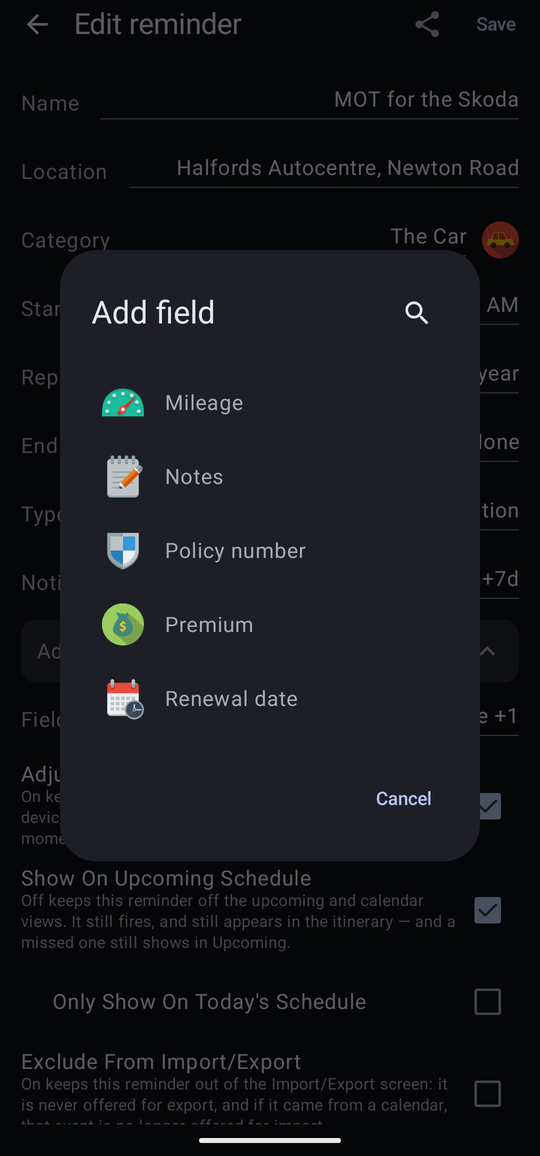
On any reminder, tap the Fields row, then Add field, and choose from the fields you have defined.
Two things are worth knowing:
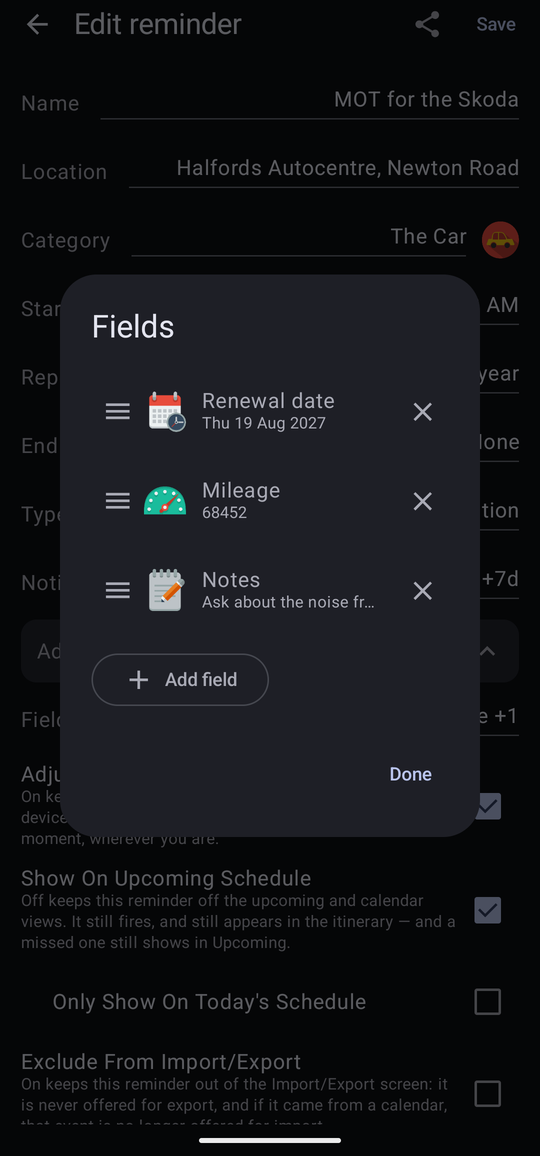
- The order is yours and it is kept. Drag the handle at the left of a row to move it. The order you leave them in is the order they are shown in everywhere.
- The same field can go on twice. Two phone numbers, two reference numbers, two notes — each copy keeps its own value.
Values are shown on the reminder's editor, and in the occurrence panel opened from Upcoming or the calendar, so you can see what you wrote without opening anything for editing.
Suggestions
Once a field has been given the same value on more than one reminder, that value is offered as a suggestion the next time you fill the field in. Setting the same policy number on the third reminder is a tap rather than a retype.
Deleting a field
Deleting a field warns you first — “It will be removed from any reminders using it” — and that is exactly what happens. Every value of that field goes with the definition, on every reminder that had one. The other fields on those reminders are untouched.
If you only want it off one reminder, use Remove against it in that reminder's Fields dialog instead. That leaves the definition, and every other reminder, alone.