 Forget Me Not
User manual · Chapter 10
Backup and restore
Nothing you put into this app is kept anywhere but on the device. This is the chapter that makes that safe rather than alarming.
On Free this screen is shown but greyed out, with a link to Free and Pro underneath. Everything described in this chapter works on Pro and during the thirty-day trial — and a backup taken on either can be restored later, so it is worth taking one before a trial ends.

Why it matters
By default there is no account, no cloud and no server. The app does reach the network, but for one thing only: asking Google Play whether the app has been bought. Your reminders are no part of that conversation and are never sent anywhere — the privacy policy puts that formally. It is a deliberate choice, but the other side of it is that nobody is keeping a copy for you by default. If the phone is lost, dropped or wiped, so is everything in it.
One backup takes about ten seconds. Take one after you have set the app up the way you like it, and again whenever you have done a session's worth of work in it.
Turning on cross-device sync also keeps a live copy of your reminders, updated automatically rather than taken by hand — worth it even on a single device for that reason alone. It is a different tool for a related job: sync is continuous and needs a Google account signed in, where a backup is a single file you control entirely yourself, that works with no account and no network at all. Neither replaces the other.
Taking a backup
Drawer → Configuration → Backup/Restore, on the Backup tab.
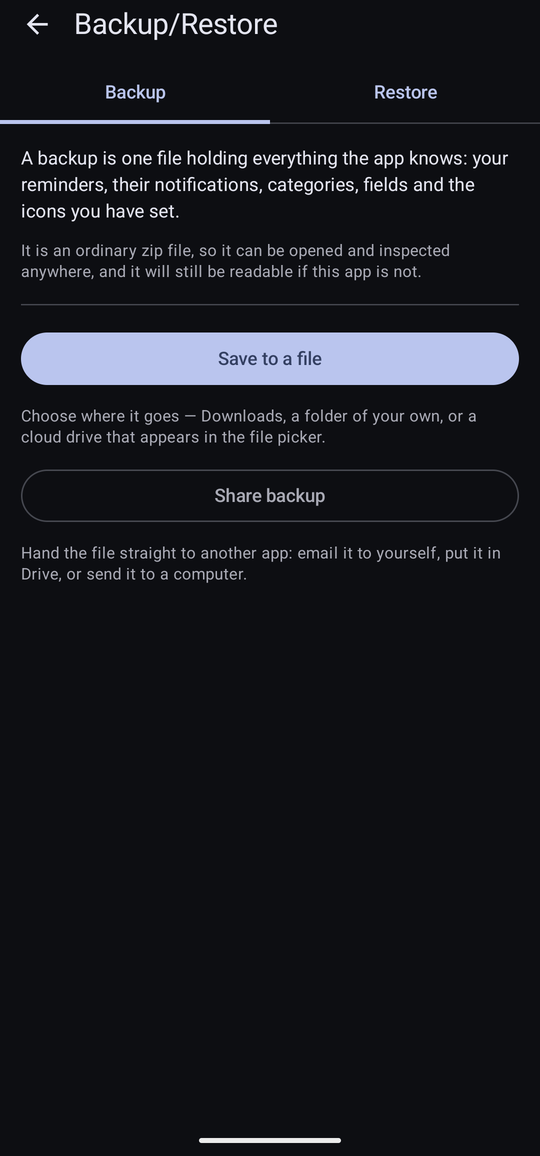
- Save to a file — choose where it goes: Downloads, a folder of your own, or a cloud drive that appears in the file picker.
- Share backup — hand the file straight to another app. Email it to yourself, put it in Drive, or send it to a computer.
The file is named for the day it was taken — forgetmenot-backup-2026-08-08.zip — so
a folder of them sorts itself.
What is in the file
Everything the app knows:
- Every reminder, with its date, time, repeat, type, location and the three schedule switches.
- Every notification on every reminder.
- Every category, with its settings — and the actual image files for any icons you have set.
- Every field definition, and every value on every reminder.
- The record of what has been dismissed, snoozed and skipped.
- Everything under Settings — Display, Defaults, Notifications, Operation and Sound alike — so a restored phone behaves exactly as the old one did rather than needing every setting reset by hand. The one deliberate exception is whether the welcome guide has been seen: a restore never puts that tour back in front of someone who has already dismissed it.
It is an ordinary zip file. You can open it on a computer and look inside, and it will still be readable if this app is not — which is the point of using a boring format rather than a clever one.
Where to keep it
Not only on the phone. A backup sitting in the Downloads folder of the phone you are backing up protects you from a mistake in the app and from nothing else. Put a copy somewhere that survives the phone: a cloud drive, an email to yourself, a computer.
Restoring
The Restore tab is blunt about what it is going to do, because it is not reversible.
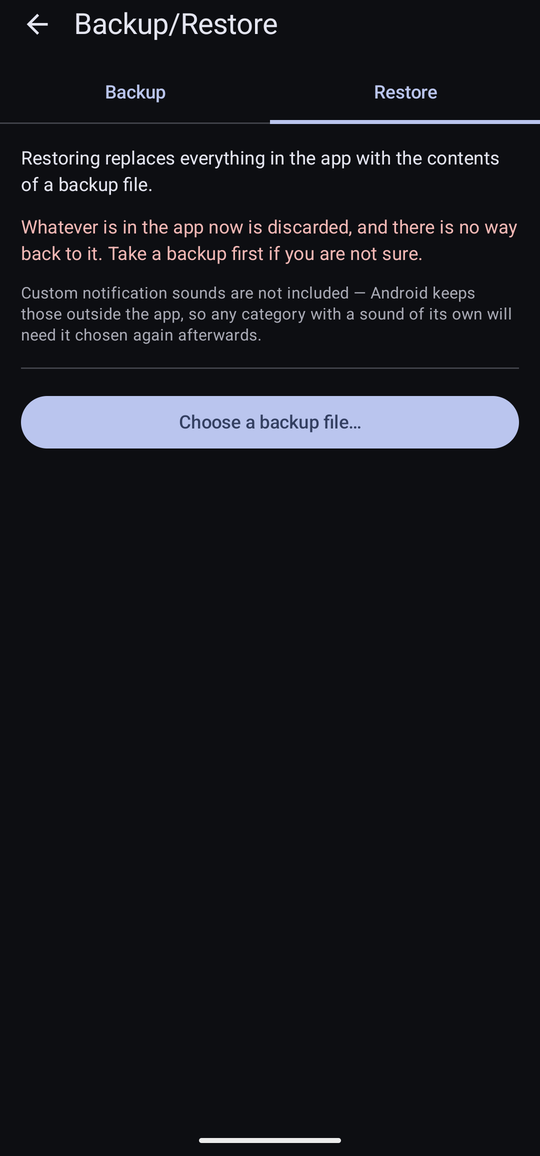
“Whatever is in the app now is discarded, and there is no way back to it. Take a backup first if you are not sure.” That is worth doing: two backups cost nothing. Underneath it, a smaller note repeats the one thing that will not come back — “Custom notification sounds are not included — Android keeps those outside the app, so any category with a sound of its own will need it chosen again afterwards.”
Choose a backup file…, pick the zip, and the app reports what it found — “24 reminders, 9 categories and 20 icons were restored, along with your settings” — and then needs to start again before you can use it. Restart now does that.
Your reminders' alarms are re-armed as part of the restore, so a restored reminder due later today will still arrive.
Moving to a new phone
- On the old phone, Backup → Share backup, and send the file to yourself.
- Install Forget Me Not on the new phone and walk through the welcome guide, allowing the permissions — particularly Notifications and Unrestricted battery use.
- Backup/Restore → Restore → Choose a backup file…, pick the file, and let it restart.
Everything comes across, icons included. The one thing that does not is your choice of notification sound: Android keeps sounds with its own notification channels rather than with the app, so set those again under Settings → Sound.
When a restore is refused
| What it says | What it means |
|---|---|
| That file is not a Forget Me Not backup. Nothing has been changed. | The wrong file was chosen. Your data is untouched. |
| That backup was made by a newer version of the app. Update Forget Me Not and try again. Nothing has been changed. | The backup came from a later version than the one installed. Update the app first — the restore is refused rather than attempted, because a half-finished one would have already discarded what was there. |
| The file could not be read. Nothing has been changed. | The zip is damaged or incomplete — most often a download that did not finish. Fetch it again. |
In every one of these cases nothing in the app has been touched.