 Forget Me Not
User manual · Chapter 5
Notifications and alarms
Everything else in the app is a list. This is the part that does the job.
An ordinary reminder arriving
An ordinary reminder appears in the notification tray with its name, Due now, and two actions.
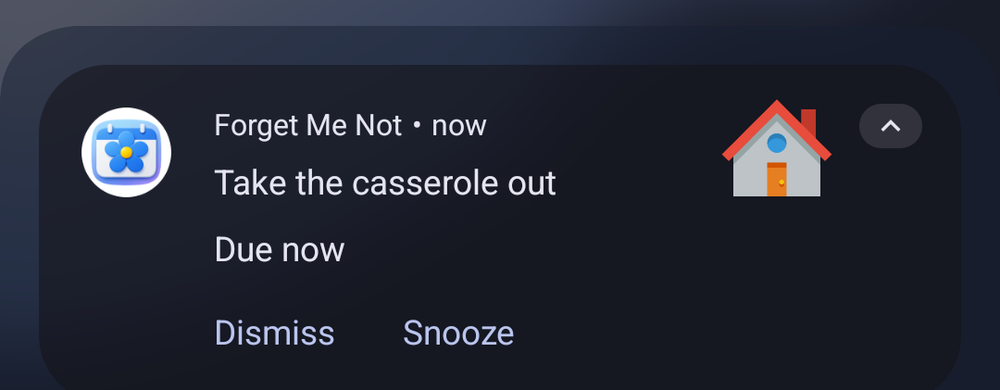
- Dismiss — dealt with. The notification goes and confirms as it does, since it has no screen of its own to say so on.
- Snooze — put it off. See below.
- Tapping the notification itself opens the app at that reminder.
A reminder you neither dismiss nor snooze becomes a missed event, and shows at the top of the Upcoming list until you deal with it.
Snoozing
Snooze asks how long rather than assuming. Tap one of the common durations and it snoozes on the spot — there is nothing left to confirm, so the dialog closes straight away. Type a custom amount instead and pick minutes, hours or days, then confirm with OK.

A snoozed reminder moves to the Snoozed section of Upcoming, marked with its own icon so it reads apart from a plain upcoming row at a glance, saying when it will come back, and a fresh alarm is set for that moment.
Snooze from the original time, a switch under Settings → Notifications, decides what a snooze counts from. Off — the default — a 30-minute snooze tapped at 9:10 on a reminder due at 9:00 comes back at 9:40, counted from the tap. On, it counts from when the reminder was actually due, so the same 30 minutes comes back at 9:30 instead; if that moment has already gone, it falls back to counting from now.
Delay — putting one off before it fires
Snooze only appears once a reminder has already announced itself. Delay, on an occurrence's summary panel — opened from Upcoming or the calendar — is its counterpart for a reminder that has not fired yet: the same "how long" dialog, offered early so you can push a single occurrence back without waiting to be reminded first. It is only offered for an occurrence that is still ahead of you, and, like Snooze, gets its own icon on the Upcoming list once used.
Reminders that arrive early
A reminder can have as many notifications as you like, at intervals before the event. One that fires early says how early and what for: “In 30 minutes · 10 Aug 2026, 9:30 AM”. It warns by the interval it was actually given, so a seven-day warning says In 7 days rather than converting it into hours.
Setting these up is covered in Chapter 2.
Important reminders
An Important reminder does not wait in the tray. It takes the whole screen — over the lock screen, and over whatever app you are using.
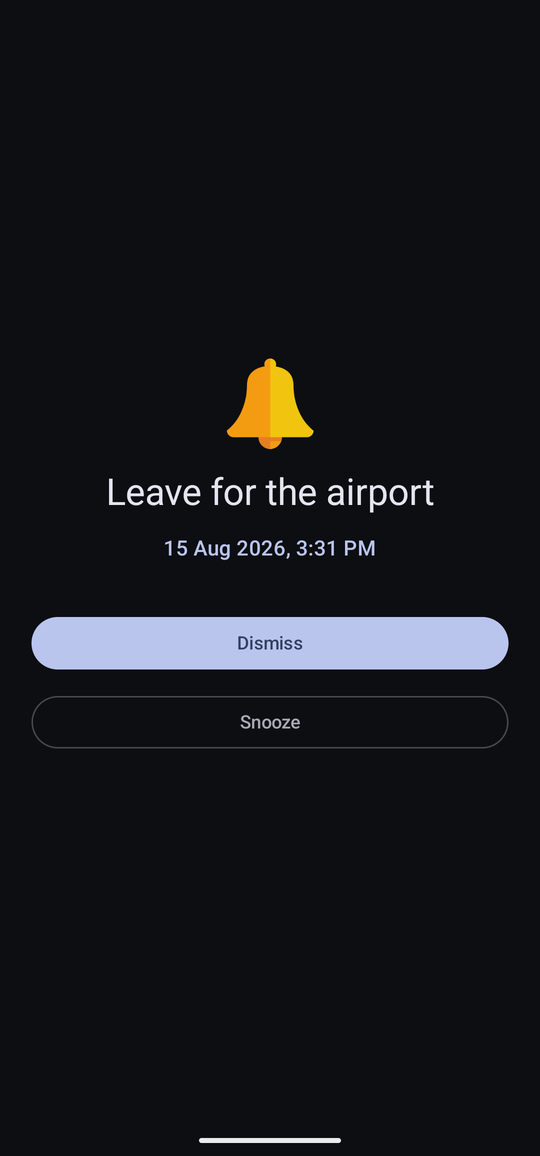
Two Android permissions matter here, and the app cannot fake either of them:
- Display over other apps — lets the screen appear over an app you are using.
- Full screen notifications — lets it open from its notification, which is how it reaches you while the phone is locked.
With neither of them, Android quietly turns an Important reminder into an ordinary notification. Nothing in Android reports that this has happened — the reminder simply arrives looking like any other. The app watches for it and tells you, and offers to ask for the permission again.
Two behaviours are worth knowing about:
- Walking away does not lose it. Press Back on an Important reminder without answering it and it is left waiting in the notification shade with Dismiss and Snooze, rather than disappearing with the screen. It does not sound a second time.
- It can behave itself while you are using the phone. Turn on Show important notifications as normal when phone unlocked in Settings and an Important reminder falling due while you are mid-something arrives as an ordinary notification. Locked or asleep, it still takes the screen.
Several at once
Two things happen when more than one reminder falls due at the same minute, and both are deliberate.
- One sound plays, not one per reminder. Three reminders at nine o'clock make one noise between them.
- Important reminders share one screen. Each gets its own card with its own icon, name, time, Snooze and Dismiss. Answer one and its card shows what you did — Dismissed, Snoozed until … — without disturbing the other. The screen stays until every card is answered. A third reminder falling due while the screen is still up joins it rather than opening a second one.
Being chased up
By default a reminder nobody answers is announced again — three times, five minutes apart, and then left alone. The sound plays every time, not just the first. Dismissing it, snoozing it, or swiping it away stops the rest.
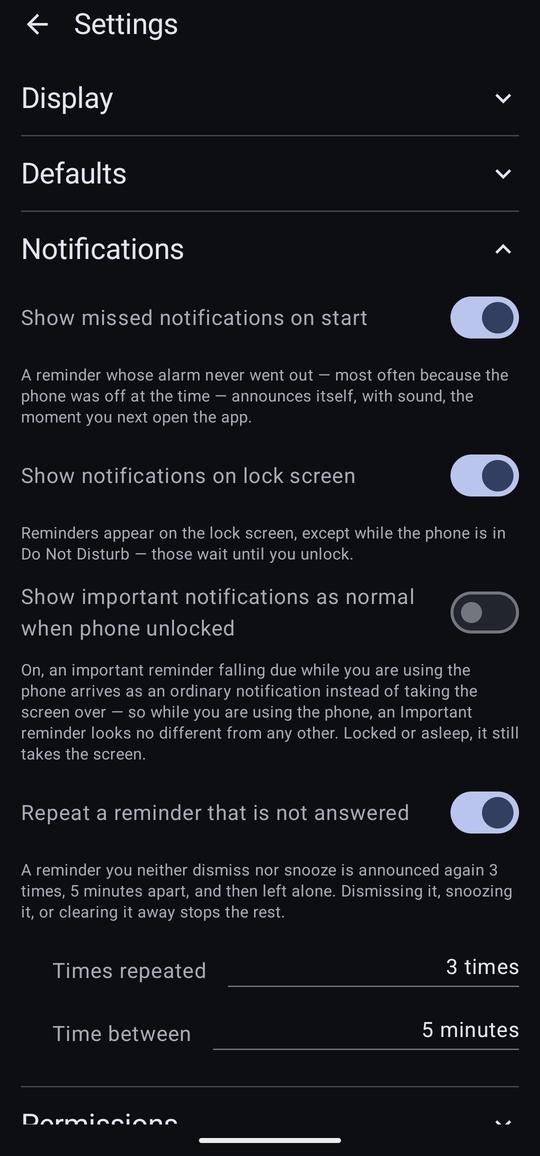
Turn Repeat a reminder that is not answered off and the hint changes to say what you will get instead: “A reminder is announced once, whether or not you see it.”
Missed while the phone was off
An alarm can only fire while the phone is on. One due while it was off does not get a second chance on its own once the phone comes back — it just sits as a missed event at the top of Upcoming, silent, exactly as if nothing had happened.
Show missed notifications on start, on by default under Settings → Notifications, catches these up instead: the next time you open the app, anything that never got the chance to announce itself does so properly — with sound, and its full-screen panel if it was Important — rather than waiting to be noticed on the list. Turn it off and a reminder like this stays exactly as silent as it already was, seen only if you go looking for it.
This only ever catches an occurrence up once. One that did announce itself and simply went unanswered is not repeated here — that is what being chased up above is for.
Sounds
Android keeps the sound and the vibration with the notification channel rather than with the app, so they are chosen in Android's own settings. The app takes you straight there.
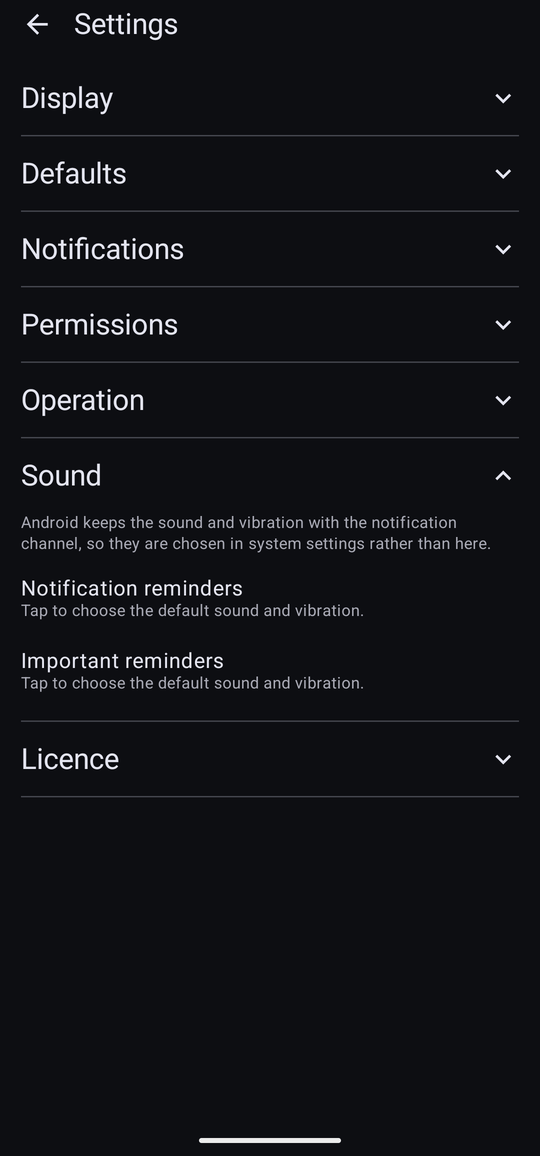
There are two app-wide channels — Notification reminders and Important reminders. Each row opens Android's screen for that channel, and names the sound once one has been chosen.
The two sounds on this screen — the one every ordinary reminder uses and the one every Important reminder uses — are free, and always will be. Giving individual categories their own is part of Pro. On Free, a category that was given its own sound falls back to these, and nothing about its choice is deleted.
A category can also be given Own notification sounds, which creates a channel of its own under a Category sounds group in Android's settings. A category marked as an Alarm category is offered tones from the Alarms folder and plays at alarm volume rather than notification volume — which is the difference between a reminder you might sleep through and one you will not. See Chapter 6.
The lock screen
Show notifications on lock screen is on by default: reminders appear on the lock screen, except while the phone is in Do Not Disturb — those wait until you unlock. Turn it off and every reminder waits until you unlock the phone.
The overwhelming majority of the time it is battery optimisation, and the fix is one setting. Chapter 12 works through the causes in order of how likely they are.