
User manual · Chapter 2
Profiles
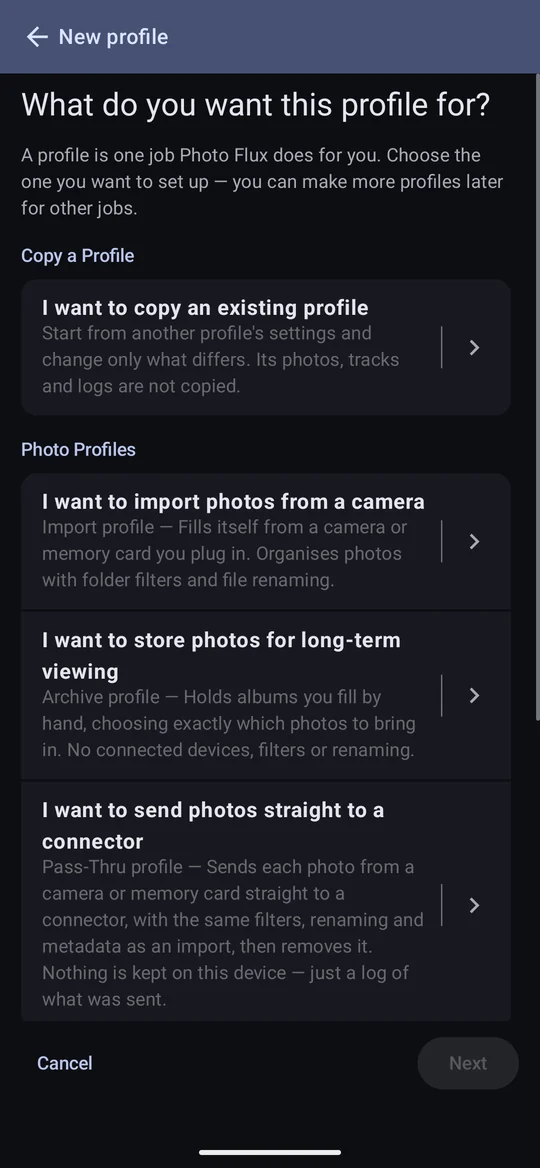
A profile is one job Photo Flux does for you — fill a folder from a camera, hold albums, record walks, feed a camera its position, or pass photos straight through to a server.
The five kinds of profile
You choose what a profile is for when you make it, and that choice is permanent: the kinds store things so differently that switching one into another would strand what it holds. Make a new profile instead.
| Kind | What it does | Holds |
|---|---|---|
| Import profile | Fills itself from a camera or memory card you plug in, organising the photos with folder filters and file renaming as they arrive. | Photos, in a folder inside PhotoFlux/Import |
| Archive profile | Holds albums you fill by hand, choosing exactly which photos to bring in. No devices, filters or renaming. See Chapter 8. | Albums, each a real folder inside PhotoFlux/Albums |
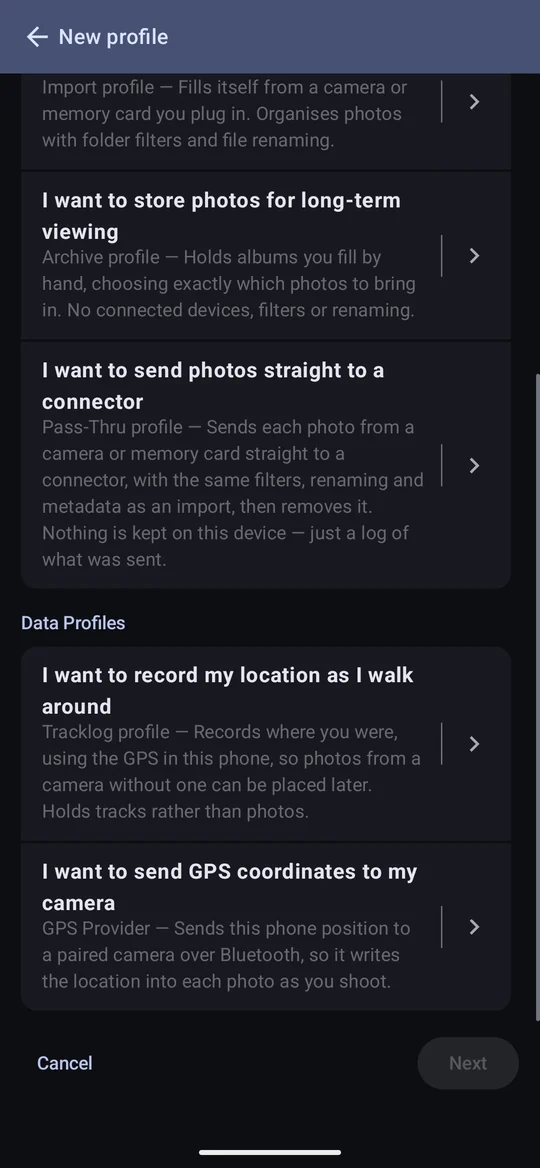
| Pass-Thru profile Pro | Imports like an import profile but sends each photo through a connector and then removes it from the device. See Chapter 15. | Nothing but a log of what was sent |
| Tracklog profile | Records where you walked, using the phone's GPS. See Chapter 11. | Tracks |
| GPS Provider | Sends this phone's position to a paired Sony camera over Bluetooth. See Chapter 12. | A pairing and a connection log |
Free allows five profiles. Tracklog profiles and the tour's Example Profile don't count towards the five. Pro removes the limit, and dropping back to Free never removes a profile you already have — it only stops you adding a sixth.
Making a profile: the wizard
Actions → Add profile opens a short wizard that asks one question at a time and answers each with a plain Yes or No where it can. Only the basics are asked; everything else starts at its default and can be changed later in the profile editor.
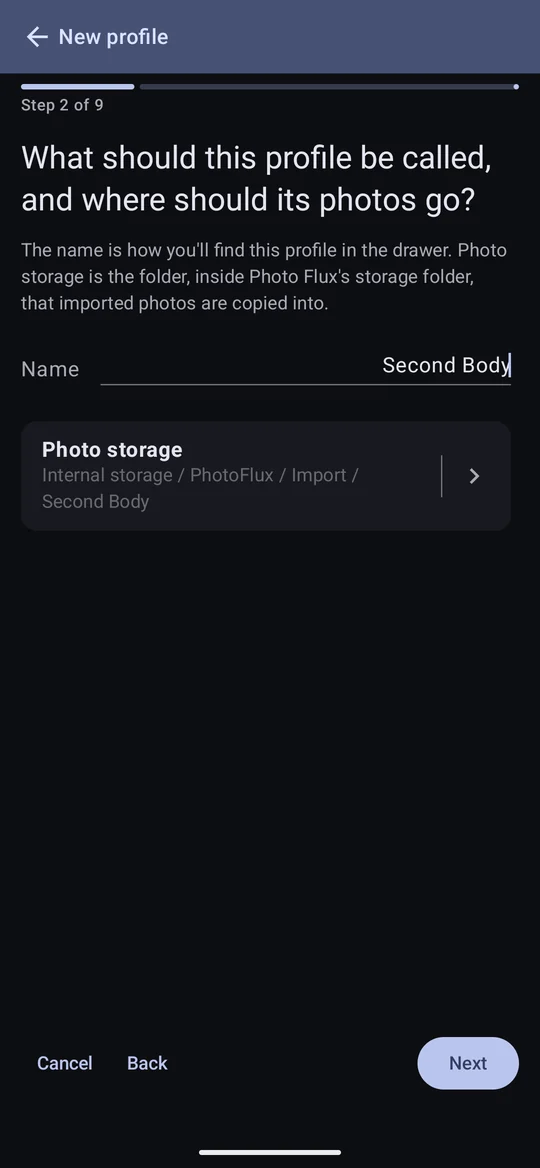
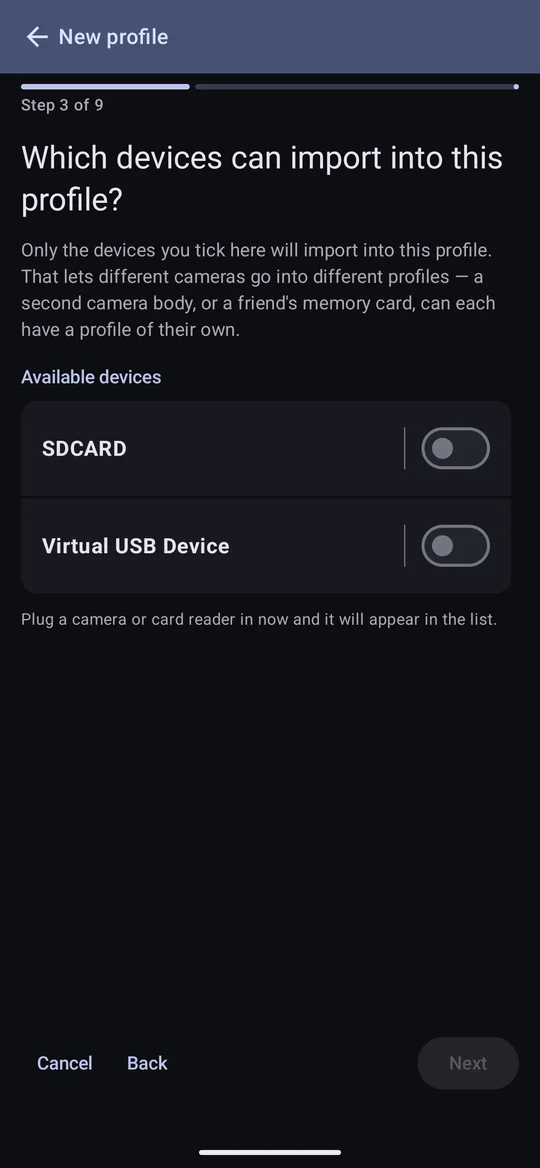
For an import profile the questions are:
- What it is for — the kind of profile.
- Name and photo storage — the name shown in the drawer, and the folder inside
PhotoFlux/Importits photos go into. The folder is chosen in Photo Flux's own folder browser, where you can also make a new one; Android doesn't ask for permission again, because the storage folder's permission already covers everything inside it. - Which devices — tick the cameras, card readers and drives that may import into this profile. Plug them in first and they appear in the list.
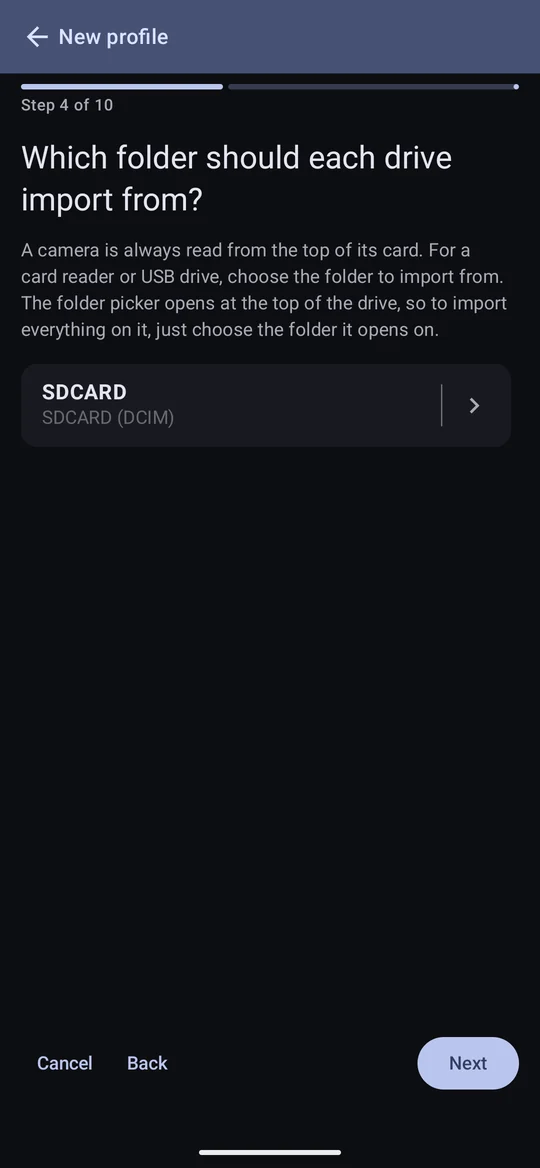
- Which folder on each drive — for a card reader or drive (not a camera), the folder to import from. See below.
- Add or sync, and whether to import from subfolders — see Add or sync.
- Stack bursts? — see Stacks.
- Name an event when you import? — see Events.
- Rename files? and Sort into folders? — a Yes shows the built-in patterns to choose from. See Chapter 4.
- Place photos from a track? — geotagging from a tracklog.
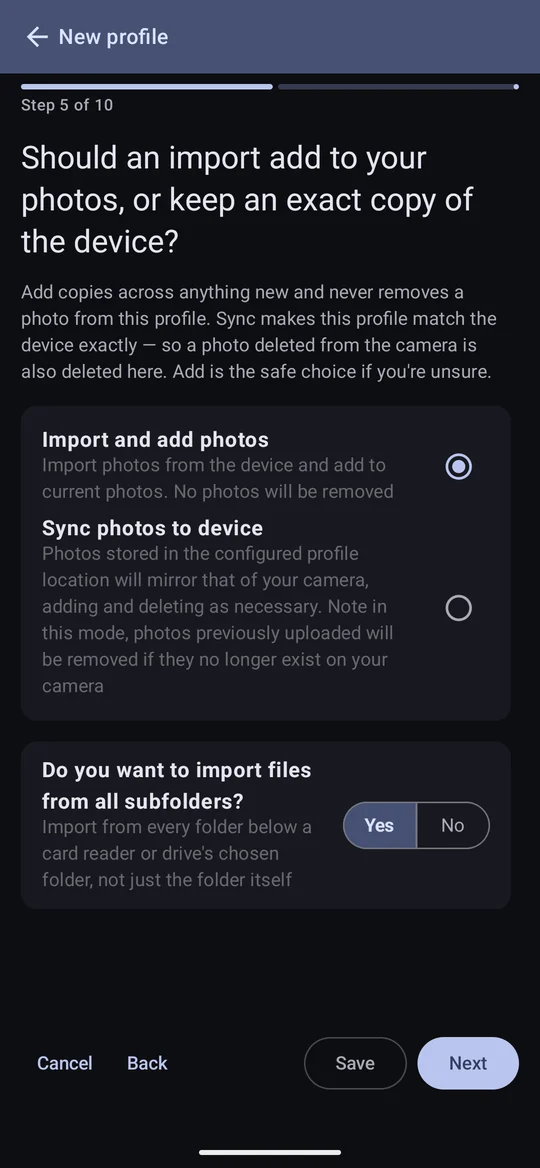

Save appears part-way through — for an import profile once the devices have been chosen, for the other kinds as soon as there is a name. Saving early keeps the defaults for every question not yet reached. Rename and folders offer the built-in patterns only; building your own needs the editor (and, for a custom pattern, Pro). Rename has no "keep the original name" choice: answering No is that.
Questions that need something you haven't got yet — place photos from a track before any tracklog profile exists, say — are shown but can't be answered. With one tracklog profile, Yes uses it; with several, a list appears.
Show EXIF data on preview starts on for an import profile made in the wizard, and off for an archive profile. Everything the wizard doesn't ask — IPTC location priority, the Creator modifier, discarding JPGs beside RAWs, File Monitoring, filename captions — starts at its default and is found later in the editor.
A drive's folder
A camera is always read from the top of its card. For a card reader or USB drive you choose the folder to import from, in Android's folder picker. It opens at the top of the drive: to import everything, choose that. Many SD cards won't let an app have the top of the card — Android says "Can't use this folder" — so choose the folder the photos are in, such as DCIM, then Use this folder and Allow.


Copying a profile
Once you have a profile, the wizard's first page offers Copy a Profile. Pick one and the full editor opens on a new profile with all of its settings, named "… (copy)". Change what differs and Save. A copy of a copy is named from the original — "(copy 2)" rather than "(copy) (copy)".
- Copied: every setting, the cameras, and the Photo storage folder — so change the folder unless you really want both importing into one (the editor warns while they share it).
- Not copied: photos, albums, tracks and Pass-Thru logs, which stay with the original; card readers and drives, because a copy is usually made for a different card — add it in Import devices; and a GPS Provider's paired camera, because a camera's pairing can belong to only one profile.
Copying a Pass-Thru profile needs Pro, as making one does.
The profile editor
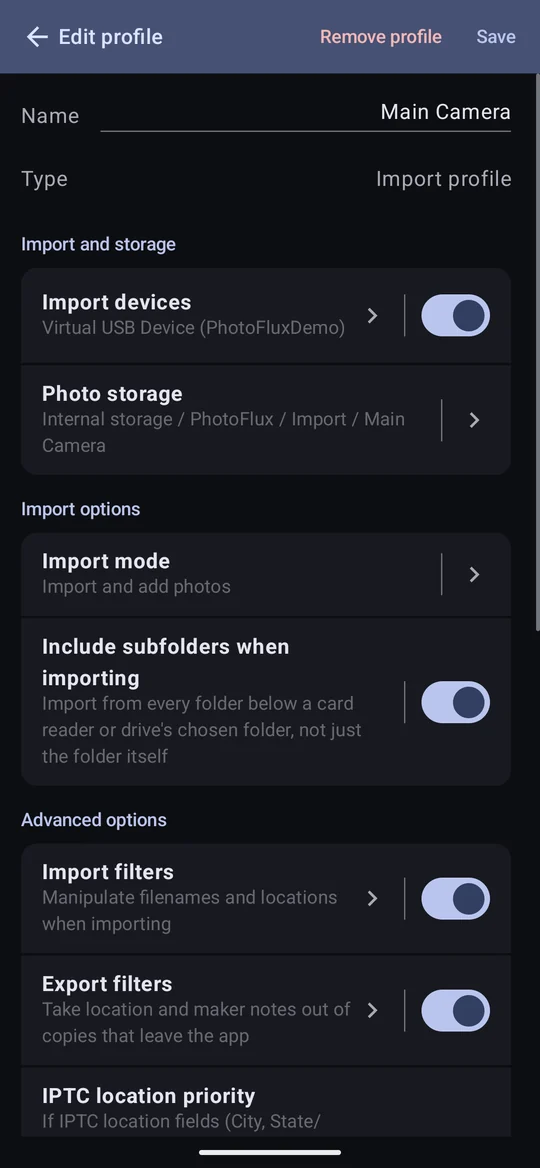
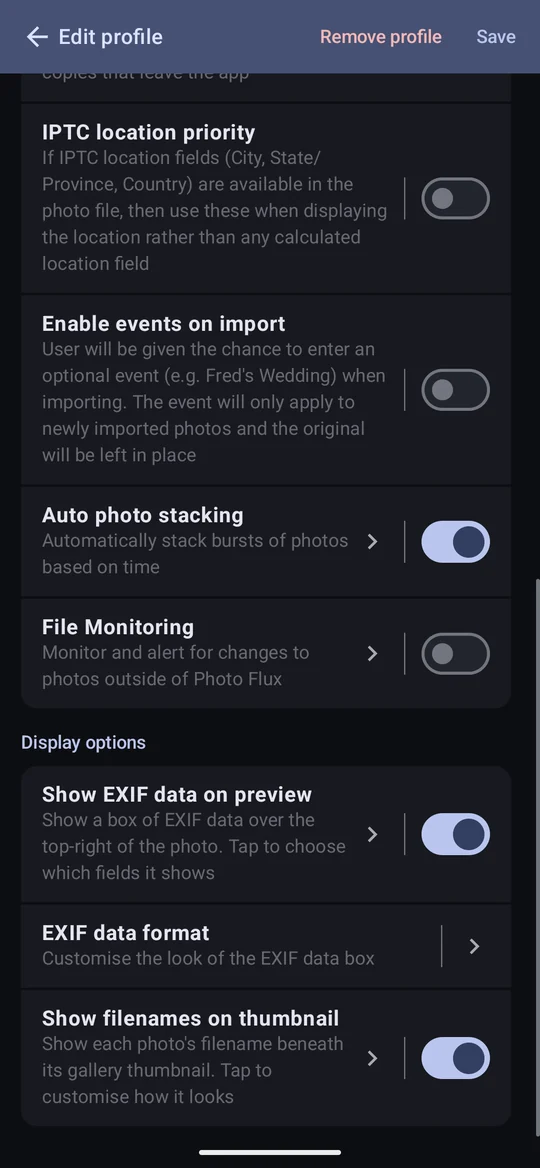
Actions → Edit profile opens every setting the profile has, grouped into sections. Changes are kept only when you tap Save; going back with unsaved changes asks whether to discard them.
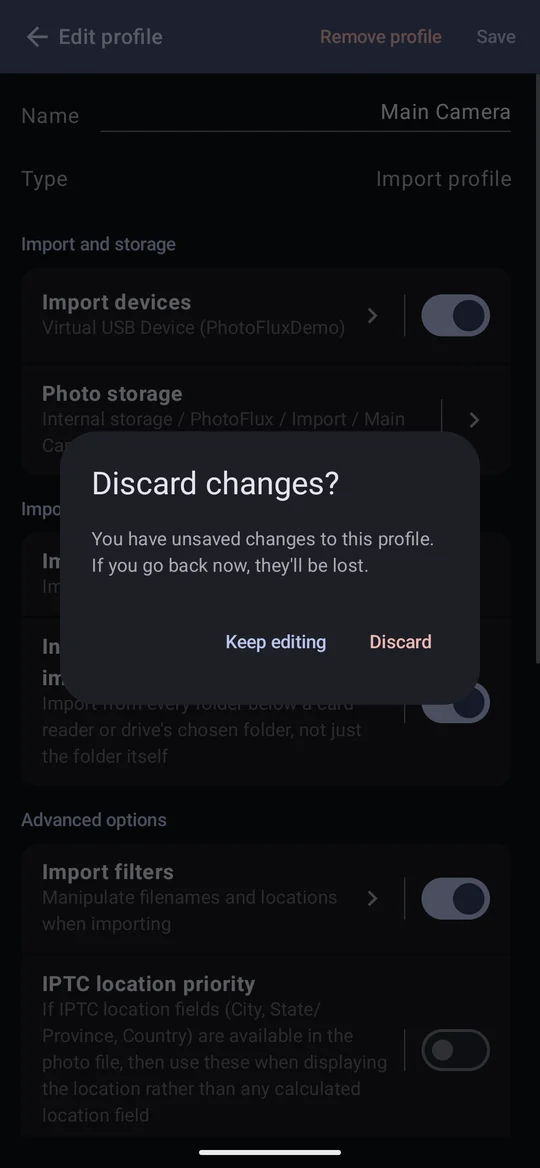
| Setting | What it does |
|---|---|
| Import devices | The cameras, card readers and drives that import into this profile. A profile can be saved after its last device is removed — it just won't import until one is added. |
| Photo storage | The profile's folder inside the storage folder. The Import and Albums folders themselves can't be chosen, since two profiles sharing them would mix their photos. |
| Import mode | Add, or sync. Details. |
| Include subfolders when importing | Shown once a card reader or drive is bound. Details. |
| Import filters | Folder filter, Rename files, Discard JPG when RAW exists, the Creator modifier and Geotag from tracklog. Chapter 4. |
| IPTC location priority | If a photo carries IPTC City, State/Province and Country, show those as its location rather than the place Photo Flux worked out from GPS. |
| Enable events on import | Offer to name an event as each import starts. Details. |
| Auto photo stacking | Group bursts into stacks, with its detection time. Details. |
| File Monitoring Pro | Watch the profile's photos for outside changes. Chapter 16. |
| Show EXIF data on preview | The box of exposure details over the photo viewer; tap the row to choose its fields. Details. |
| EXIF data format | That box's colours and text. |
| Show filenames on thumbnail | The filename caption under each gallery tile, on or off, and its colour, font and size. Per profile, because a culling profile wants it and a finished archive rarely does. |
An archive profile's editor is much shorter — name, photo storage, Export filters, File Monitoring and the display options — because import filters, events and stacking are all about photos arriving from a device, which is not how an archive works. Tracklog, GPS Provider and Pass-Thru profiles have editors of their own, described in their chapters.
Export filters, the row under Import filters, keep a sensitive place private. Its page holds the Export processing options, which can take the standard GPS and place-name fields, and a JPEG's maker notes, out of every copy of this profile's photos that leaves the app. The row's own switch turns them all off, and back on, without changing what is set on the page. Ask before sharing files with maker notes, on the same page, has Share check with you first when a copy may still carry a camera maker's private notes. See Export processing.
Two profiles, one folder
Two profiles can share a Photo storage folder, but it isn't recommended, and the editor names the
other profile while they do. A photo whose filename is already in the folder — from any profile — is
given a unique name such as DSC01234_2.JPG, never replaced.
Within one profile it is the other way round: a filename the profile already holds is skipped,
whichever device it comes from. So two cameras (or two folders on one card) that both produce
DSC00001.JPG import only the first into that profile — give each camera its own
profile to keep both. RAW files whose names differ only in their extension
(IMG_1.CR2, IMG_1.CR3) are also kept apart, since they would share one
.xmp sidecar.
A device used by more than one profile
Connecting a camera, card reader or drive that more than one profile uses — the same camera on a profile and its copy, or two profiles' folders on one card — shows Choose a profile, and the import goes to the one you pick. Cancel leaves it unconnected; for a card or drive, unplug it and plug it in again to be asked again. To stop being asked, remove the device from all but one profile.
Removing a profile
Remove profile, at the top of the editor, asks first. The confirmation offers Also delete the N imported photos and their files from storage, which is off by default:
- Left off, the profile and its photo records go, but the files stay on the device where they were.
- Ticked, the files go too — photos, previews, paired JPEGs, XMP sidecars and any folders the folder filter made that are now empty — exactly as deleting them in the gallery would. Any file that can't be removed is reported; the profile is removed regardless.
Deleting a tracklog profile deletes its tracks. Nothing on a camera or card is ever touched.