 Forget Me Not
User manual · Chapter 11
Settings
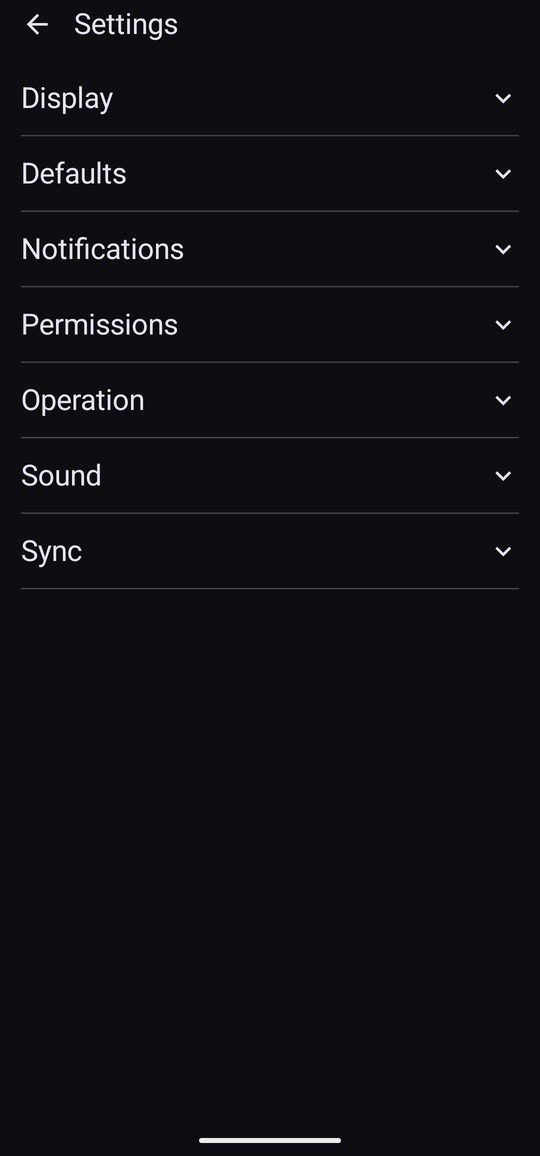
Eight collapsed sections, and everything in the app that can be changed once rather than per reminder.
Drawer → Configuration → Settings. Everything arrives collapsed; tap a heading to open it.
Display
| Setting | What it does |
|---|---|
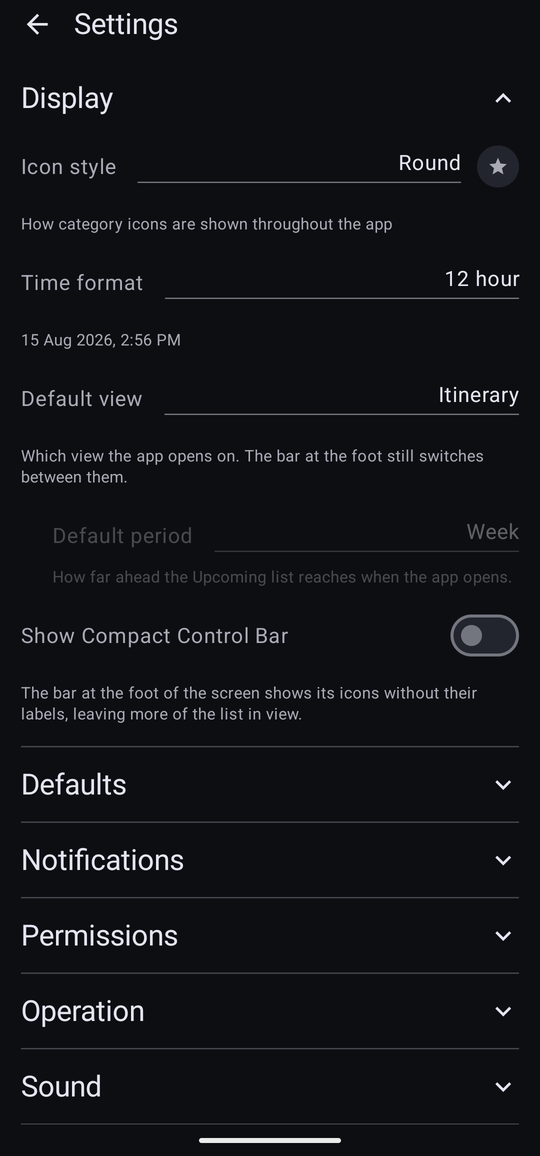
| Icon style | Round, Square or Rounded square. Applies to every category icon throughout the app, so a mixture of built-in and downloaded icons still looks like one set. |
| Time format | 12 hour or 24 hour. Every time in the app follows it — lists, the editor, the occurrence panel and the notifications. A sample below the row shows the current choice. |
| Default view | Which of the four screens the app opens on. The bar at the foot still switches freely; this only decides where you land. |
| Default period | How far ahead the Upcoming list reaches when the app opens: Week, Month, 3 Months, 6 Months or Year. |
| Show Compact Control Bar | The bar at the foot shows its icons without their labels, leaving more of the list in view. Worth it on a small screen; unnecessary on a tablet. |
Defaults
| Setting | What it does |
|---|---|
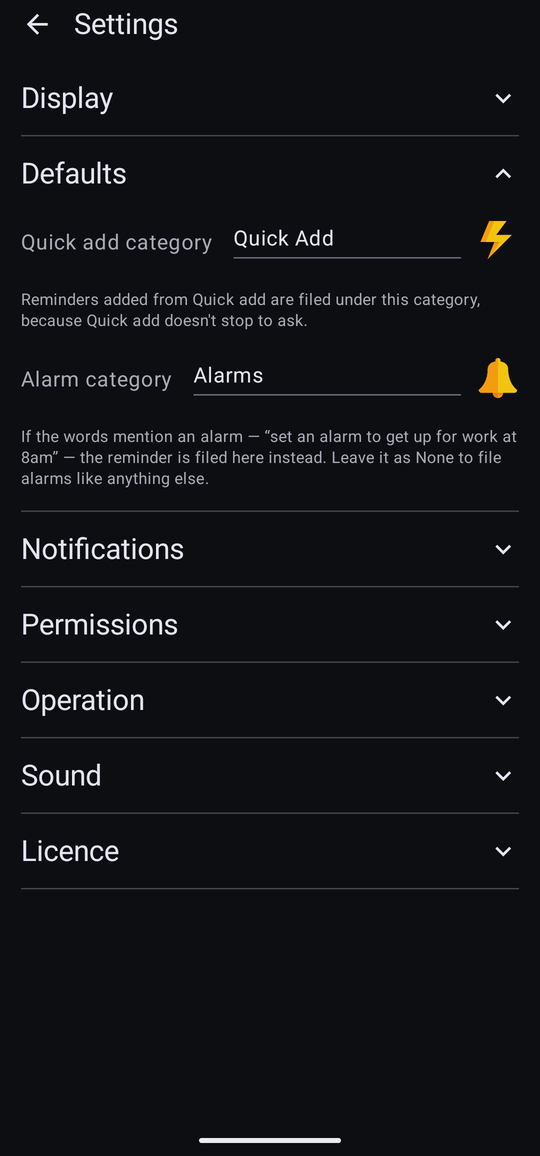
| Quick add category | Where reminders added from Quick add are filed, because Quick add does not stop to ask. Set it to None and Quick add refuses to save, telling you why. |
| Alarm category | If the words mention an alarm — “set an alarm to get up for work at 8am” — the reminder is filed here instead, and marked Important. None files alarms like anything else. |
The two pickers offer different categories: one marked as an alarm category appears under Alarm category, and everything else under Quick add category.
Notifications
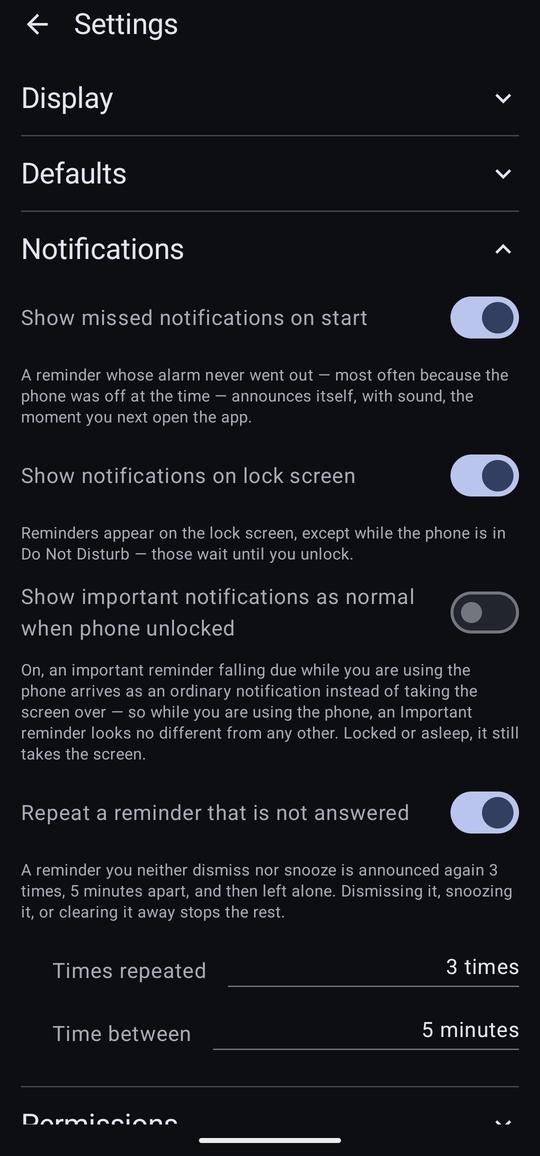
| Setting | What it does |
|---|---|
| Show missed notifications on start | On by default. A reminder whose alarm never went out — the phone was off at the time, most often — announces itself properly, with sound, the moment you next open the app. Off, it just sits in the missed list, silent. |
| Show notifications on lock screen | On, reminders appear on the lock screen — except while the phone is in Do Not Disturb, which holds them until you unlock. Off, every reminder waits until you unlock. |
| Show important notifications as normal when phone unlocked | On, an Important reminder falling due while you are using the phone arrives as an ordinary notification instead of taking the screen over. Locked or asleep, it still takes the screen. |
| Snooze from the original time | Off by default. On, a snooze counts from the moment the reminder was due rather than from when Snooze was tapped — a 30-minute snooze on a 9:00 reminder tapped at 9:10 comes back at 9:30 rather than 9:40. Falls back to counting from now if that moment has already gone. |
| Repeat a reminder that is not answered | On by default. A reminder you neither dismiss nor snooze is announced again and then left alone. Off, and the hint changes to say what you get instead: “A reminder is announced once, whether or not you see it.” |
| Times repeated | How many chase-ups, after the first announcement. Three by default. |
| Time between | How far apart they are. Five minutes by default. |
Permissions
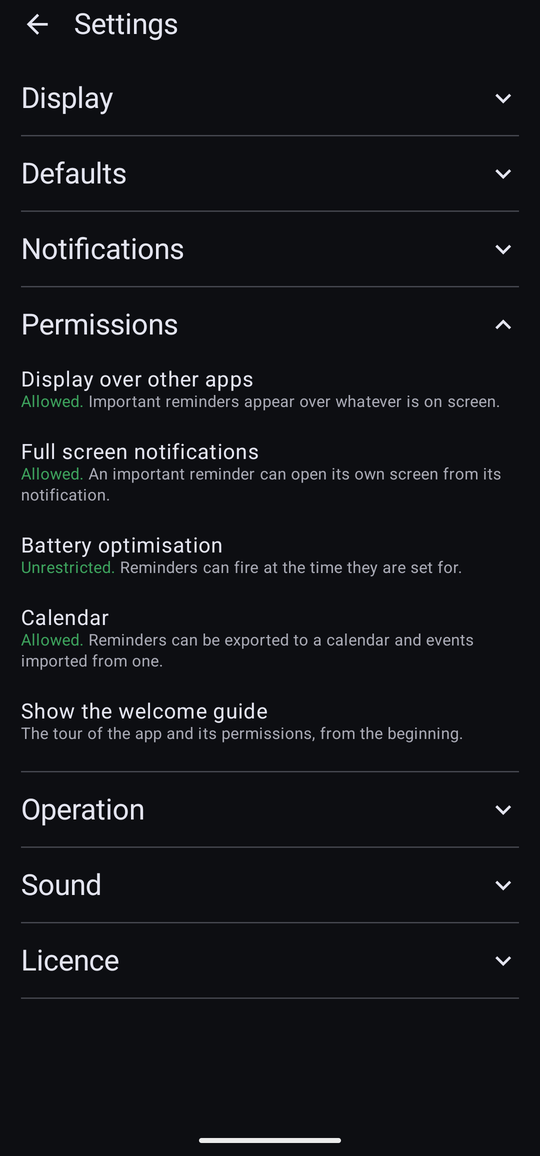
A row each for Display over other apps, Full screen notifications, Battery optimisation and Calendar — the four that can be turned on and off after the fact. Each says what it is currently set to in plain words rather than as a switch: “Unrestricted. Reminders can fire at the time they are set for.” against “Restricted. Android may hold reminders back while the phone is idle. Tap to change.” The leading word is coloured green for allowed and red for anything that needs attention, so the rows worth a second look stand out without reading every line — Calendar's read-only state has no such lead word, and stays uncoloured. Tapping a row opens the right system screen.
Full screen notifications only appears on Android 14 and later, where the grant exists. Below that the permission is simply held, and a row that always read “allowed” would be one more thing to read past.
At the foot of the section, Show the welcome guide runs the first-run tour again from step one — which is also the easiest way back to the runtime permissions that have no row here, such as notifications and the microphone. Chapter 1 explains what each one is for.
Operation
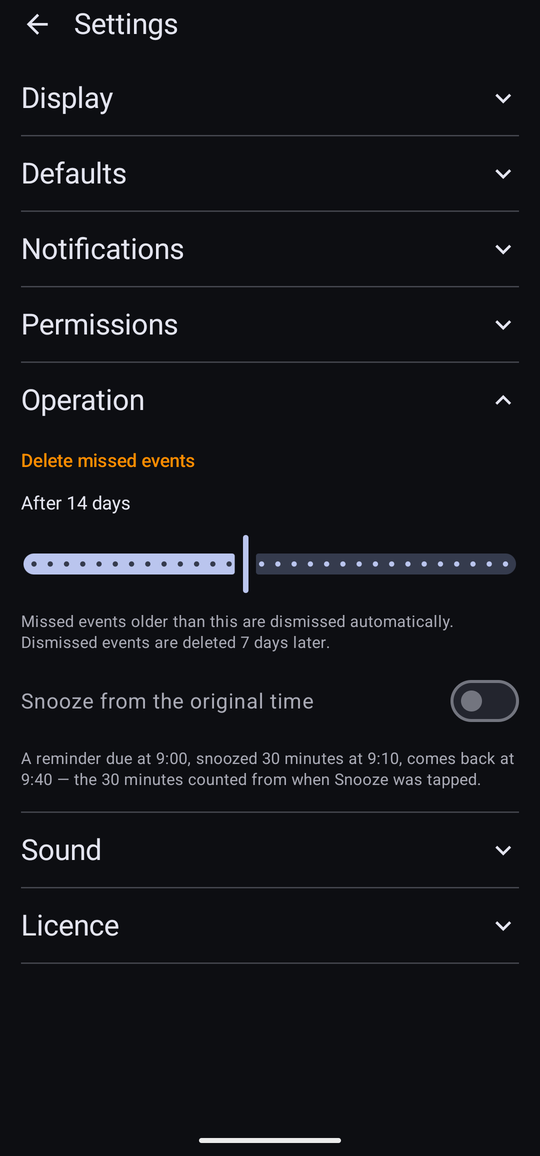
Delete missed events decides how long a missed event sits at the top of Upcoming before the app dismisses it for you. Missed events older than the interval are dismissed automatically, and dismissed ones are deleted a week after that.
It exists so that a fortnight away does not leave a wall of missed reminders to work through, and so the app does not accumulate history for ever. Set it as far out as you like if you would rather deal with them yourself.
Sound
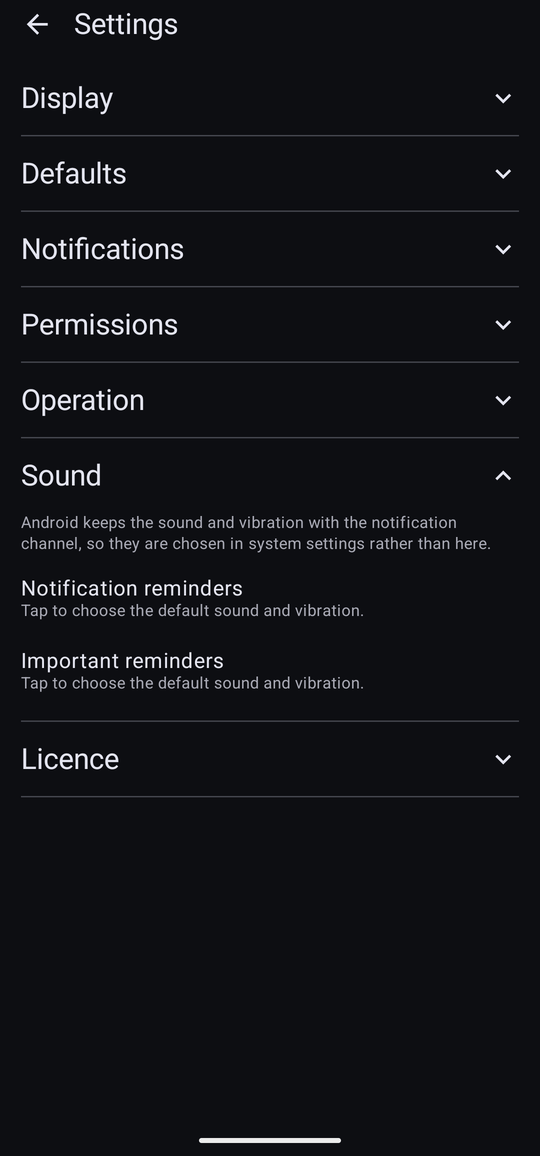
Android keeps the sound and the vibration with the notification channel rather than with the app, so they are chosen in Android's own settings. This section has a row for each of the app's two channels, naming the sound once one has been chosen and reading “Tap to choose the sound and vibration” until then:
- Notification reminders — ordinary reminders.
- Important reminders — the ones that take the screen.
Any category given its own notification sounds gets a channel of its own as well, under a Category sounds group in Android's settings.
Because these live with Android's channels rather than with the app, your choice of sound is the one thing a backup does not restore. Set it again on a new phone.
It is now Free and Pro, a row of its own in the drawer under Configuration — it was too well hidden at the foot of this screen. Chapter 13 covers what is free, what is Pro, and the thirty-day trial.
Sync
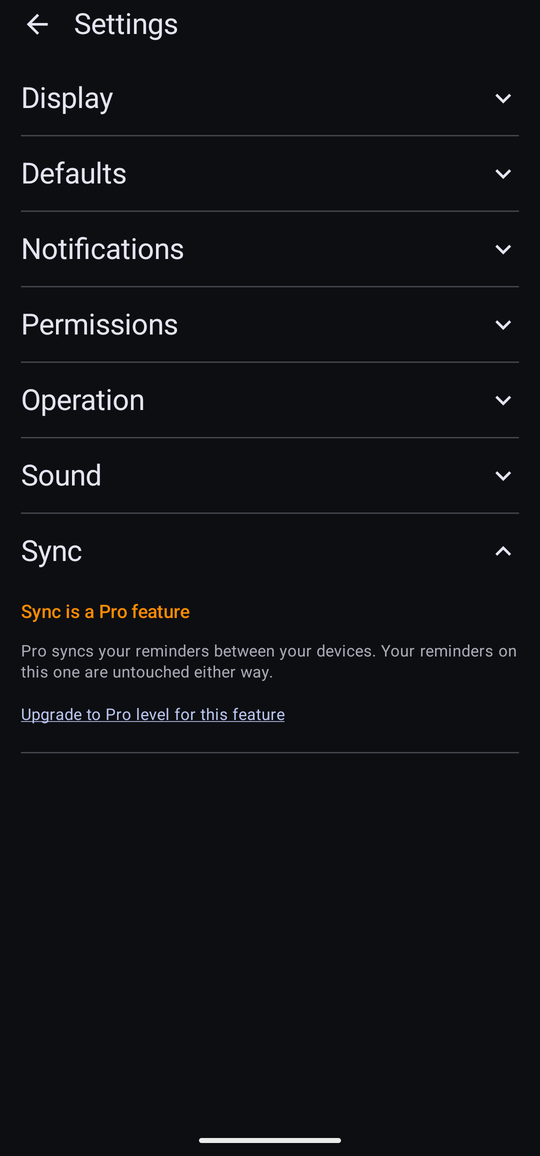
On Free this section says so and offers the upgrade instead of a sign-in button. Your reminders on this device are untouched either way — see Free and Pro.
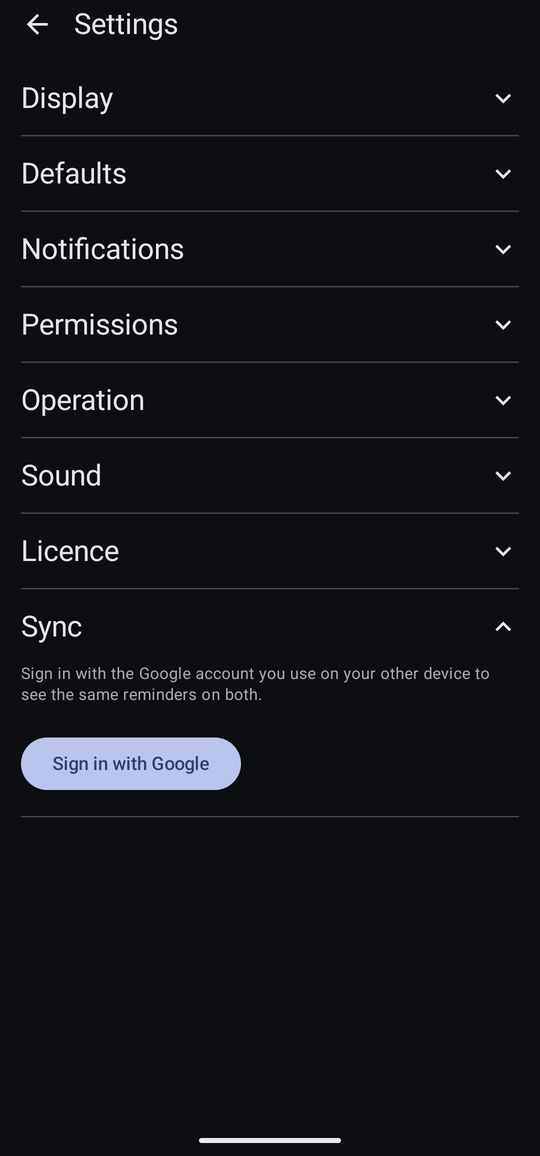
Off until turned on. Collapsed, the section explains itself in a line — “Sign in with the Google account you use on your other device to see the same reminders on both” — and a single Sign in with Google button. Signed in, it instead reads “Signed in as …” with Sign out and, once sync has actually run, when it last did. Chapter 14 covers what syncs, what does not, and the choice offered the first time a device and the account both already have something.