 Forget Me Not
The things that matter on a particular day, at a particular time
Forget Me Not is an Android reminder app for appointments, medication, the MOT and the bins. It is built around one idea: a reminder is no use unless it arrives.
Free, with no time limit. Pro is one payment — no subscription.
What it does
Most reminder apps are list apps that happen to buzz. Forget Me Not is the other way round. Everything in it exists to get a notification in front of you at the moment it is wanted, and to make the moment easy to set.
-
Reminders that arrive on time
Once, or every hour, day, week, month or year — and a weekly one can fall on several days. Mark a reminder Important and it takes over the screen instead of waiting in the notification tray.
-
Quick add from one line
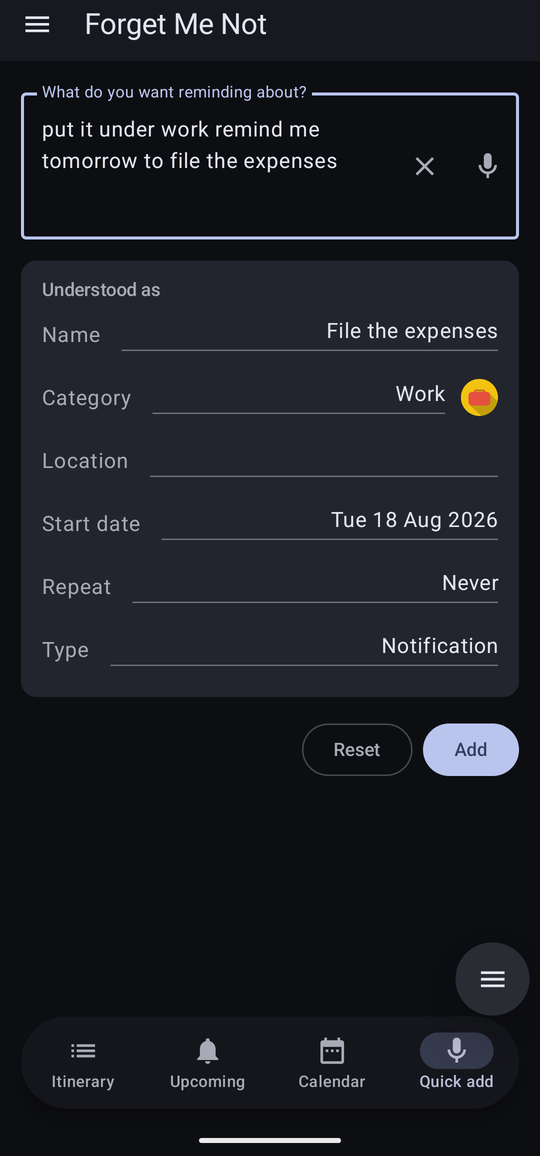
Type or say “remind me to put the kettle on at 5pm” and the app works out the name, the date, the time, the repeat and the category, and shows you what it understood before it saves anything.
-
Three ways to look at it
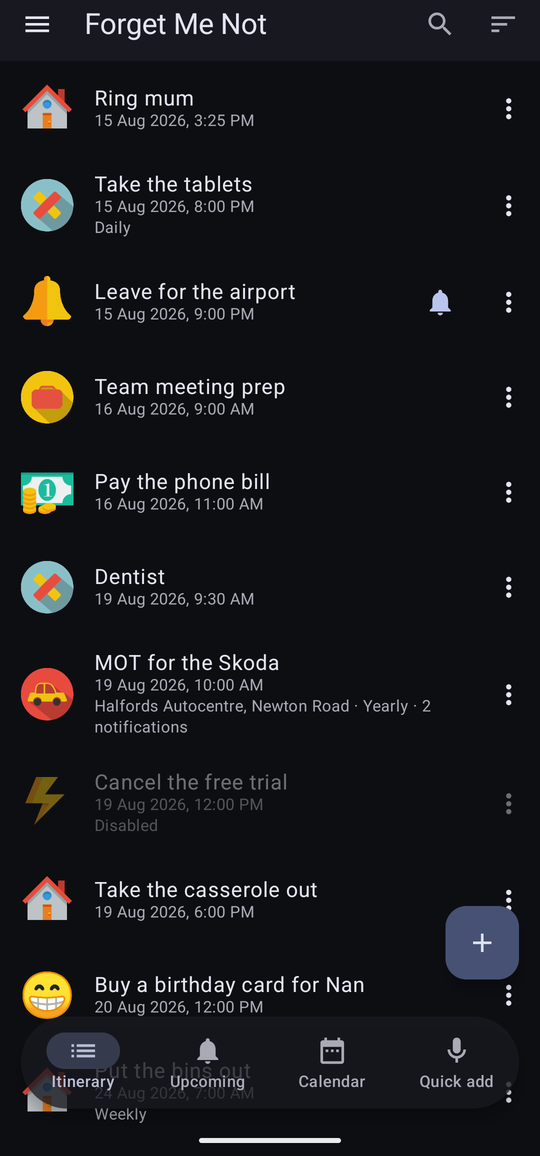
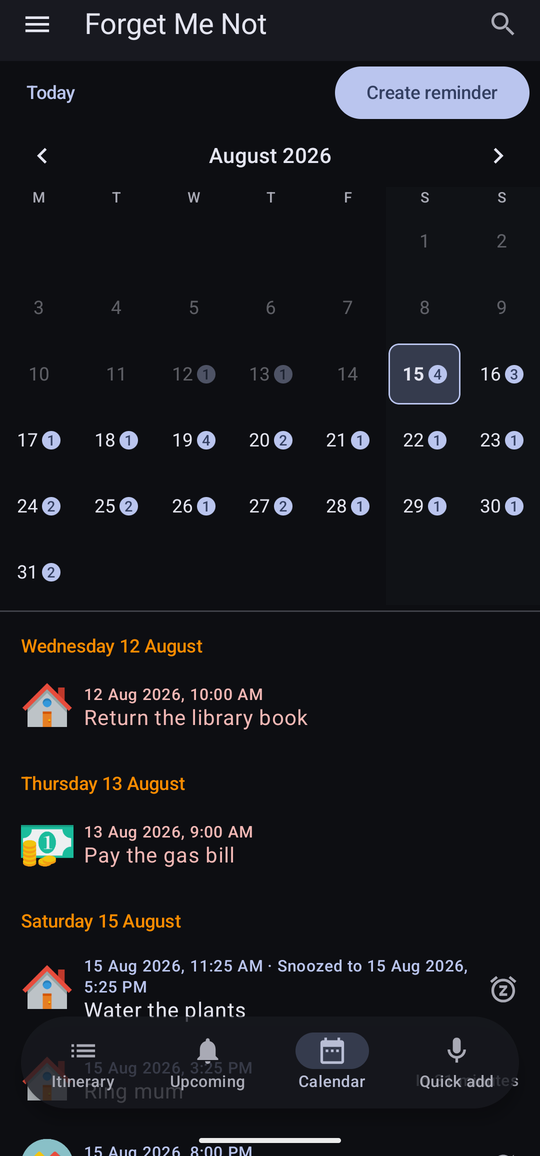
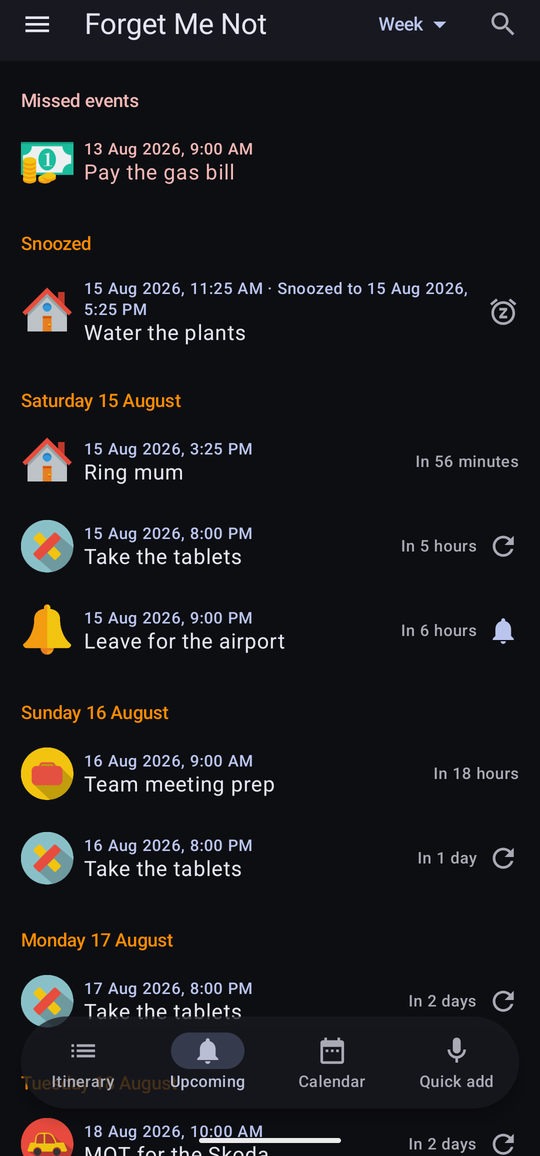
An itinerary of everything you keep, an Upcoming list grouped by day with anything missed or snoozed at the top, and a month at a time on the calendar.
-
Your categories, your fields
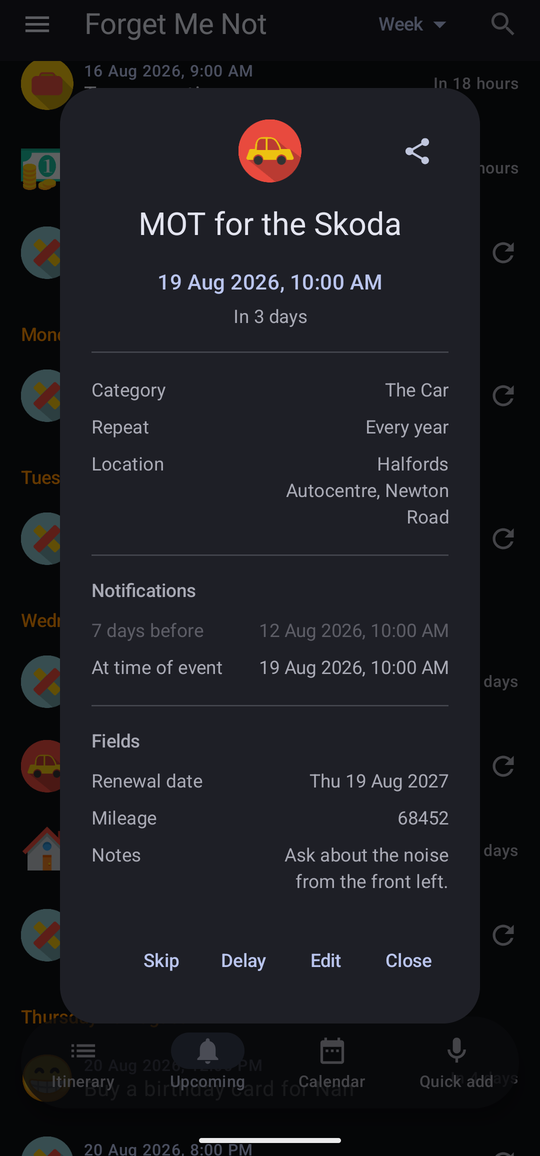
Group reminders how you like, with your own icons and your own notification sounds. Add fields the app never thought of — a policy number, a renewal date, a premium, a mileage.
-
Yours to keep and to send
Send a single reminder to somebody else as a file. Import from and export to the phone's own calendar. Back the whole app up into one zip and restore it on a new phone.
-
At home on a tablet
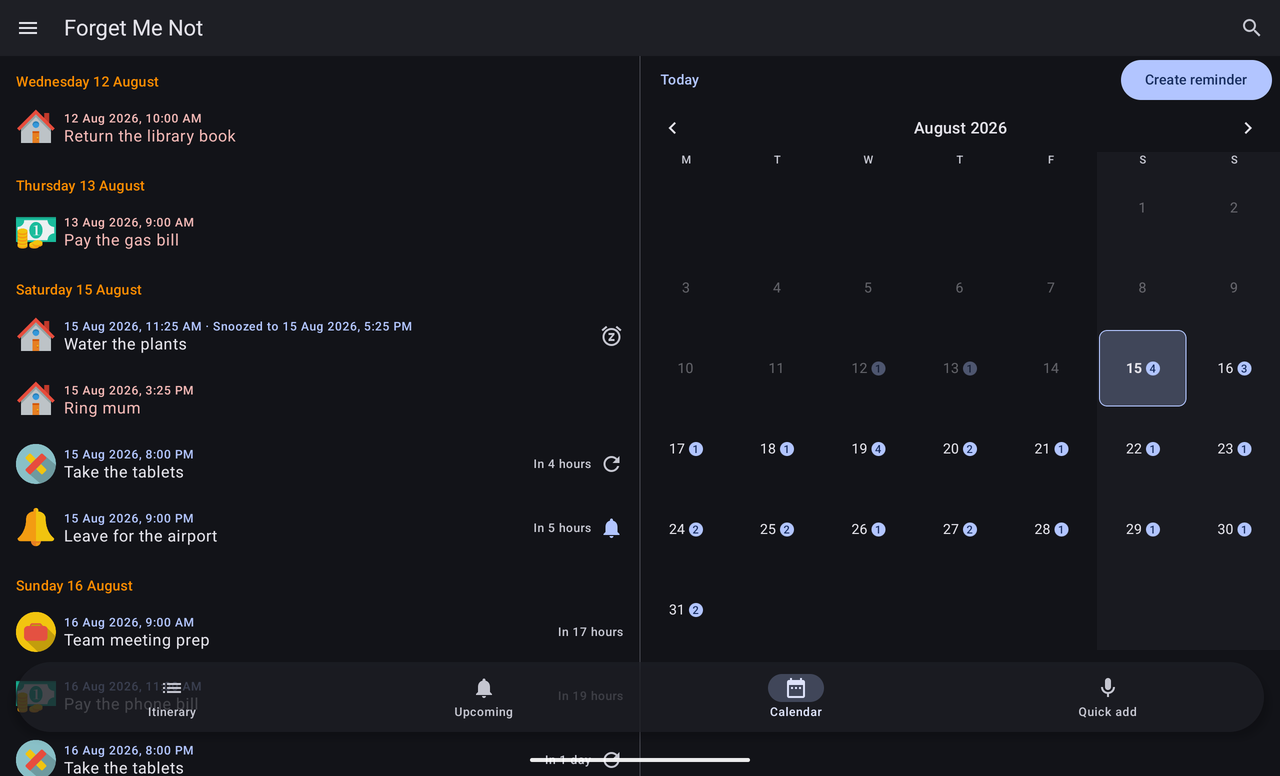
A tablet is not a stretched phone. In landscape the calendar puts the month on one side and the plan on the other, and the wider screens are laid out for the room they have.
-
Free, and no time limit
Not a trial and not a demo. Reminders, repeats, alarms, categories and your own notification sound cost nothing, permanently, with no adverts. Quick add, custom fields, backup, widgets and sync make up Pro — one payment, no subscription.
-
The same reminders on two devices
Optional cross-device sync, off until you turn it on, keeps a phone and a tablet signed into the same Google account showing the same reminders — and doubles as a backup that keeps itself up to date, even for someone who only ever uses one device.
A look around
Documentation
The user manual covers every screen in the app, with a page for each part of it. Start at Getting started if the app is new to you.
-
Chapter 1
Getting started
Installing, the welcome guide, and the Android permissions the app asks for — what each is for and what happens without it.
-
Chapter 2
Reminders
Creating, editing and deleting one. Dates, times, all-day, repeats, Important, alerts before the event, and working on several at once.
-
Chapter 3
Quick add
Saying or typing a whole reminder in one line, what the app can understand, and what it does when it cannot.
-
Chapter 4
The three views
The itinerary, the Upcoming list and the calendar — searching, sorting, filtering, and skipping a single occurrence.
-
Chapter 5
Notifications and alarms
How a reminder arrives, snoozing and dismissing it, Important reminders that take the screen, and being chased up when you do not answer.
-
Chapter 6
Categories and icons
Grouping reminders, giving a category its own icon — from one of the packs the app ships with, or one of your own — its own colour and its own sound.
-
Chapter 7
Fields
Adding information the app never thought of: text, dates, numbers and money, with defaults, icons and suggestions from what you typed before.
-
Chapter 8
Sharing a reminder
Sending one reminder to somebody else, and opening one that has been sent to you.
-
Chapter 9
Calendar import and export
Putting reminders into the phone's calendar, bringing calendar events in, and what does not survive the trip either way.
-
Chapter 10
Backup and restore
Taking the whole app away in one file, and putting it back — on this phone or a new one.
-
Chapter 11
Settings
Every setting in the app, section by section, and what changing it does.
-
Chapter 12
Troubleshooting
Reminders that do not arrive, arrive late or arrive silently — and how to work out which it is.
-
Chapter 13
Free and Pro
What the free app does, the eight features that make up Pro, the twenty-reminder allowance, and the one-off thirty-day trial.
-
Chapter 14
Cross-device sync
Keeping the same reminders on a phone and a tablet through your Google account — what syncs, what stays put, and the choice offered the first time both already have something.
-
Chapter 15
Widgets
Three home screen widgets — what is due next, everything due today, and a one-tap way into quick add — adding one, and giving it its own background and text colour.
Change history
What has changed, in terms of what you can do with the app. The version number is shown at the top of the navigation drawer and in About.
-
Version 1.1September 2026
- The app is now free, with no time limit. The fourteen-day trial is gone, and so is everything that enforced it — nothing expires, no screen interrupts you to ask for money, and reminders are never hidden or held back. Reminders, repeats, alarms, notifications, categories, icons, sharing, search and your own notification sound are free and stay free.
- Eight features make up the new Pro tier, which is one payment and no subscription: custom fields, backup and restore, calendar import and export, a different sound for each category, a reminder's own notification icon, cross-device sync, home screen widgets, and voice to reminders — which you can still try on Free, since dictating and seeing what the app understood works and only the Add button is refused. See Free and Pro for the whole list.
- Home screen widgets are now part of Pro. A widget placed while you had Pro, or the trial, stays exactly where it is and keeps the colours you gave it — on Free it simply shows nothing, and its own settings say why.
- Free holds twenty reminders at a time. If you already have more than that, you keep every one of them and they all go on firing — only adding a new one is refused. A reminder that has been and gone stops counting, so the room comes back on its own.
- Nothing you make on Pro is ever deleted. Custom fields and everything in them, per-category sounds and sync settings are all kept if you go back to Free. Each reminder gains a Pro Settings section showing you its own fields, kept but not changeable, so the promise is something you can see rather than take on trust.
- Pro can be tried free for thirty days, once per device. It does not start by itself — the clock begins only when you ask for it — no card is taken, and there is nothing to cancel.
- Free and Pro is now a row of its own in the drawer, under Configuration. It used to be a section at the foot of Settings.
- Fixed: home screen widgets showed nothing at all. A placed widget came out as an empty, transparent frame that still opened the app when tapped. This affected every released version since widgets were added (issue #55).
- Fixed: coming home from a trip abroad no longer resurrects dismissed reminders. A change of time zone could bring back every repeated reminder you had already dealt with, and fire them all again.
- Widgets can now be placed properly from the launcher's widget picker, and the Quick Add widget can be given wording of your own instead of "Quick add" (issue #52).
- Quick add understands more: which category to file it under ("put it under work"), a location ("when I get to the pharmacy"), "every weekday", and more ways of saying something is urgent — "this is important", "priority reminder", "high priority" — which now mark a reminder Important (issue #47).
- Fixed in quick add: "every month" was being read as every Monday, and a spoken hour — "Saturday at ten" — was not being read as a time at all, which mattered most when dictating.
- Reopening the app offers an update again, rather than only after killing it and starting it cold (issue #44).
- A new install no longer opens on a blank list. The Itinerary and Upcoming screens now say what each is for until the first reminder exists, with a Create your first reminder link that does the same as the add button (issue #57).
- The first reminder you make is explained as you go: a line under every option in the editor, and in every dialog behind it, saying what it is for and whether it is optional. It stops of its own accord once that reminder is saved (issue #58).
-
Version 1.015 August 2026
- Out of beta: the version number no longer carries a Beta tag, in the drawer or in About.
- The app now checks Google Play for a newer version each time it opens, and offers Update now if one is out (issue #41).
- Snooze and Delay have their own icons on the Upcoming list, so a glance says which is which, and a plain row that is neither now says how far off it is — “in 3 days” rather than just the date (issue #3).
- A Delay button sits beside Snooze on an occurrence's summary panel, for pushing a reminder back before it has even fired rather than waiting for the notification to ask (issue #39).
- Snooze's ready-made durations — 10 minutes, an hour and so on — apply the moment you tap one, instead of waiting for a further confirmation (issue #40).
- A new switch under Settings → Notifications, Snooze from the original time, counts a snooze from when the reminder was due rather than from when Snooze was tapped (issue #38).
- Backup and restore now carries your settings as well as your reminders, categories and fields (#30).
- About's support and website rows now read Support E-Mail and View Documentation instead of showing the raw address and URL (#36).
- Settings shows each permission's status in colour — green for allowed, red for not — so the ones that need attention stand out (#29).
- A category's own notification and Important sounds get their own full-width line each, rather than sharing one with a label that crowded out longer sound names (#35).
- Fixed: quick add leaving “of next month” stuck on a reminder's name; the Dictate button going quiet with no explanation after the microphone permission was declined; tapping a fired notification landing on whatever screen was last open instead of that reminder; the calendar's Create reminder needing a day tapped by hand even though today was already selected; and a six-week month's days overlapping in the calendar on a phone turned sideways (issue #42).
-
Version 1.0 beta8 August 2026
- Three packs of colour icons now ship inside the app, under Choose icon → Icon packs… on any category or field: Small & Flat, 169 everyday objects, Noto Smileys, 109 emoji faces, and Colorful Long Shadow, 199 objects in a bolder style. A category can look like something without your going off to find a picture first — see Icon packs in the manual, and Credits for who drew them.
- The app is now free for fourteen days and then bought once. Everything works during the trial; after it, reminders are hidden and calendar import and export stop until the app is bought. Nothing is deleted, and buying it brings everything straight back. (Superseded in 1.1: the app is now free with no time limit — see Free and Pro.)
- How long is left, and the button to buy the app early, are in Settings under Licence, at the foot of the screen.
- The app now asks Google Play whether it has been bought, which is the only thing it uses the network for. Being offline never takes the app away from somebody who has paid for it.
- A category that is in use, or that quick add or alarms are set to file things under, can no longer be deleted — the app says which it is and what to do about it, rather than leaving reminders or a setting pointing at something that has gone.
- The reminder editor says which answers it is waiting for. A name and a category are both needed before a reminder can be saved, and each now says so while it is empty — and a new reminder starts in a category rather than none, so the commonest way of being stuck no longer happens.
- The drawer says where you stand, under the version number: (Unlicensed) in red with the days of trial remaining, or (Licensed) in green once the app has been bought.
- A beta build says so beside its version number, in the drawer and in About.
-
Version 0.0.598 August 2026
- Several Important reminders falling due at the same minute now share one screen, each with its own name, time, Snooze and Dismiss — instead of two panels racing, or the second quietly replacing the first. A third that falls due while the screen is up joins it rather than opening another.
- An Important reminder you walk away from is left waiting in the notification shade, with Snooze and Dismiss, rather than vanishing with the screen.
- When several reminders fall due at the same minute, one sound plays rather than one from each.
- A reminder that repeats because nobody answered it now sounds every time, not only the first.
- The calendar's weekend shading is easier to see in the light theme.
- About now carries a link to this website, and the share button in the occurrence panel has moved to the left where it belongs.
-
7 August 2026
- About added to the drawer: the version, the support address, and who made the app.
- An ordinary notification now confirms that it has been dismissed. It has no screen of its own to say so on, so it says it as it goes.
-
4 August 2026
- A welcome guide on first run: what the app is for, and then one page per Android permission saying what it is needed for and what happens without it. Any of them can be skipped, and the guide can be run again from the foot of Settings.
- A new install arrives with a Notes field already made, so there is somewhere to write one without having to invent the idea of a field first.
- An alert set for a while before the event now warns by the interval it was given.
-
3 August 2026
- Quick add: type or dictate a whole reminder in one line and the app works out the name, date, time, repeat and category, showing what it understood before saving.
- An alarm asked for in one line interrupts, because that is what an alarm is.
- A reminder can be sent to somebody else as a file, and one that arrives can be opened, changed and saved.
- A category can have its own notification sounds, and one category can be marked as the one alarms are filed under.
- Names are kept unique: one category to a name, and one reminder to a name and a moment.
- The calendar lays itself out along the window in landscape, month on one side, plan on the other.
- Share and Duplicate moved onto each row's own menu on the itinerary.
- The app has a version number, shown in the drawer.
-
2 August 2026
- The itinerary can be read by name and by category, not only by date.
- Snooze asks how long rather than assuming ten minutes.
- A reminder nobody answered is announced again, a set number of times and a set interval apart.
- The app says when Android has quietly demoted an Important reminder, and offers to ask for it back.
- A standing arrangement — a daily tablet, a weekly bin day — can be kept off the Upcoming and calendar views without stopping it firing.
- The app opens on whichever view you actually plan the day from.
-
1 August 2026
- A reminder's fields can be arranged into an order, and it can hold the same field more than once.
- Opening a date on the schedule says what will actually happen on it, and lets a single occurrence be skipped without touching the rest of the series.
- The whole app can be taken away in one file and put back.
- An early notification says what it is early about, and is delivered at all.
-
29–31 July 2026
- Reminders can be imported from and exported to the phone's own calendar.
- Several reminders can be picked off the itinerary at once and given a category, given one set of notifications, or deleted together.
- Search on the reminder, category and field screens.
- Categories and fields gained icons — built-in ones, or a photo of your own, cropped.
- The calendar gained buttons, weekend shading and a swipe from month to month.
- A weekly reminder can fall on several days of the week.
- A reminder can be kept out of import and export altogether.
-
28 July 2026
- The first build: reminders with dates, times, repeats and categories, an itinerary, an Upcoming list and a calendar.
Support
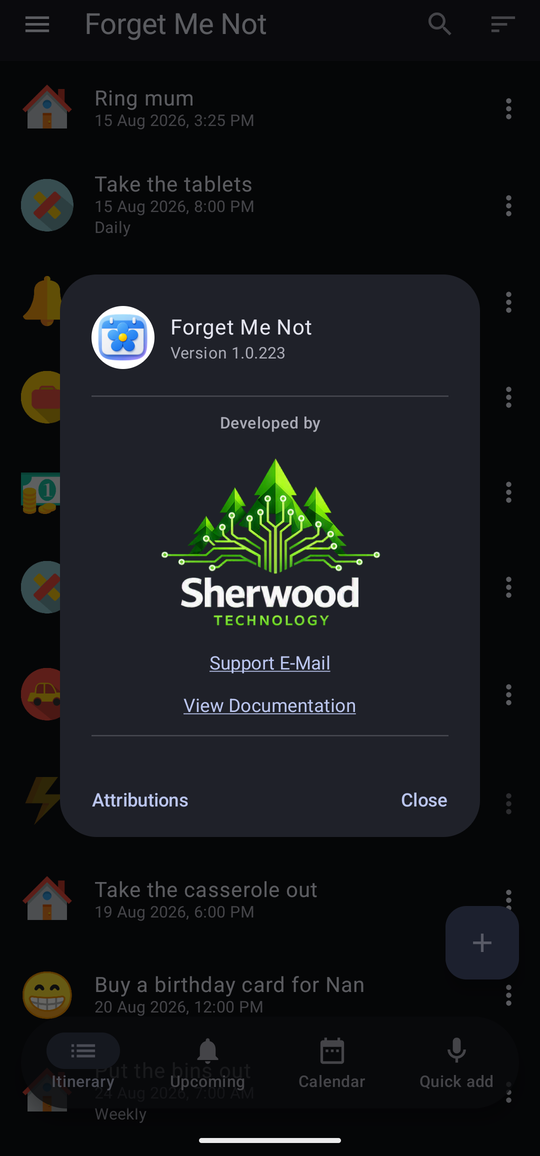
If something is wrong, or the app does not do what you expected, write to support@sherwood-tech.co.uk. The same address is in the app, under About at the foot of the drawer's Configuration section.
It helps a great deal to say which phone or tablet you are using, which version of Android is on it, and the version number shown at the top of the drawer. If a reminder did not arrive, say what it was set to and what actually happened — those two together usually tell the whole story. Troubleshooting covers the common causes and is worth a look first.
| App | Forget Me Not |
|---|---|
| Price | Free, permanently. An optional Pro tier is a one-off purchase — no subscription |
| Made by | Sherwood Technology |
| Support | support@sherwood-tech.co.uk |
| Website | www.sherwood-tech.co.uk/forgetmenot |
| Needs | Android 8.0 (Oreo) or later, on a phone or a tablet |
| Advertising | None, and no tracking or analytics either |
| Your data | Stays on the device by default. There is no account to sign in to unless you choose cross-device sync, an optional feature that is off until turned on. Left off, the app reaches the network for one thing only — asking Google Play whether Pro has been bought — and your reminders are no part of that conversation, which is why taking a backup still matters. The privacy policy says all of this formally, sync included. |